One of my build plates has had some damage (Biqu Panda smooth PEI) due to adhesion. I’d like to define some kind of “non-printing object” with specific X/Y location and size that I could “drop” onto my build plate that would show me where to avoid when placing objects to be printed.
Sounds like it is easier to buy a new build plate
That was what I did when I messed up my original plate with glue. No sense beating a dead horse. 
One thing you could do is set up a custom machine profile, that allows you to set an image as your build plate. You’d just mark the image file with the area you want to avoid prior to uploading.
I like the ability to print on plate A, then when done, pull Plate A and print on plate B while Plate A is cooling/etc.
YES of course I know I can buy new plates but I dislike tossing it when there’s only one spot that is unusable.
Is this Machine Profile/Image file a Bambu Studio thing? Any idea where this hides?
I get it. How severe is the damage? Where on the plate?
Personally, it is just something that I do not see the value in dealing with when you can replace the plate for 20 USD on Amazon.
You can define that area in your printer setting under “bed exclude area”. Unfortunately you can only define one area.
You add the corner coordinates of the area as follows:
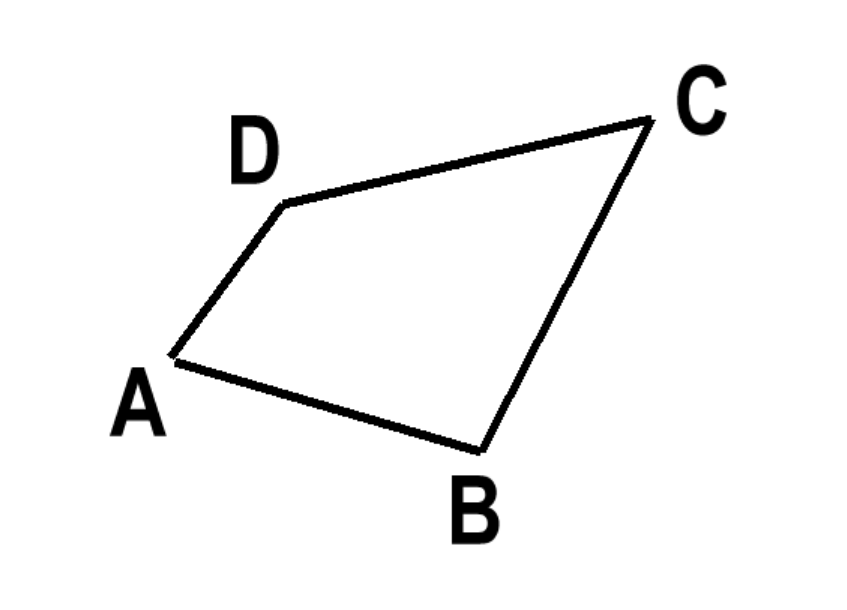
You use A, B, C, D locations in X and Y coordinates and you add them in the bed exclude area of your printer settings. You save that new printer settings with a new printer name that you will use when you select your damaged plate.
The format in the exclude area will be XAxYA, XBxYB, XCxYC, XDxYD
XA being X location of A, YA Y location of A etc…
Example on my H2C:
A is at (XxY) 156x170
B is at 200x156
C is at 230x200
D is at 170x190
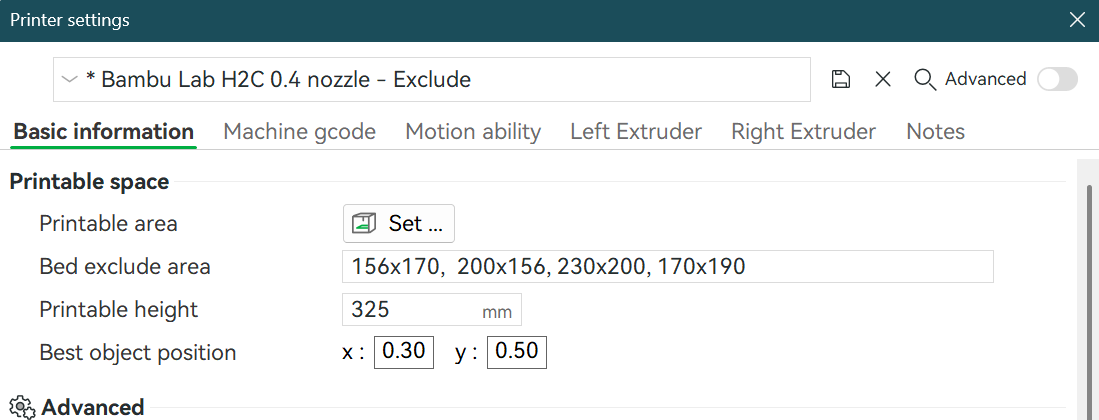
Syntax is then 156x170, 200x156, 230x200, 170x190
Here is the input in printer settings
And the resulting area in prepare and preview tab
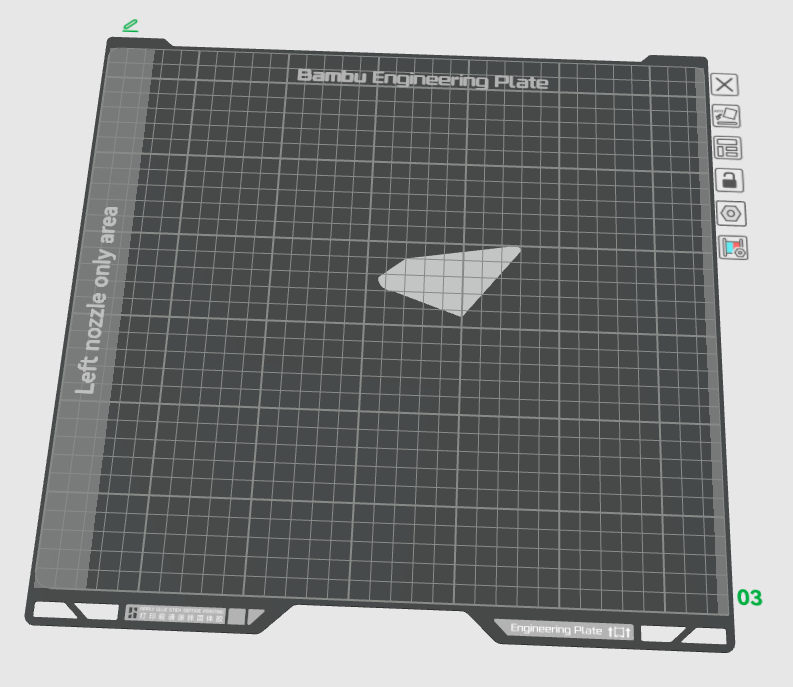
Again, you can only define one single area and sometimes, you get rounded corners like in my example or strange non linear or broken curves so try do your your best with the coordinates 
I think that will do it, I’ll check it out.
THANK YOU!
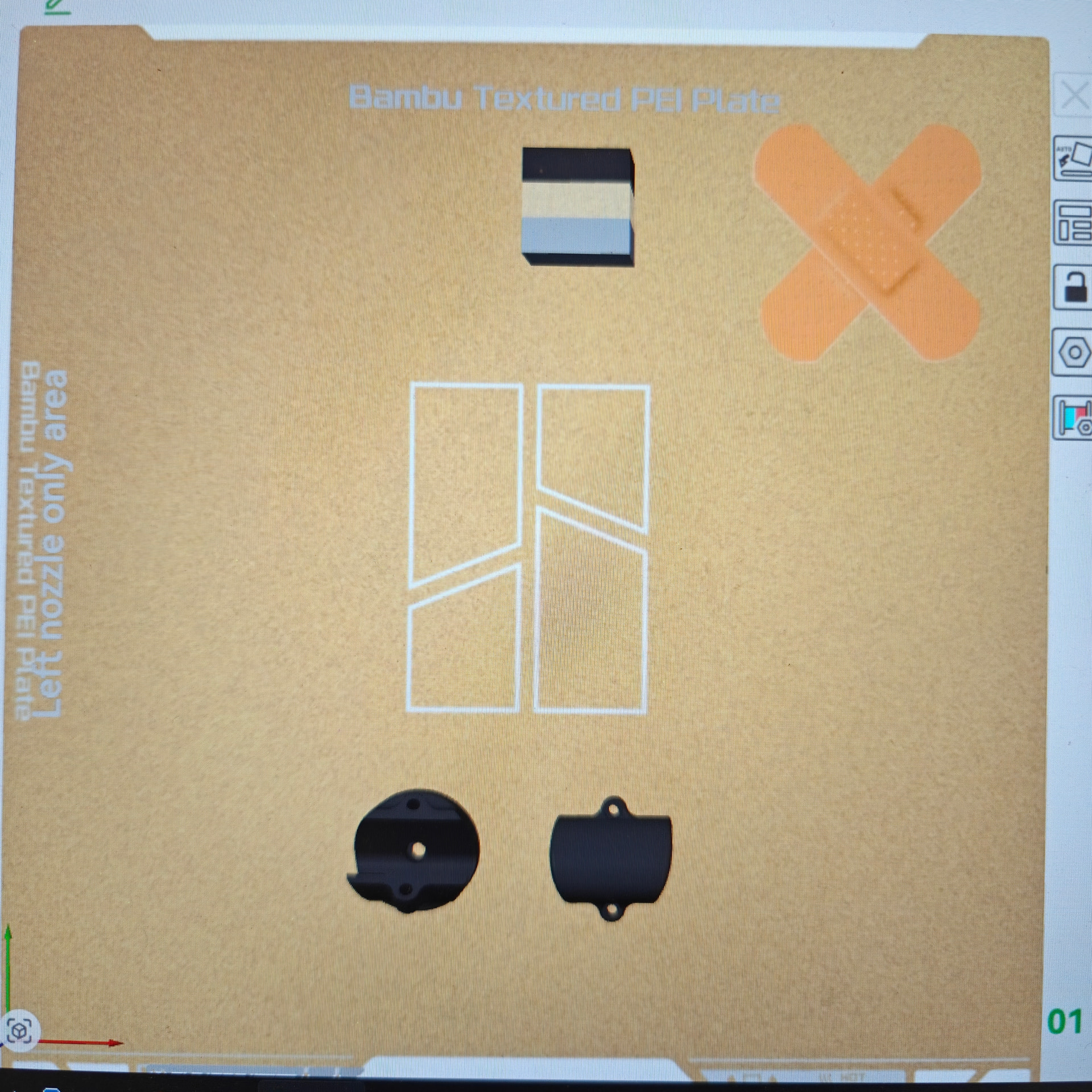
thanks I’ll kick those tires!