When one of the pull-down menus is selected, a drop-down menu results which is used to select which option is desired. The problem is that the pull-down menu takes up a good portion of the screen (i.e. the cut plane for example) and while manipulating the actual cut plane location (after entering the parameters) you have to work around the drop-down menu (and loose that portion of the working screen). Is there a way of collapsing these menus while still working on the screen graphics?
It would help to know your operating system, screen resolution, and which version of Bambu Studio you’re running. A screenshot of what you’re seeing would also be very useful.
Unless you’re on an older laptop with a very low-resolution display, this sounds like a resolution scaling issue with how the app is being rendered. There’s a way to override this in Windows, but before going down that path I need the details above.
I’m using most up -to-date version of “Windows 11 home” at resolution 1920 x 1080. For the example I gave the “CUT” menu when accessed takes up about 1/4 of the working screen (see attached) and sits in its middle. Once all parameters are filled in I’d like that menu to collapse so I have the full grayed work area available to adjust the cut plane. Thank you in advance for your reply!!

I think I see the problem.
Here’s an image that is scaled at 1920 x 1080. Note that the drop-down menu is proportionally smaller than yours. This is influenced in two areas, one is the display resolution in windows 11. You likely have it set to the default which may be 200%. It will scale all windows and artifacts accordingly. Try changing the scale to 100%.

The second area that this can be controlled is in the properties themselves. Go to the app and right click on properties, then click on compatibility. Change DPI settings and experiment with each one.

Note that the Open Advanced Scaling Settings will take you to the Windows Setting for your display just like if you had right-clicked on the desktop.

I’m sorry but this is broken. This needs to be fixed. Changing resolution and scaling for a single application is not an acceptable answer. Even setting it to Application changes Windows resolution.
[quote=“MPIZZI, post:5, topic:190113”]
I’m sorry but this is broken. This needs to be fixed
[/quote]
Yeah, well… good luck with that.
I agree it sucks, and as someone who regularly deals with this BS on an 8K monitor, I truly hate it. But this DPI override dates back to the Windows 10 Creators Update in 2017. It was an application-compatibility mechanism intended largely to deal with desktop applications that did not properly handle high-DPI scaling. It was never intended to be a permanent Band-Aid for poorly written software.
At the end of the day, you’re asking a commercial company, Bambu, to invest engineering resources fixing open-source software and compensating for shortcomings in its UI architecture. The question remains: what’s in it for them? Their product works well enough, this problem clearly isn’t stopping printer sales, and users can already resort to Windows compatibility settings. From Bambu’s perspective, where exactly is the business case for fixing it?
Believe me, I am no supporter of Bambu, or any 3D-printer company’s lack of software support. But having recently moved over to Creality, which also uses its own Orca-derived slicer, I can tell you it isn’t any better over there. I’ve seen the same class of high-DPI problems across Orca-derived slicers and other slicers descended from these established open-source UI architectures. Expecting Bambu alone to swoop in and solve the underlying problem is probably an exercise in futility.
If anyone knows of a genuinely commercial slicer that handles this properly, I am all ears. The obvious established paid alternative is Simplify3D, which does support a range of Bambu printers, but Simplify3D has its own checkered history when it comes to maintaining and advancing its paid product.
And even if a third-party developer solves it, there is another problem: Bambu controls the printer interface. Bambu has already changed its firmware and authorization architecture in ways that restricted the direct access third-party software such as OrcaSlicer previously had, requiring those developers to work through Bambu-controlled mechanisms such as Bambu Connect and its network plugin. Bambu calls that security. Whatever label you put on it, the practical result is that Bambu retains the ability to change the rules of the sandbox after third-party developers have invested in supporting it.
So if I were a commercial software developer looking at Bambu support, I would have to ask myself two questions: How much money am I going to make fixing problems Bambu itself has little financial incentive to fix, and how confident am I that Bambu won’t change the interface underneath me six months later?
That is not exactly a compelling business proposition.
Sorry to seem a bit dense, but I could you expand on your post from a year ago about the Compatibility mode? I have been messing with those settings for Bambu Studio, but they don’t seem to affect the visuals of the application.
I’m using 3840x2400 display with 300% Text. The menu on the left side of BS is so crunched I can’t read it.
I’m not sure I can reduce it down any further but perhaps check out this video as it provides a visual representation of the steps.
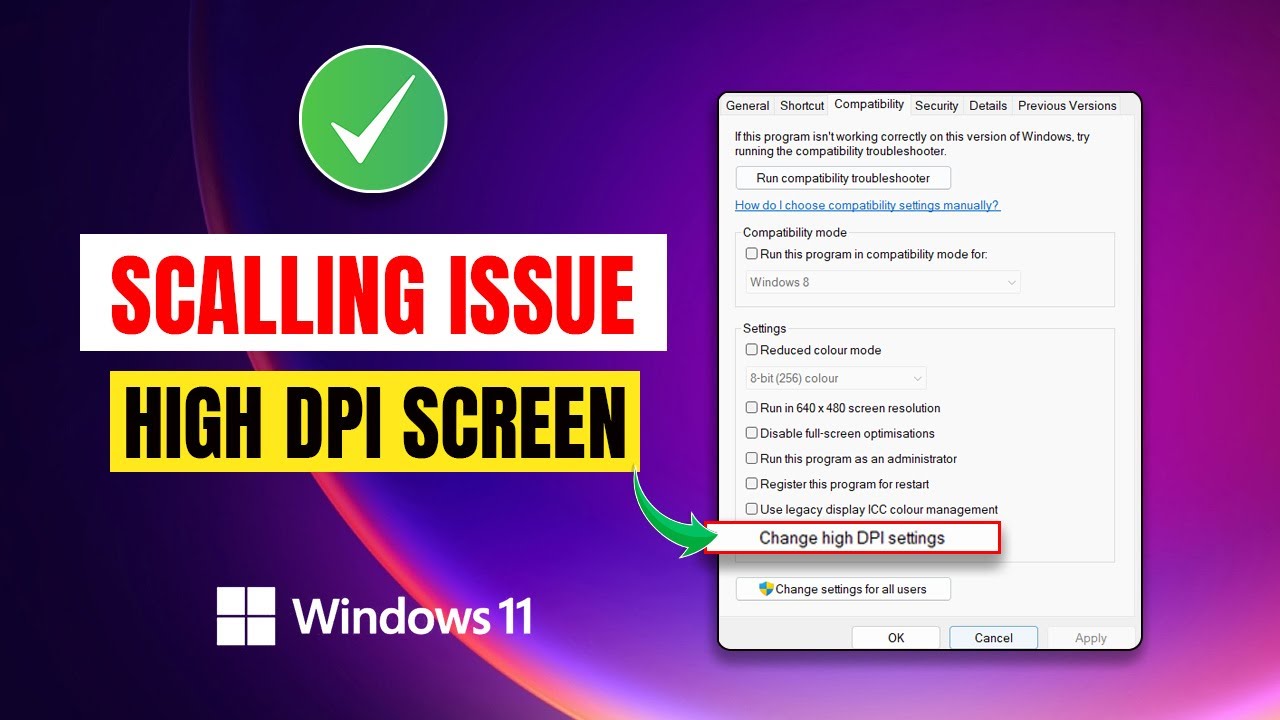
The one thing I might suggest. If you’re making the changes and you’re not seeing anything change, you’ll want to completely exit the program and start up after each change. There are three possible combination of high DPI, each one should be tried and the app restarted before trying the next.