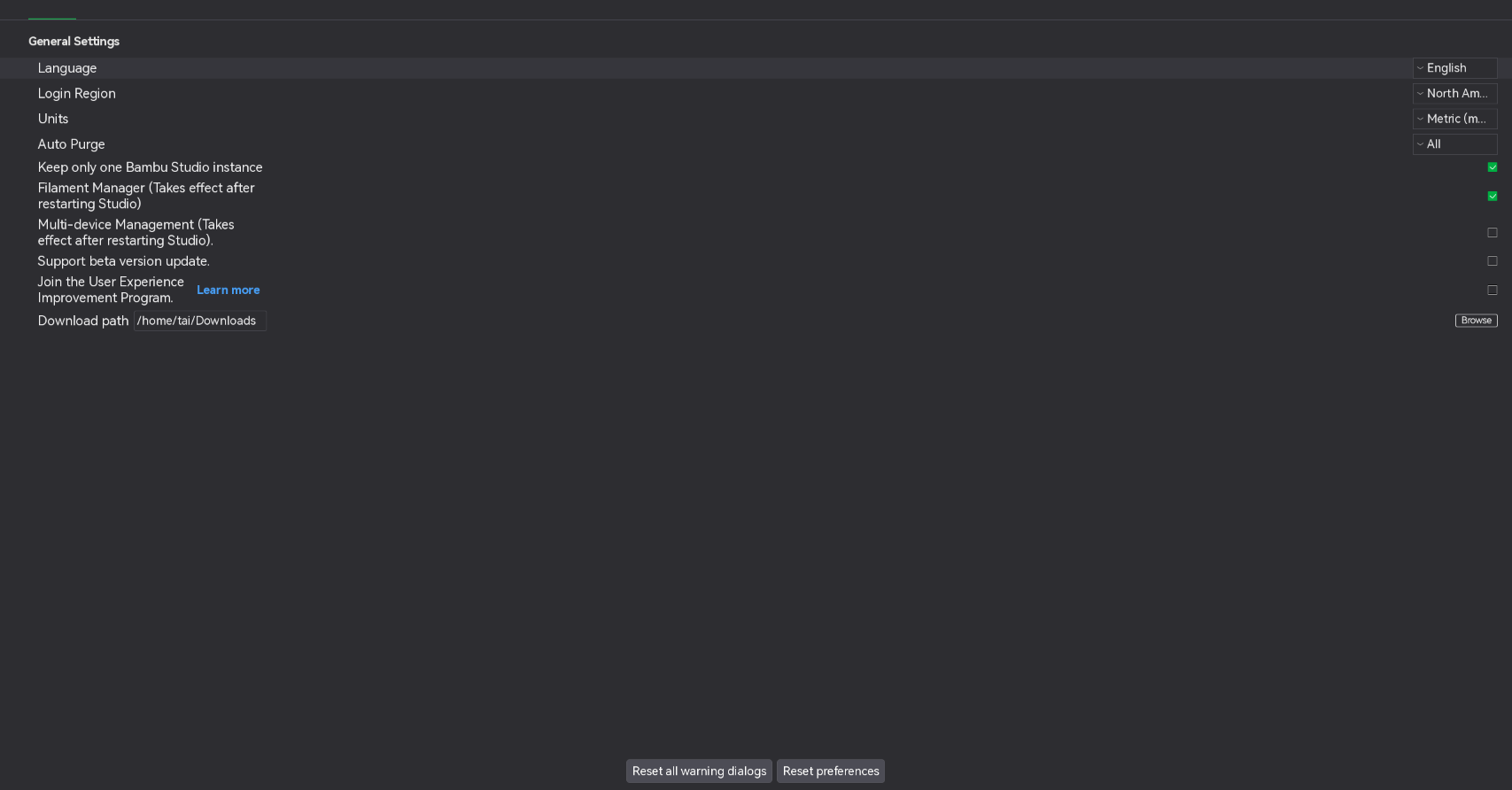
I’ve seen a few posts with what looks like a dark mode. Im wondering if and how im able to enable this,
Go to the drop down in the top left corner and select Preferences

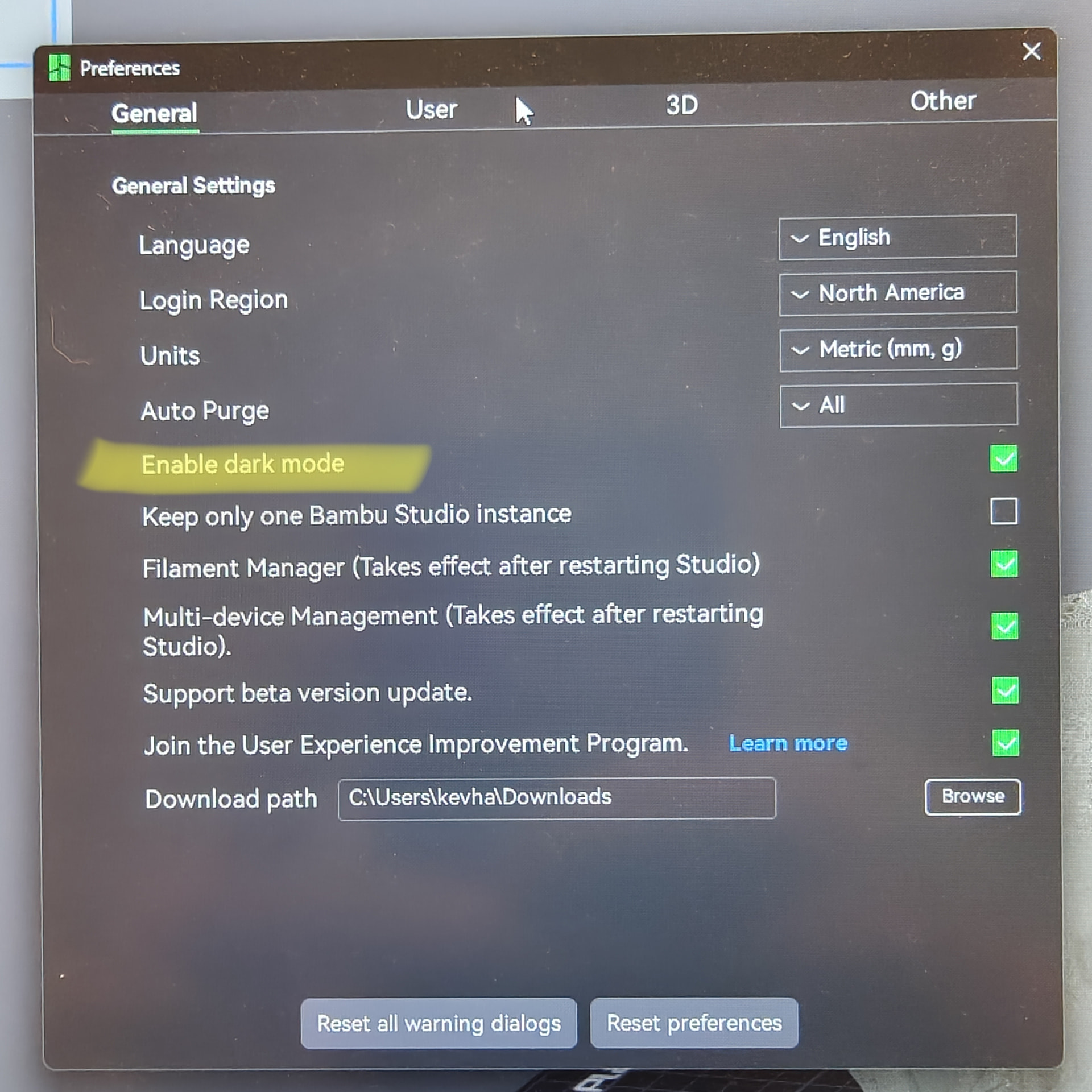
Once the Preferences dialog box opens, scroll down until you see the Dark Mode section. Select Enable dark mode.

You could poke yourself in the eyes, it has a similar effect to dark mode.
I got it in dark mode but all my sub menus are still white. I cant see any of the options to click on? How can you fix this?
Maybe you computer also needs to be in Dark Mode.
To get Bambu Studio to display in the correct dark mode, you need to set the GTK_THEME environment variable to Adwaita:dark. Here’s how you can do it:
-
Set the Environment Variable:
- Before launching Bambu Studio, you need to set the
GTK_THEMEvariable toAdwaita:dark. This ensures that the application starts in dark mode.
You can set this in the terminal like this:
export GTK_THEME=Adwaita:dark
./bambu_studio
This will start Bambu Studio with the dark theme.
- Before launching Bambu Studio, you need to set the
-
For KDE Plasma:
-
If you’re using KDE Plasma, you can set this environment variable directly in the application launcher.
-
Right-click on the Bambu Studio application in the KDE Plasma launcher, then select Edit Application.
-
In the Environment Variables section, add a new variable:
GTK_THEME=Adwaita:dark -
After adding this, whenever you launch Bambu Studio from the application launcher, it will automatically open in dark mode.
-
By doing this, Bambu Studio will start with the proper dark theme without any additional configuration after the initial setup.
The KDE Plasma instructions worked fine Ferdora 44. Thank you!
Thank you! This also works for Flatpaks!
Same as @Bink3D above, this worked for the Flatpak version, under CachyOS with KDE Plasma. Separate field from the program or command-line arguments, worked immediately.
I also noted that the checkbox is just not there from the @RandomKhaos post. At least in the Flatpak version 2.7.1.62, the menu in his screenshots just plain doesn’t exist.
BTW, I’m pretty sure the checkmark for dark mode in Bambu Studio is simply missing for a while now. However, I do remember using this option in the GUI at least 9 months-1 year ago.
I had some trouble with making the dark mode persistent with COSMIC DE on Arch Linux, since declaring $ GTK_THEME=Adwaita:dark as an environment variable in a terminal emulator every time before launching Bambu Studio (which lasts only while said terminal session open) is rather tedious long term.
Since Bambu Studio uses GTK3 and COSMIC uses Wayland, the usual methods of adding environment variables to X11/Xorg configuration files (such as .profile or .bashrc) won’t work. Since there isn’t a GUI menu (yet) to modify environment variables in COSMIC (like in KDE Plasma, as of writing), the persistent method is to modify the GTK3 configuration file:
- Find the user-specific config file at:
$XDG_CONFIG_HOME/gtk-3.0/settings.ini.- Often, its explicit form is:
~/.config/gtk-3.0/settings.ini. - If this file doesn’t already exist, then create it.
- Often, its explicit form is:
- With your text editor of choice, modify the content of user-specific file so it has at least the following title line and option line, respectively, and then save the file:
-
[Settings]
gtk-application-prefer-dark-theme = true
-
This will also force all installed GTK3 apps, besides Bambu Studio, to use dark mode, on your Linux system.
I recognize you’re taking about a Linux session, this may not be useful for your situatuob but it should be mentioned for all that Studio reorganized the preferences menu awhile ago, or maybe I should say organized as it was a single long screen before, now it’s a tabbed menu, with this checkbox being in “General” now.
Another method that only works on Bambu Studio itself is to make a user-specific dekstop entry for Bambu Studio and modify the execute line with the dark mode environment variable:
- Run the following:
-
$ mkdir ~/.local/share/applications    # only if this directory doesn't already exist
$ cp /usr/share/applications/BambuStudio.desktop ~/.local/share/applications/BambuStudio.desktop
-
- Modify the application execute line, which by default looks like:
-
Exec=/usr/bin/bambu-studio %U -
Change this to:
-
Exec=/usr/bin/exec GTK_THEME=Adwaita:dark /usr/bin/bambu-studio %U
-
I used the ArchWiki article on desktop entries for ths method.
A bit off-topic of this thread, but maybe this GitHub issue should be looked into, as it has been open since November 2025?
(I’m currently experiencing some sort of UI/UX bug where I can’t access those tabs anymore. This is what I’m seeing right now (though maybe I am overdue for a cold restart):
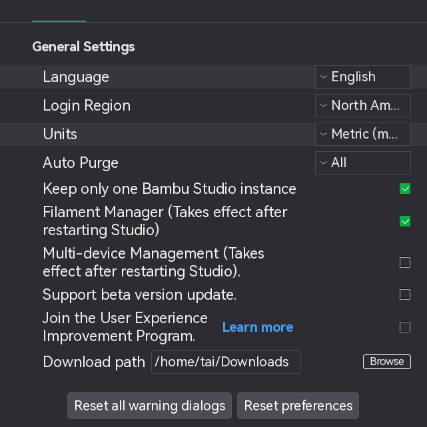
Maximizing doesn’t seem to help: