Newbie here, why does my model slice like this? Not seeing a reason or edge? it cause a lot of color changes? Thanks.


1 Like


That’s just how it’s printed and identified. Outter walls, inner walls, etc etc, each type of line that is laid, is defined.
Helps to identify for better granular control of how a print turns out.
Thank you, I understand that, but why is it happening?
Are you able to upload the .3mf file? It will be easier to explain.
Chippewa Sports Logo.3mf (142.4 KB)
Any ideas of the issue? I wonder if it’s is gaps in the SVG?
You appear to be caught by a painting bug that occurs when you take the route you took.
You can fix it and make your world far easier by doing the same.
Group all the red parts together as a single object (the same with black and yellow) and export them as three separate objects. Set their height to how far you wish them to be printed, NOT the same height as the white.
Group all the white together and export with the full height you want.
Import all together into BS and agree they should be grouped/merged.
Go to the objects panel, set the red object to red, and so on. Do NOT paint, it takes time, can cause errors in this use and is unnecessary.
Drag the white part to the top of the objects, and move the others below, like this (as an example).
- White
- Black
- Red
- Yellow
If you group the exports correctly, everything will work the first time, every time.
1 Like
Just to build on what @MalcTheOracle has said,
There seems to be an issue with objects 1 (Black) and 51 (Red)
None of the objects fail to paint, have manifold or other obvious issues when split it is only when they are merged.
Thus, the suggestion above would mean the issues you experienced couldn’t possibly occur.
Slicing with these two objects included produces the internal void

Slicing with objects 1 and 51 remove and there is no issue.
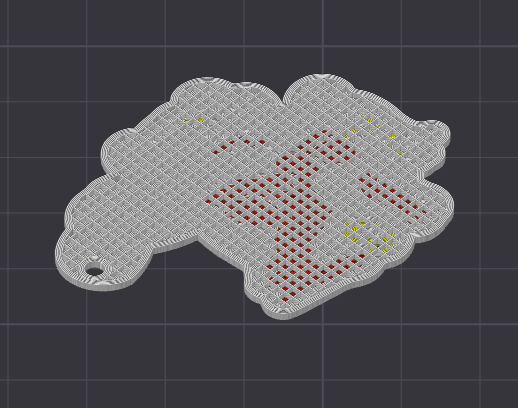
Hence why I concluded that objects 1 and 51 are generating the issue.
Agreed, when merged they generate the error experienced as I stated.
When you split the model into objects and arrange them on the plate (to avoid conflicts), slicing no longer generates the error.
1 Like
Thank you for the answer and the lesson on the correct way to make these prints! These multicolored plates seem to be a big hit, but I have struggled getting them correct. Thanks again!
You are welcome.