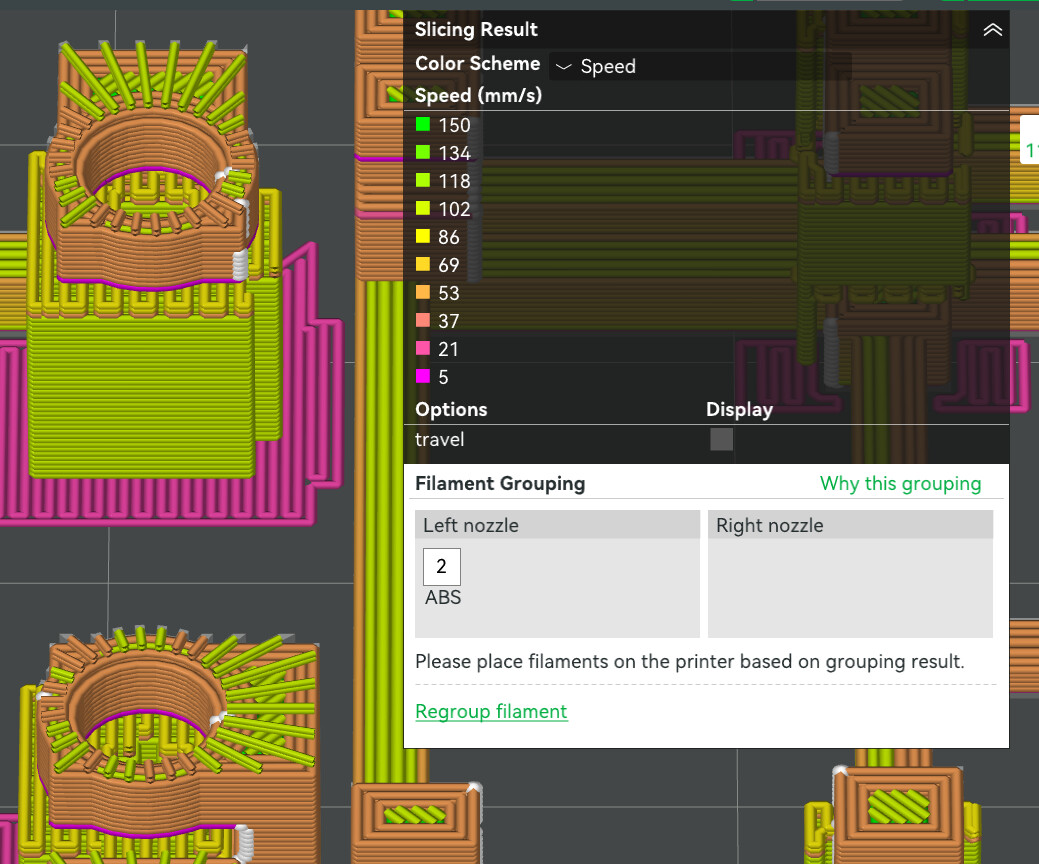
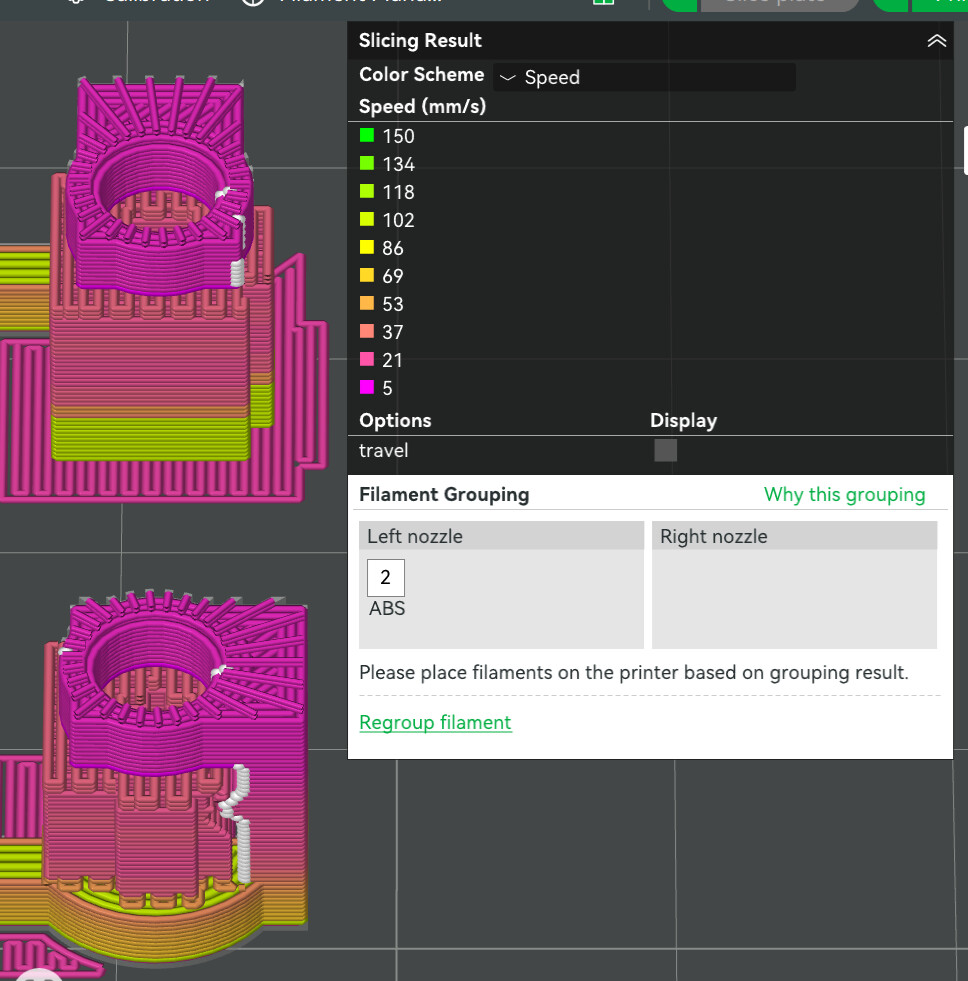
Here’s the print speed when one part is on the plate
And here’s the print speed when I have 10 of them copied by ^C
Problem here is that the holes MUST be printed as slow as possible like it shows on the first pic in dark magenta color.
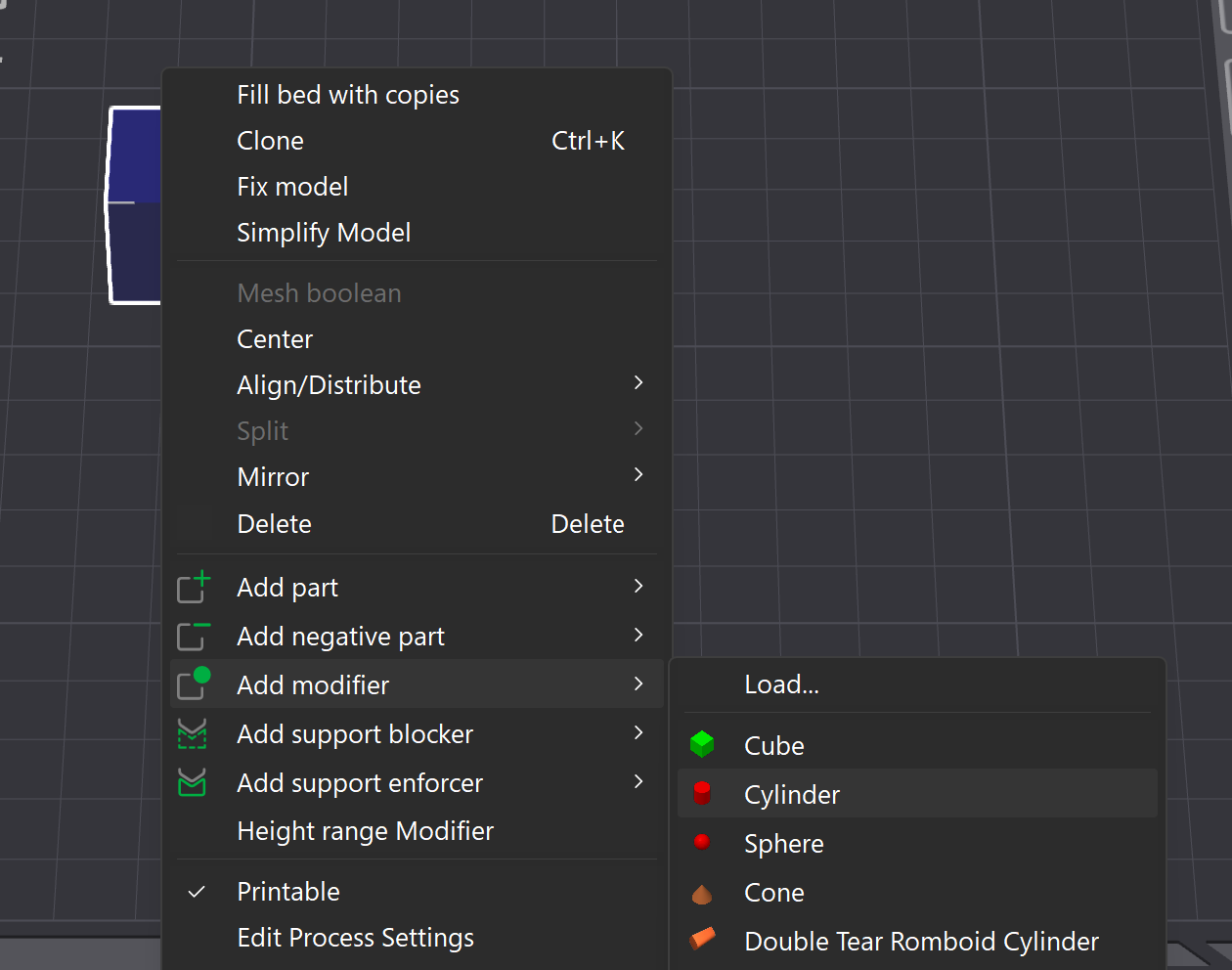
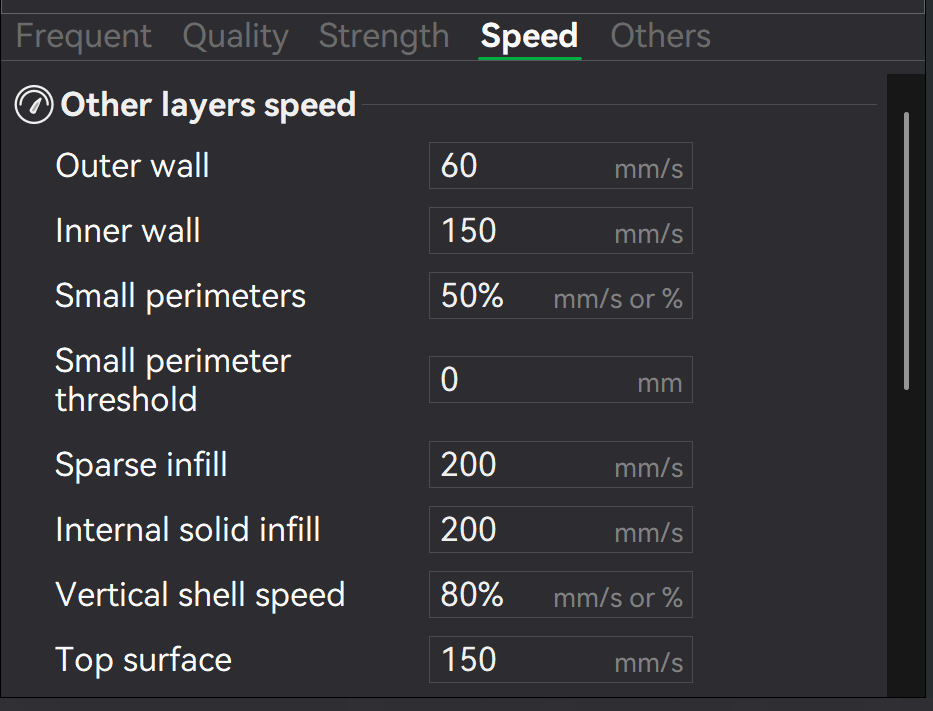
If you only need to print the hole slowly, insert a modifier cylinder into the hole and specify that printing should be slow at that location. Modifiers are not printed; they simply control the parameters at very specific locations.
…or you could just limit the print speed in general - that’s also an option - but if you say the hole is what matters most to you, it’s actually not necessary.
Why does this happen when you copy the object? Presumably, the parameters weren’t copied along with it: Did you pay attention to what global parameters and objects parameters are?
To address the subject line specifically, I’m guessing the first version, with just one part, is getting slowed down by the minimum layer time in filament settings. Adding more parts increases layer time and bypasses the limit.
As for slowing down a particular area, modifier as 'Sharky recommends should work.
-Max
No modifications for objects. And if I make one copy, color becomes faster for both, it two, even faster for all three, etc. As more copies I make, the faster color is shown. Sounds like a bug if there’s no explanation behind it.
Yes, you’re supposed to add the modifiers yourself. Please read the comment again. Follow the pictures step by step.
![]()
Take another look at the last part of my comment and check it out. Global and object-specific variables.
![]()
Thanks everyone - it was layer time in filament settings! I can’t set two solutions for one thread, sorry ![]()