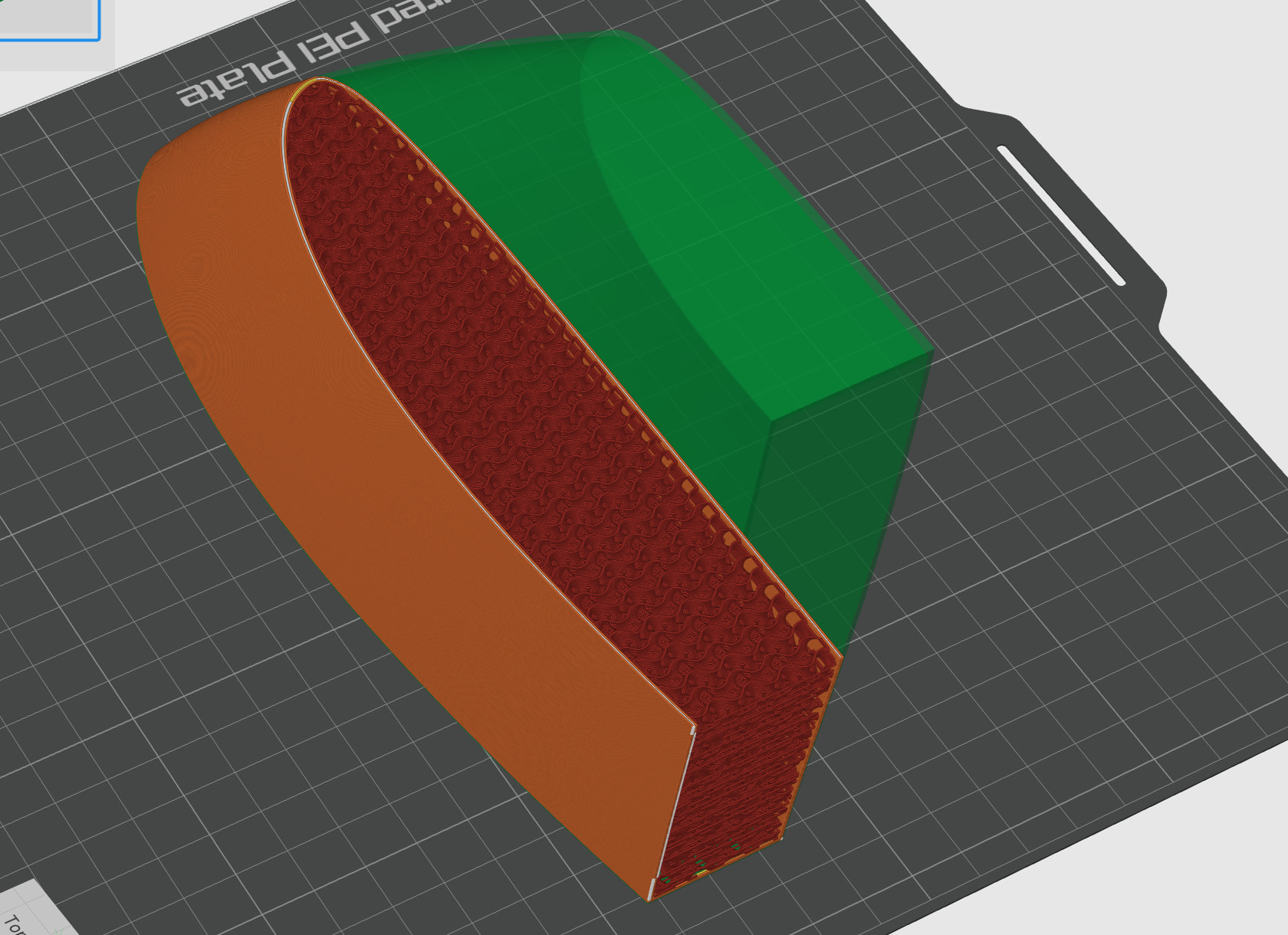
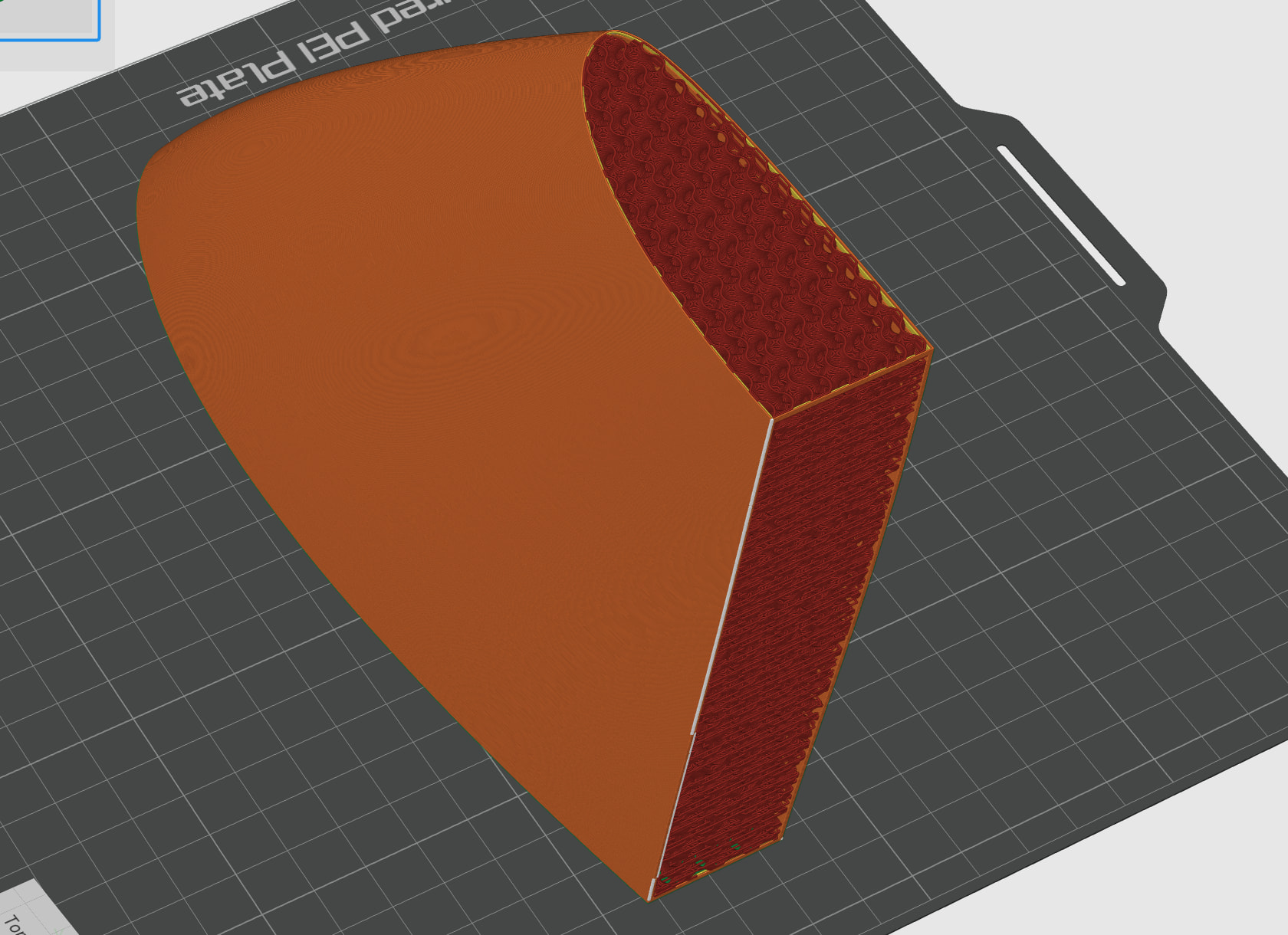
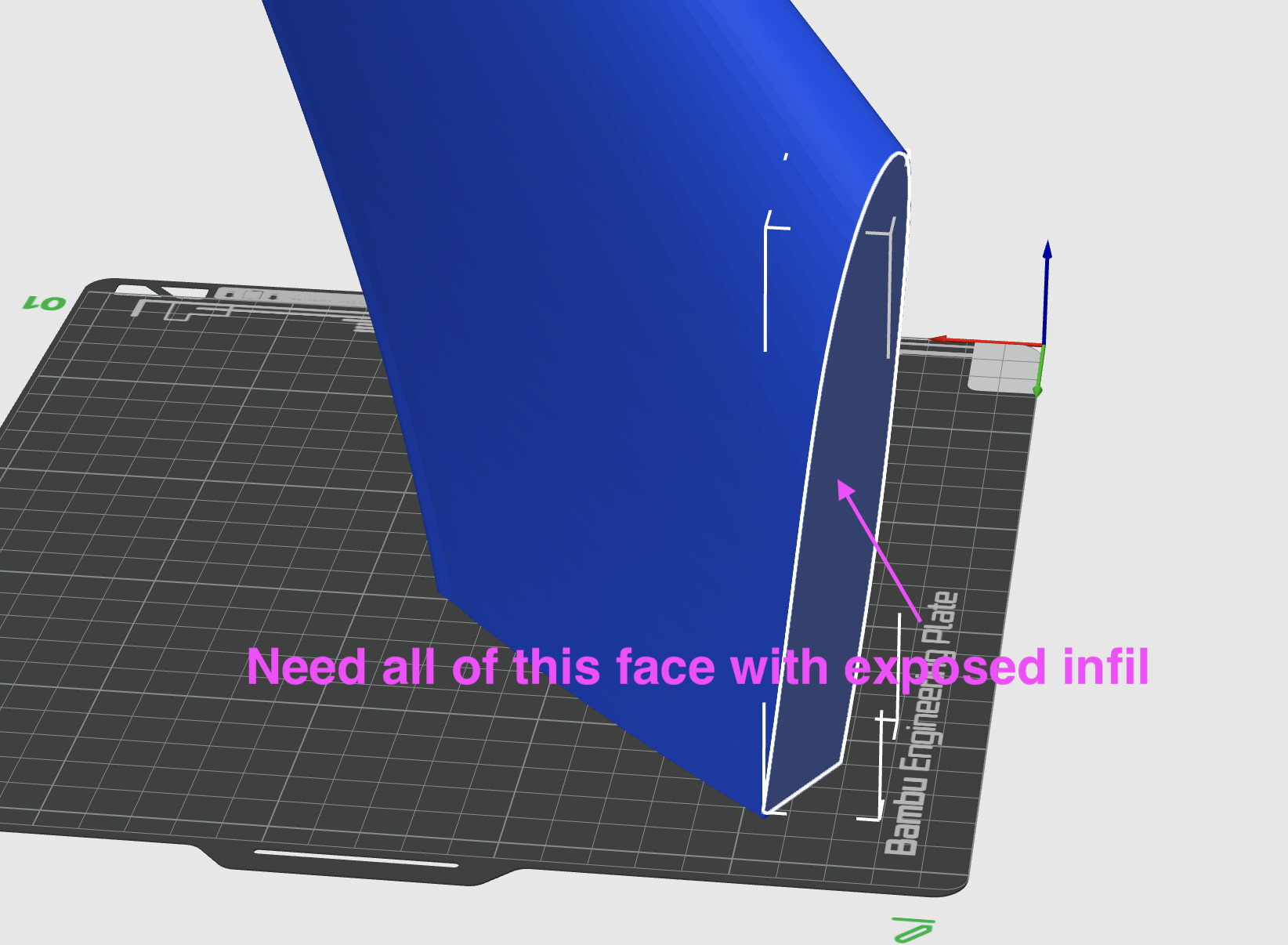
I have a large model (complex hydrofoil wing) that won’t fit both vertically or horizontally on the printer. I want to fill the void space (gyroid infill) with epoxy, or expanded foam for strength. The technique works well for objects that have horizontal connected surfaces as you can just set the top and bottom layers to zero which exposes the infill. I’ve done this successfully for windsurf fins which are under extreme loads. However, due to the size of this thing I need to expose the gyroid infill on both a horizontal surface and a vertical surface.
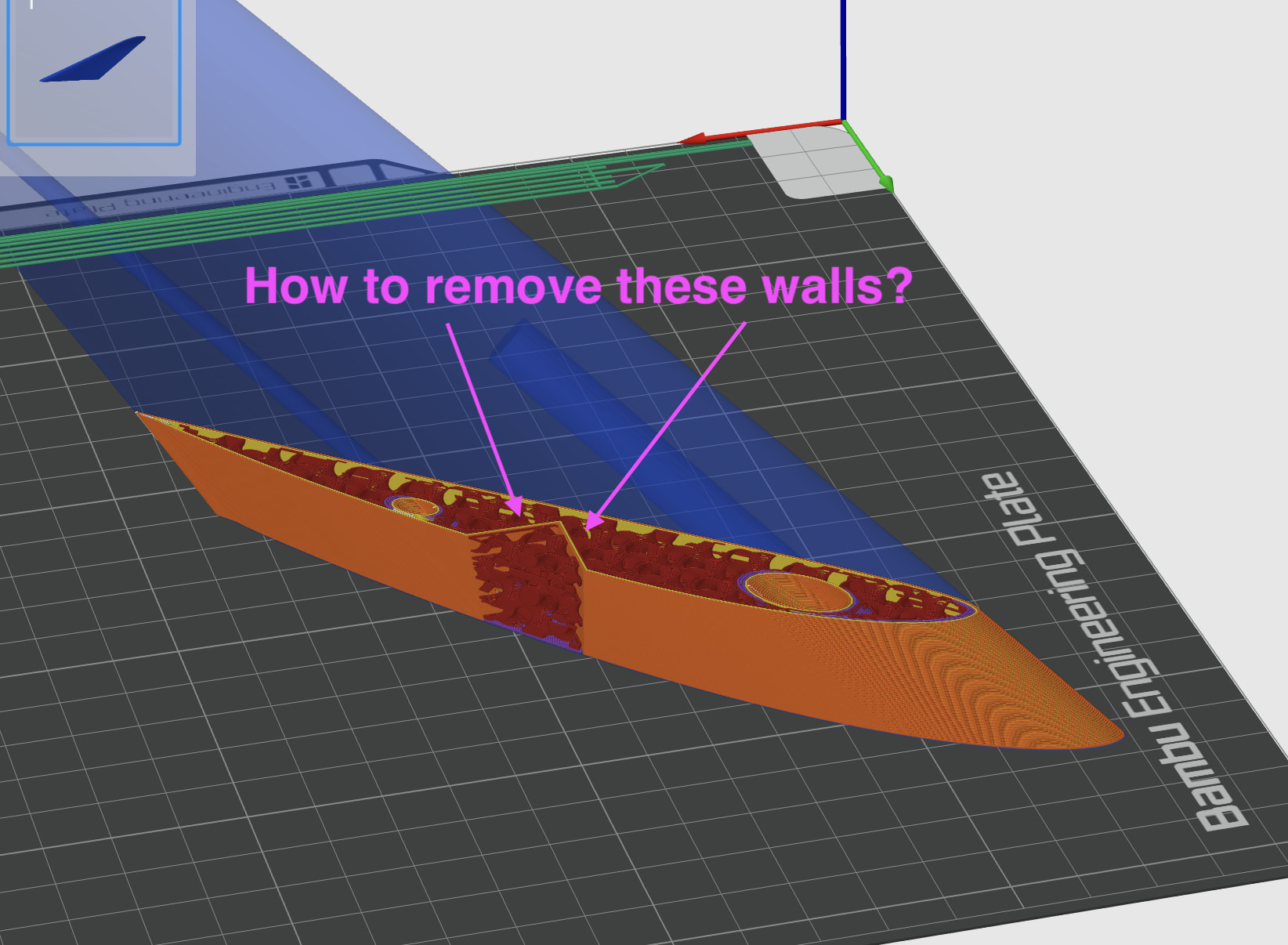
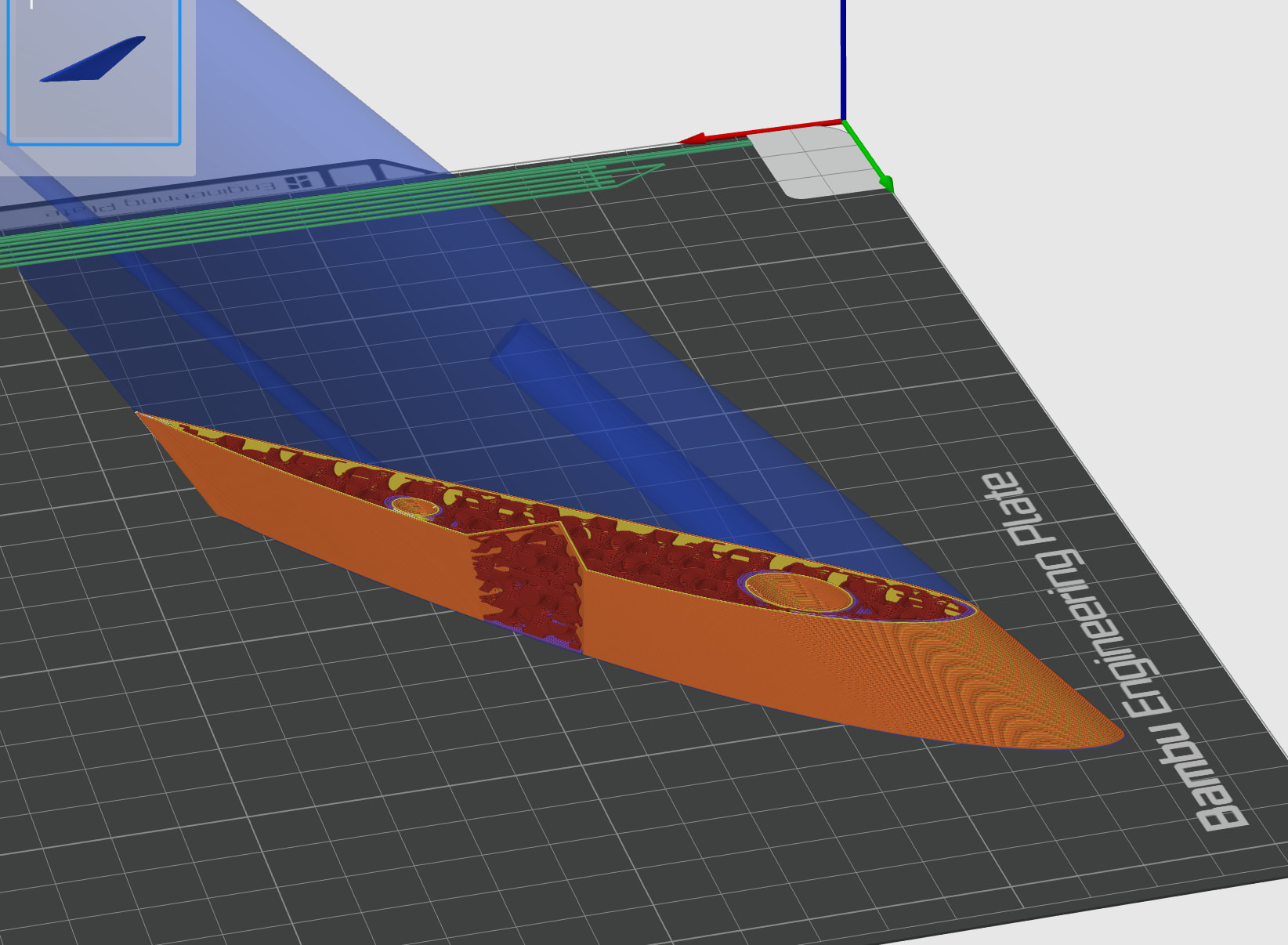
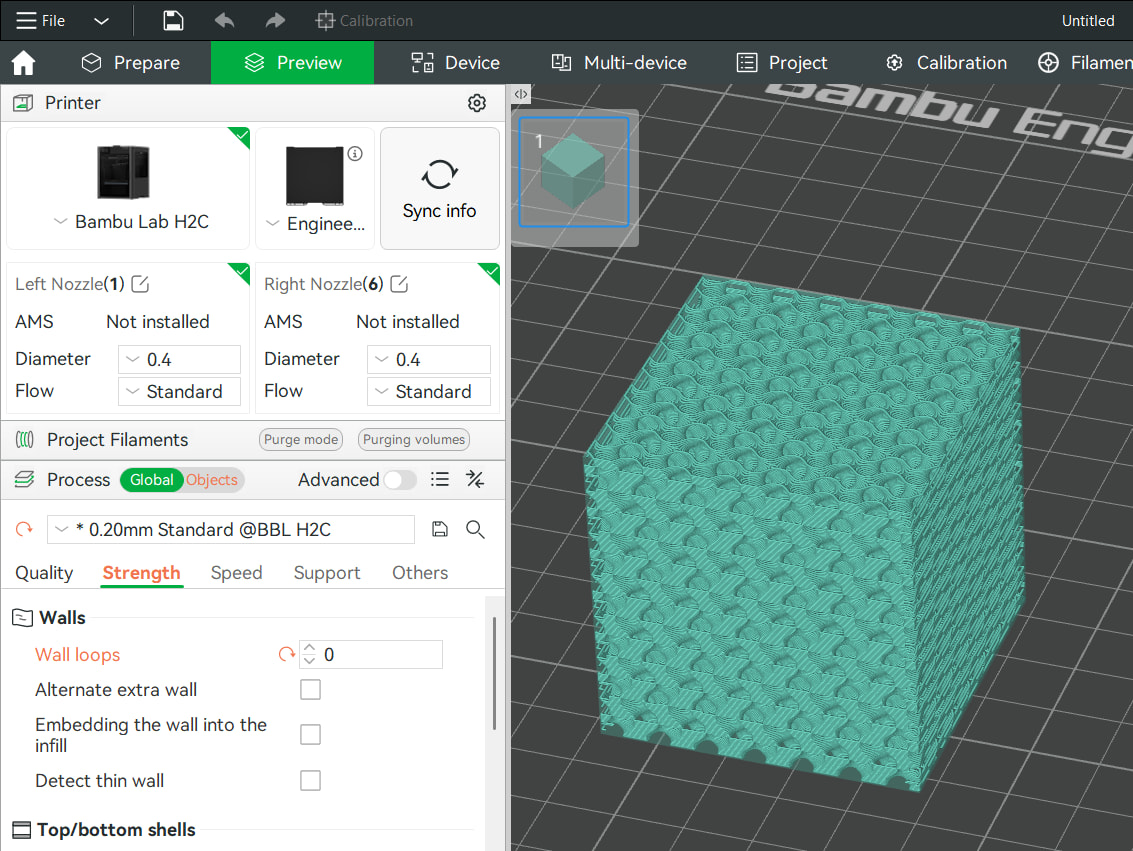
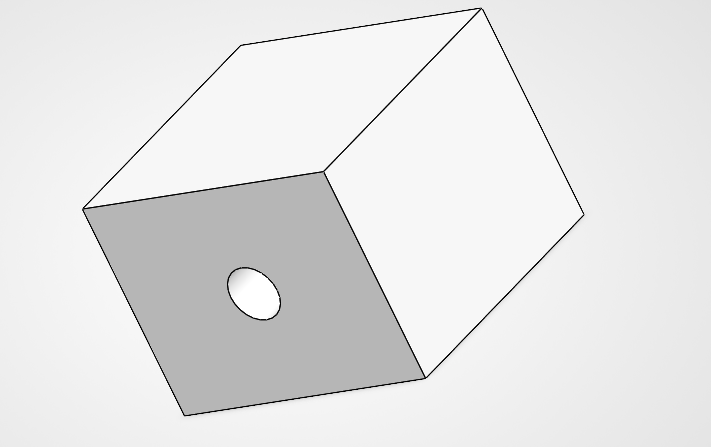
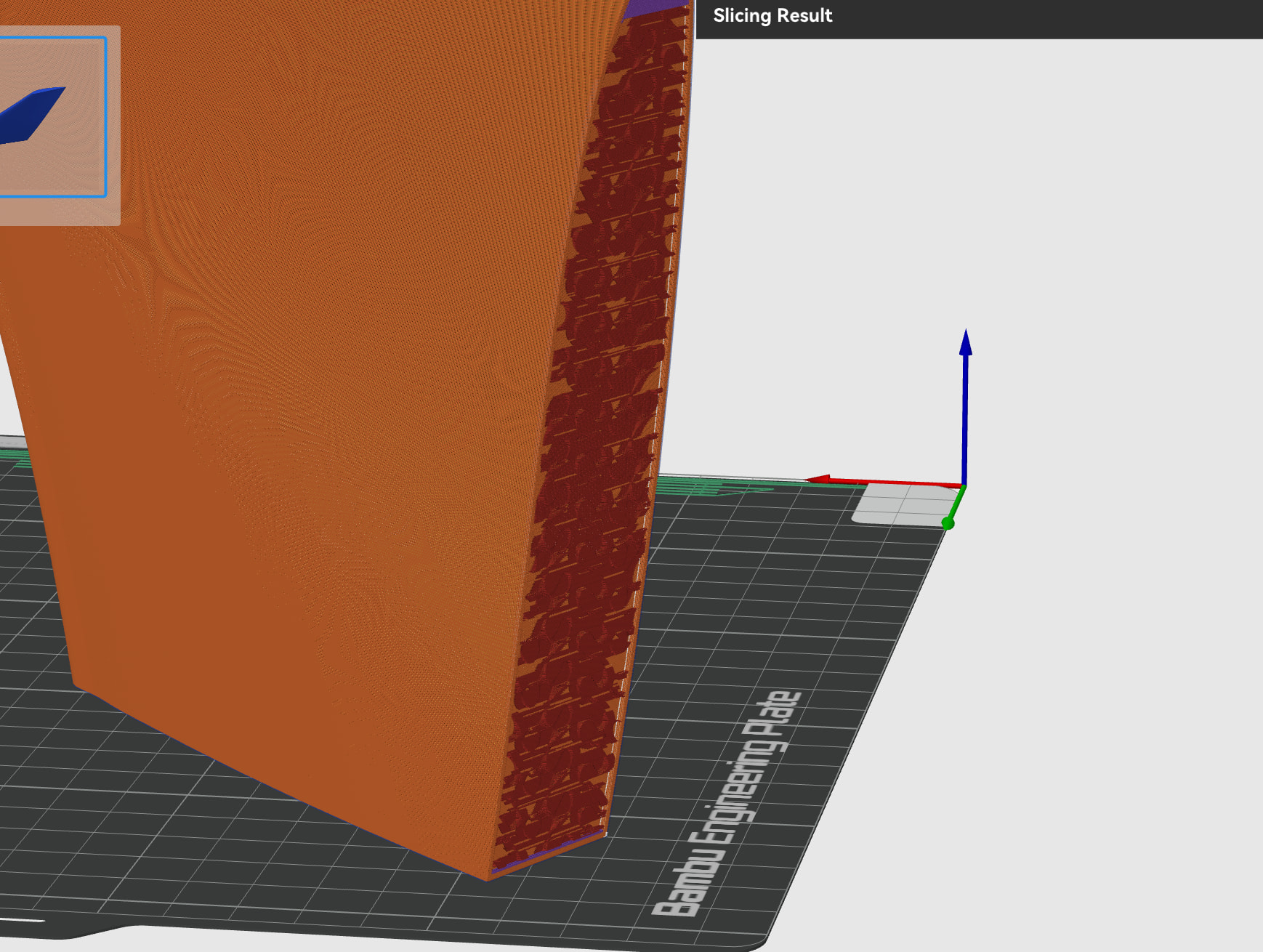
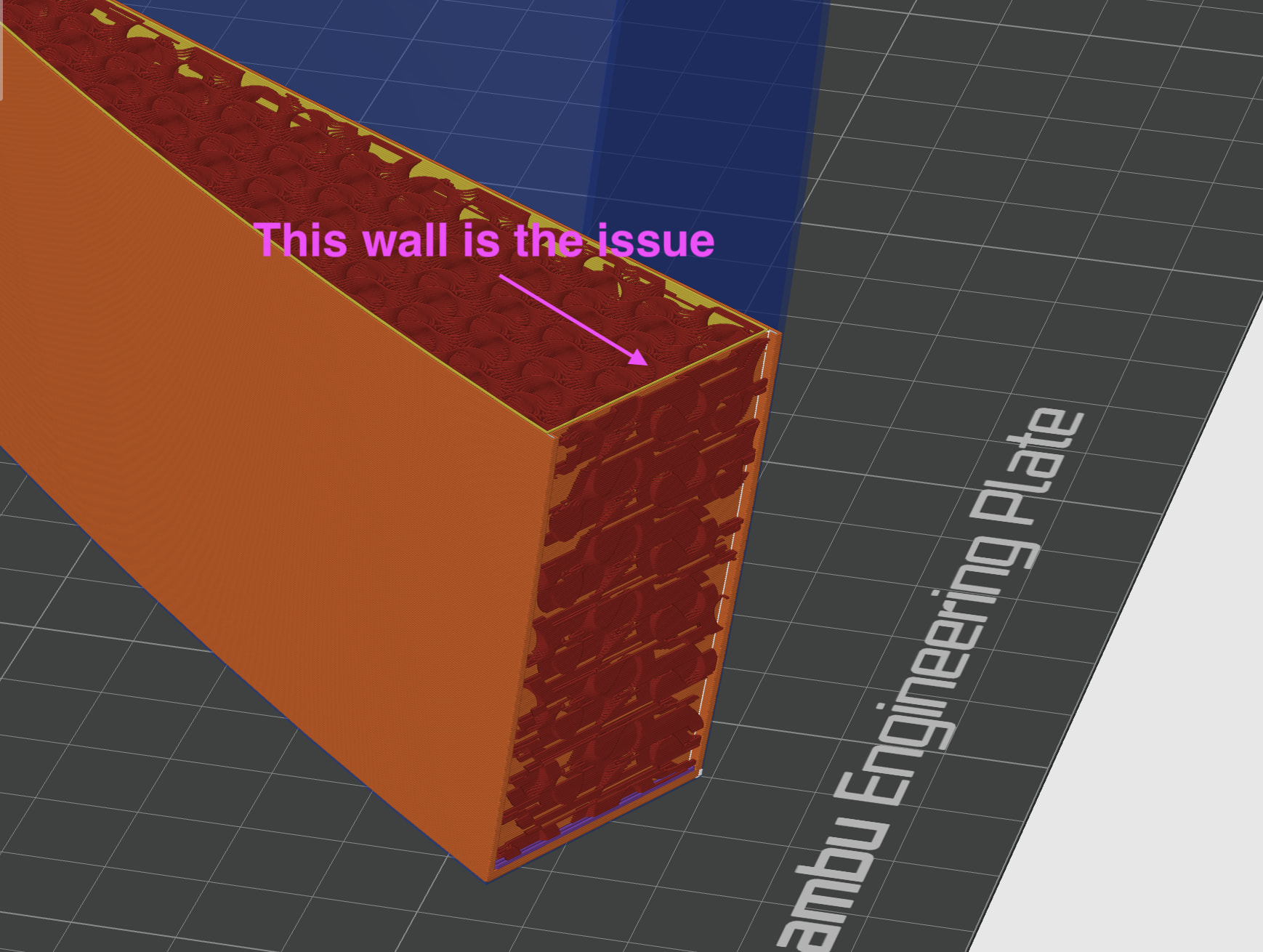
If I add a modifier with zero perimeters I get the exposed infill on the outside as required but there is always a solid wall around the modifier so the infill is not connected. I’ve tried to simplify the issue with the attached pictures. In the region of the modifier I want the part simply to have zero perimeters so the full gyroid infill of the part is exposed.
There was some discussion about this around 6 years ago with no solution other than a custom infill. It seems such a useful idea. Hopefully I am missing something basic. The same thing happens on Prusa slicer (I’ve posted the question on the Prusa forum to).
The only way I can do this is in CAD by shelling out the shape and creating two bodies. One slightly smaller than the other. One which will be the outer skin (with say 2 perimeters) and the other will be the gyroid infill with 0 perimeters. This is fine for simple objects but for complex 3D shapes it is tedious (and Fusion 360 is struggling to perform all the cut and shell operations.
It would be great if you could just select a face (or paint) regions where you didn’t want perimeters (or wall loops) to expose the infill. In addition to being functional it also has artistic applications.
Does anyone have any suggestions? Could it be a feature request?
Silly question: Why don’t you use a filler that’s specifically designed for this kind of thing and makes it easier to spread the epoxy? You could pour that in through a small hole.
To do this, heat the epoxy - please read the instructions carefully - so that it becomes more fluid and then pour it in. It’s best to use a long drill bit to reach the center, so it spreads even faster. Epoxy and Gyroid don’t really go together, but I believe you when you say you’ve had good results with them.
This way, you could get around the whole problem you’re having. That’s exactly why there are special infills.
There won’t be a solution for what you want to do in Bambu Slicer anytime soon, since it always requires closed outer walls for its calculations.
That said, there are workarounds: You create a huge block of pure infill. Then you perform a Boolean mesh operation on the infill to shape it like your wing. You’ll just have to punch a hole in the 3D model to serve as a filling opening.
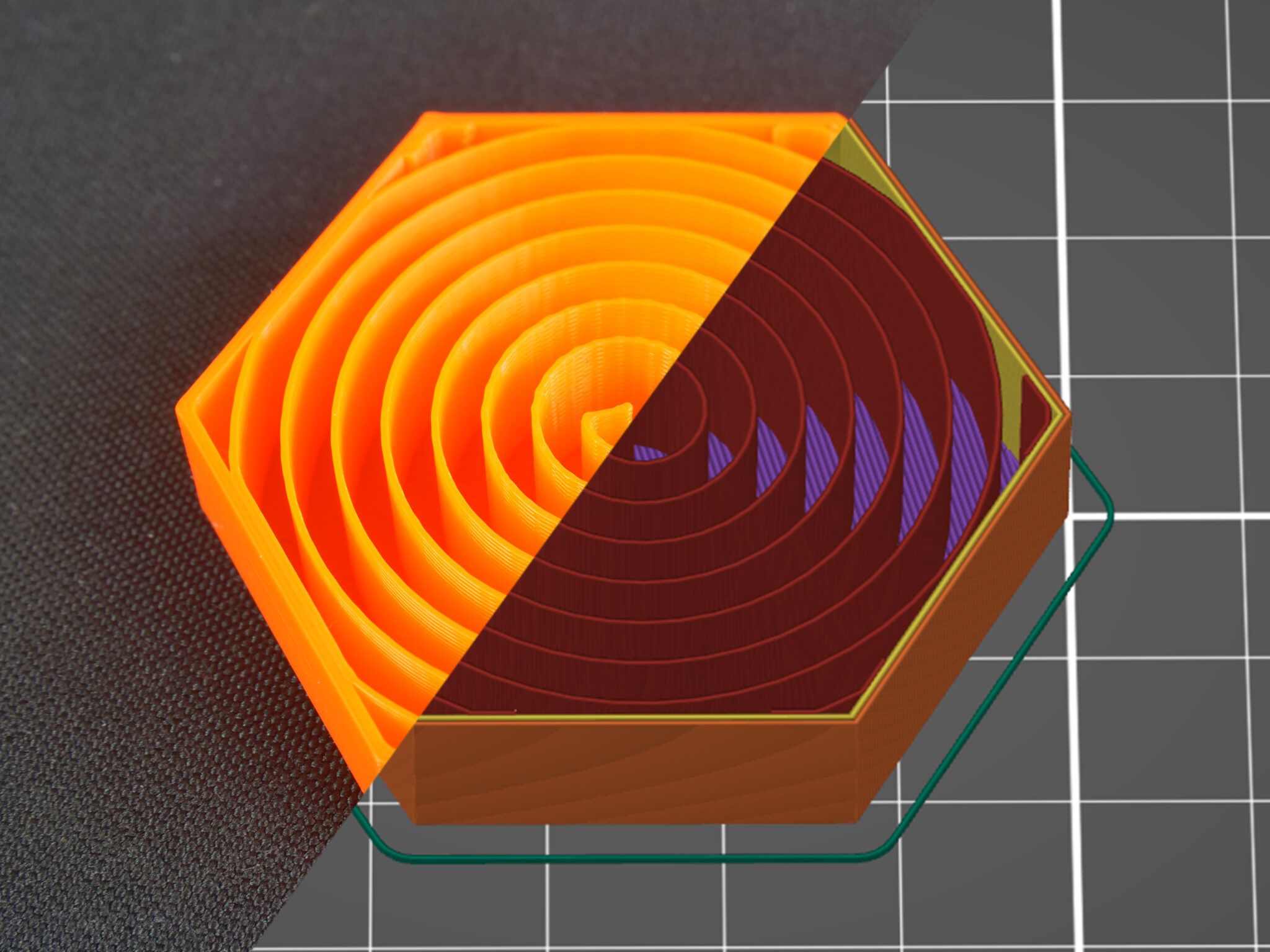
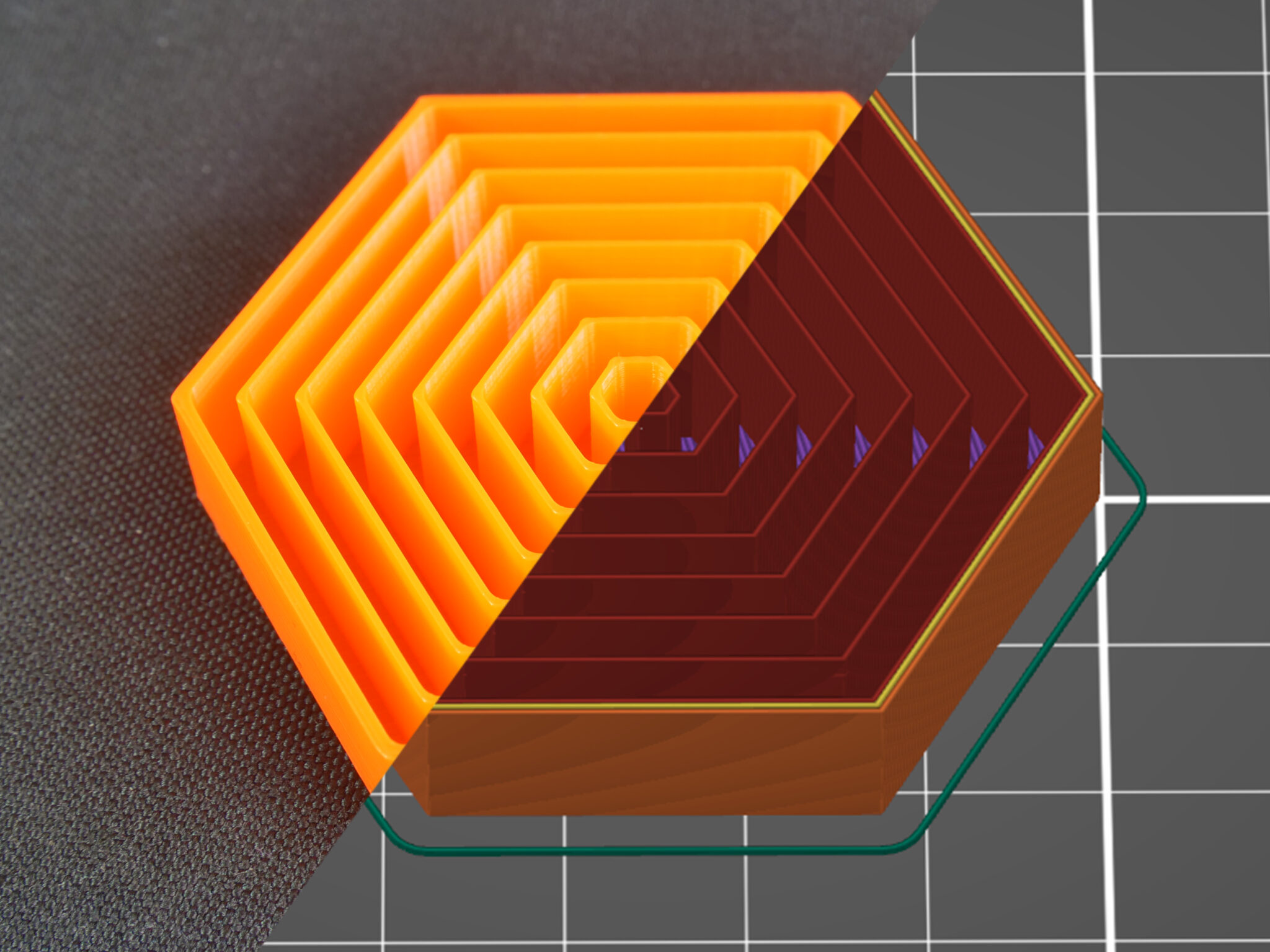
thanks for the reply RetroSharky but Gyroid infill is much better than Archimedean chords as the pore space is connected in all directions. To repeat I need at least two faces at 90deg to each other with exposed infill so the epoxy etc can flow.
The Boolean mesh gives exactly the same result. Sure I can drill holes but thats not the point..I need the entire interface between parts to have the exposed gyroid infill.
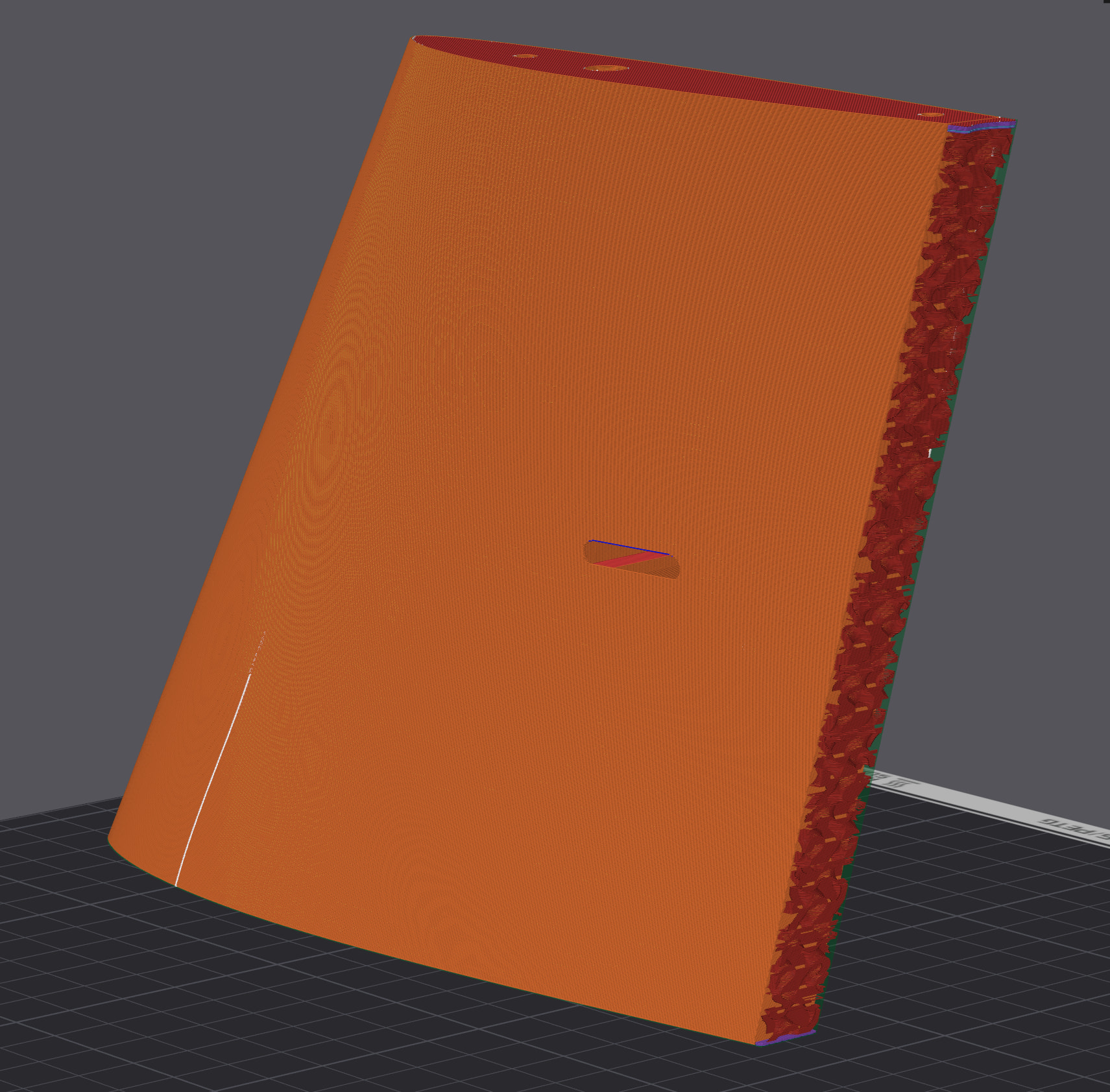
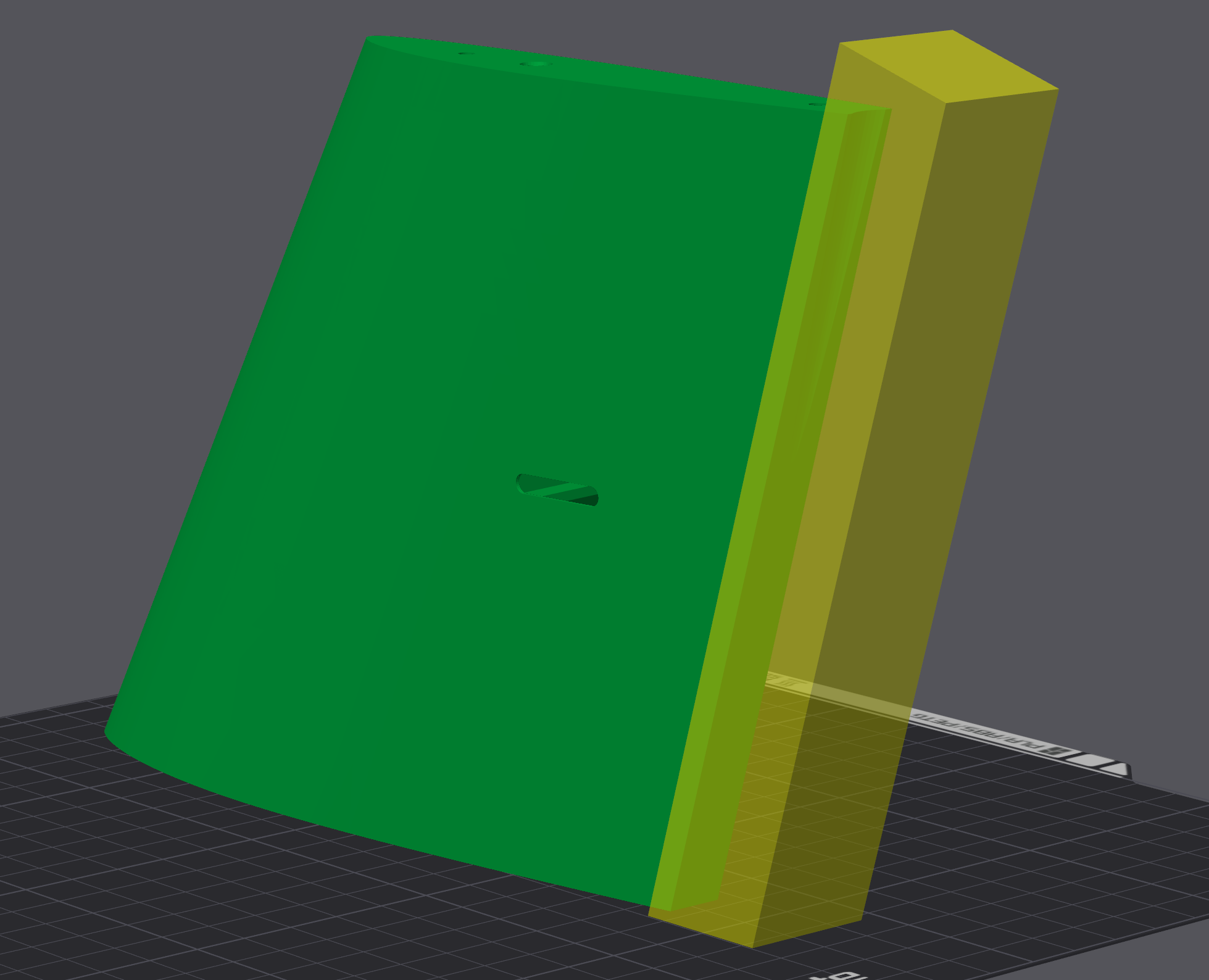
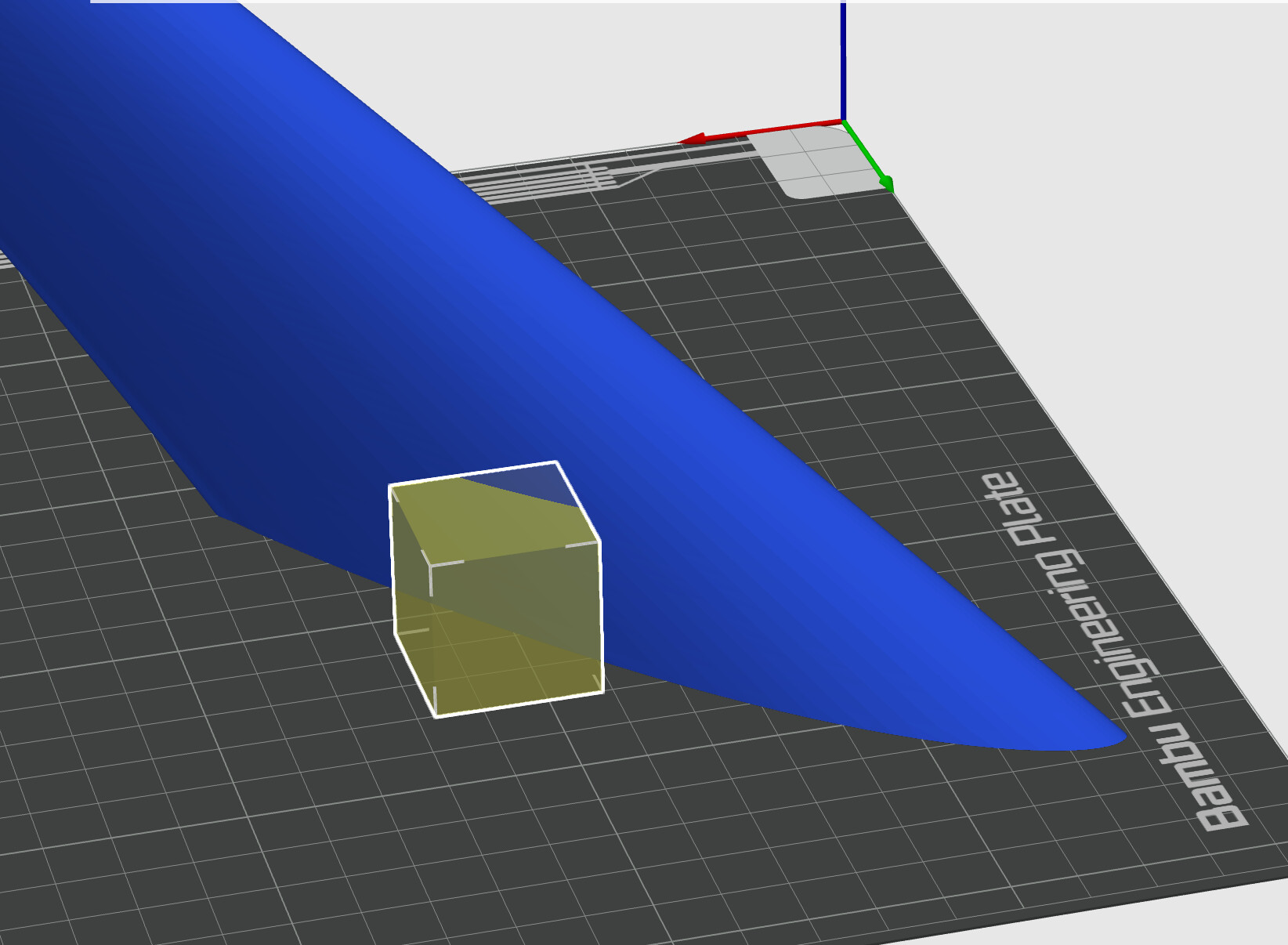
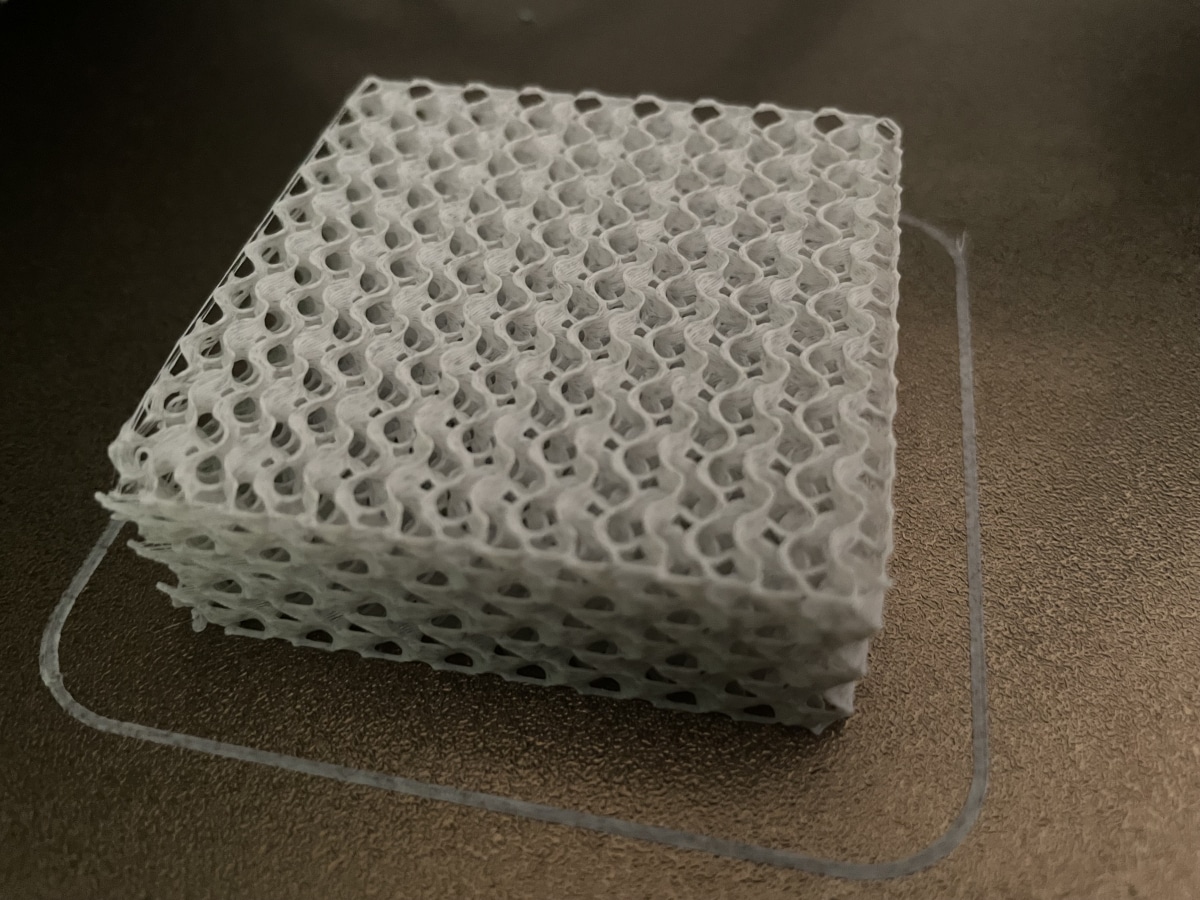
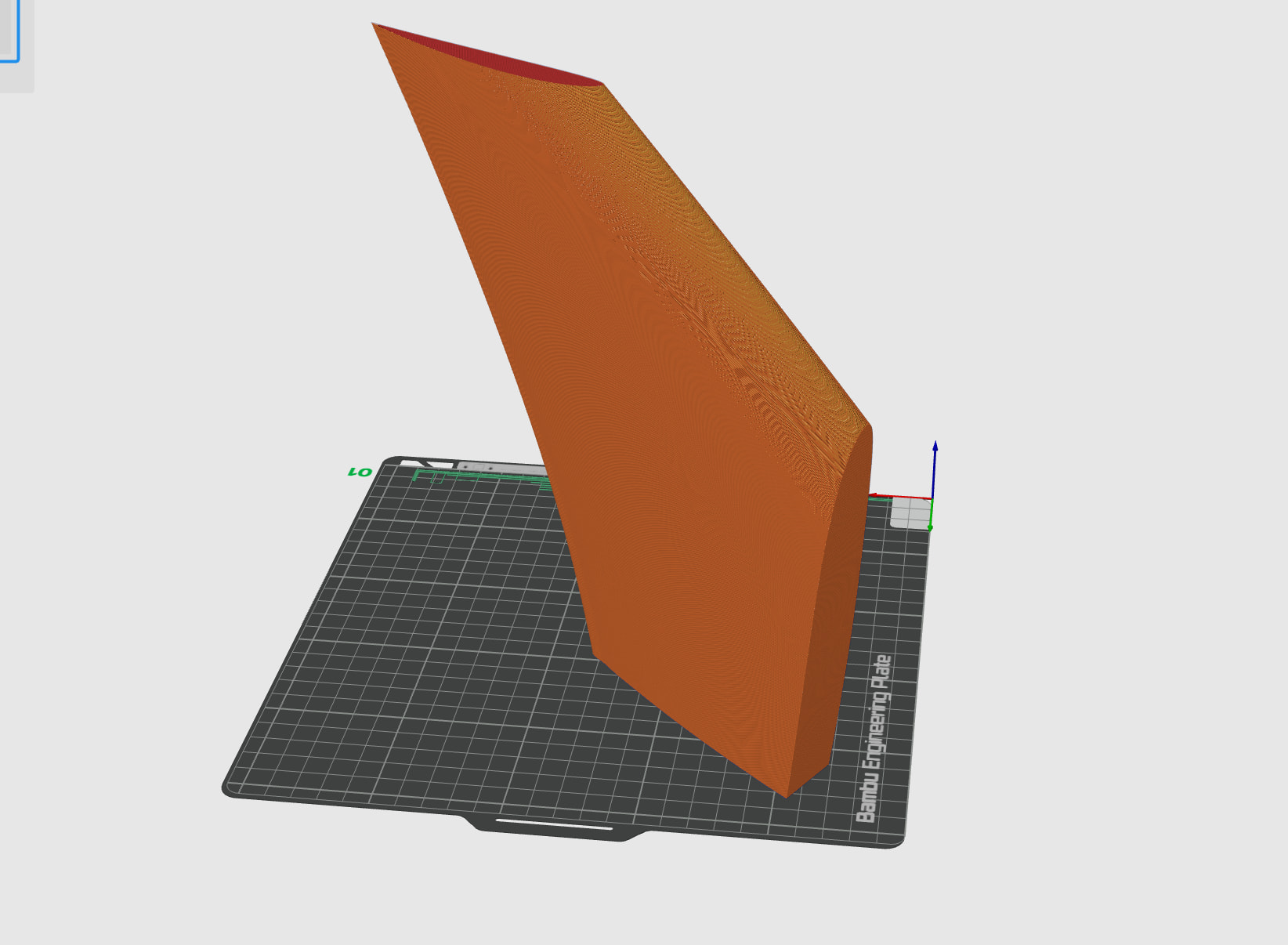
Pics attached of the actual part. Setting top and bottom layers to zero give nice gyroid exposure top and bottom. It is the vertical surface that needs opening to match with its partner. In CAD I create a small shape with its outside 1mm less that the OD of the main wing and use that as modifier but the result still creates this wall.
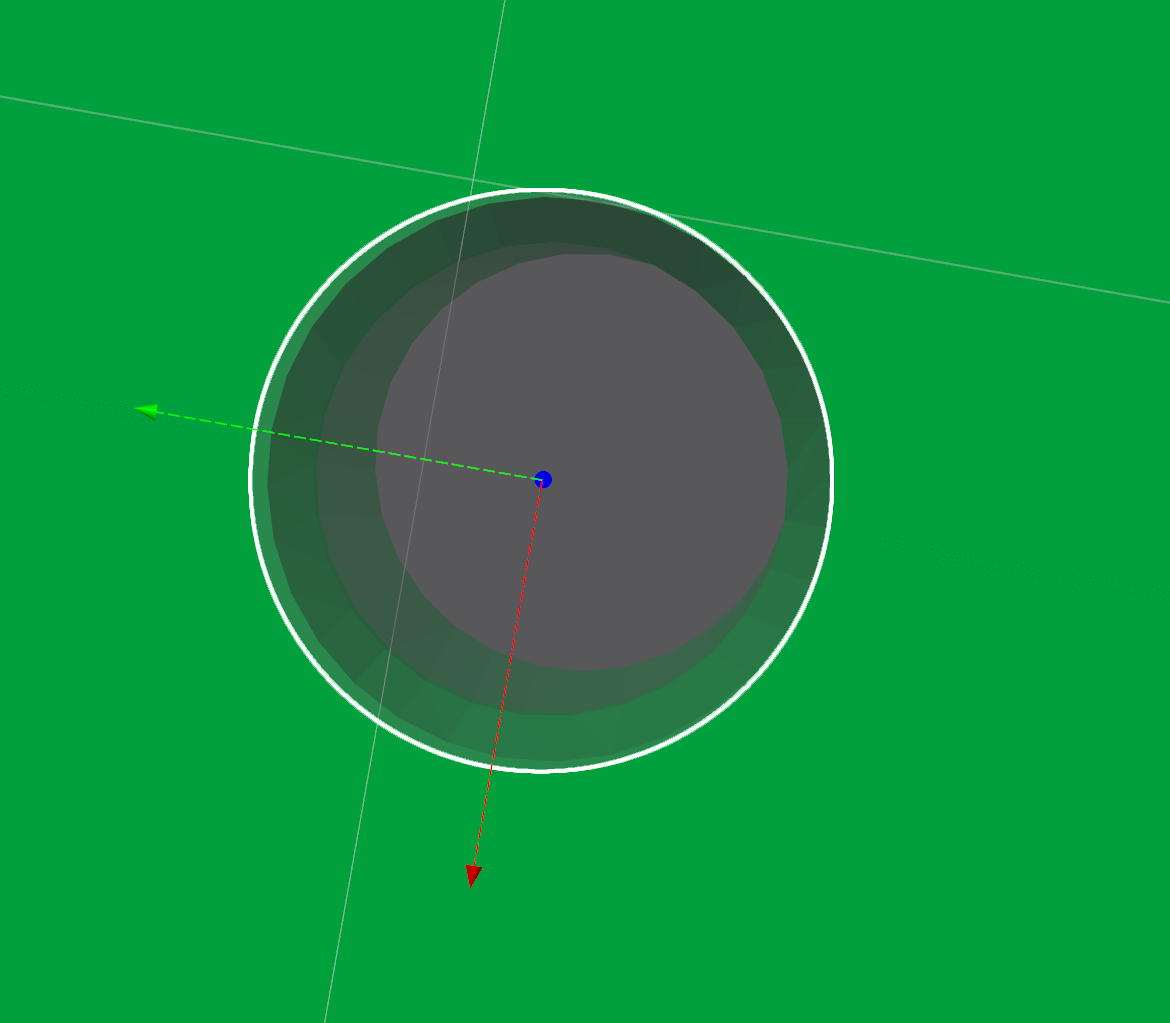
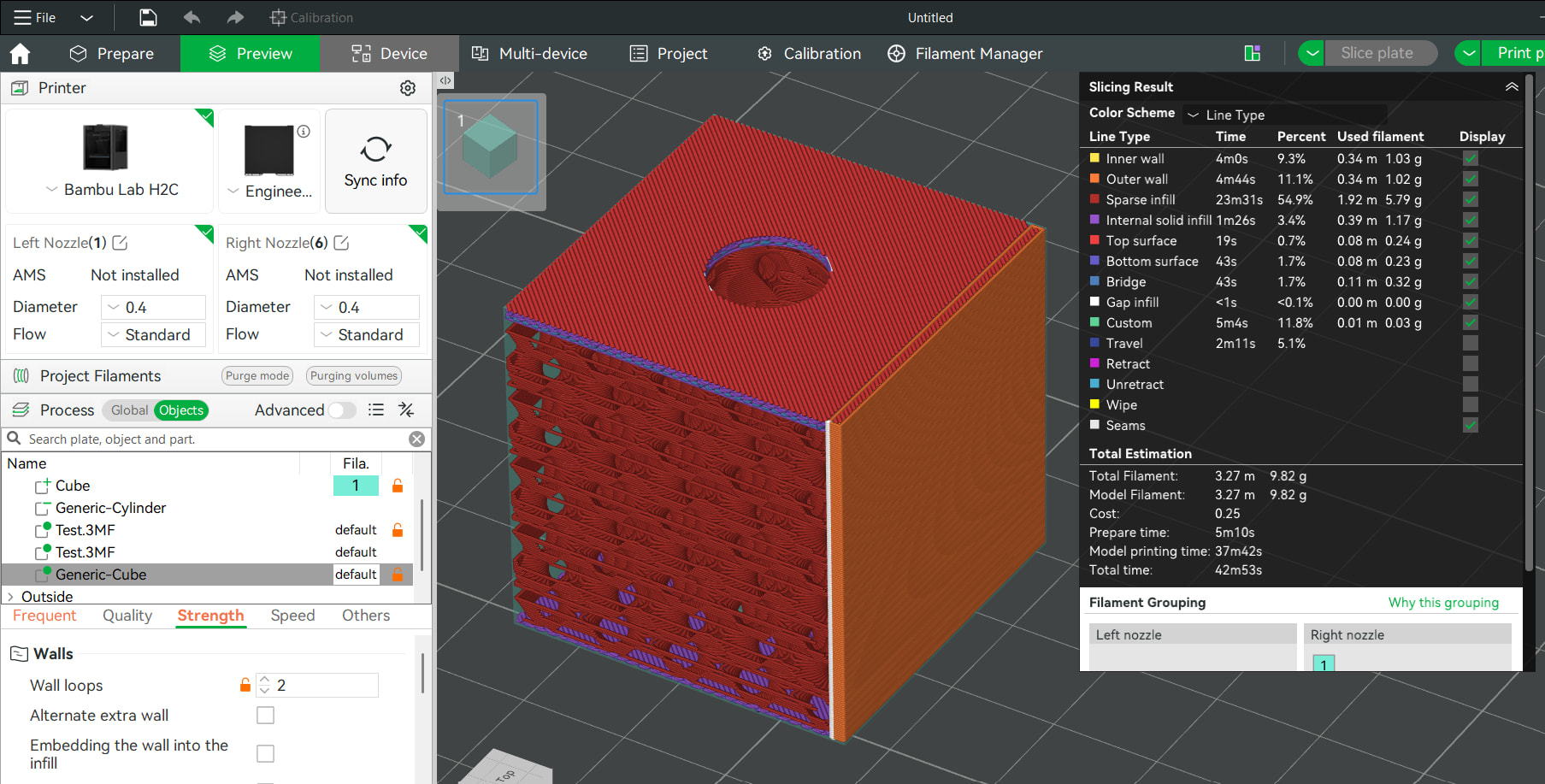
Thanks for the reply EnoTheThracian but I think your idea gives exactly the same result. Looking carefully at your last image there is still a wall outside your circle and the infill inside the cylinder is NOT connected to the infill of the cube. i.e. I could independently fill the cylinder and cube with different stuff and they would not connect. Maybe a picture with the layer selector mid way through the cylinder would make it clear whether your method really works or not.
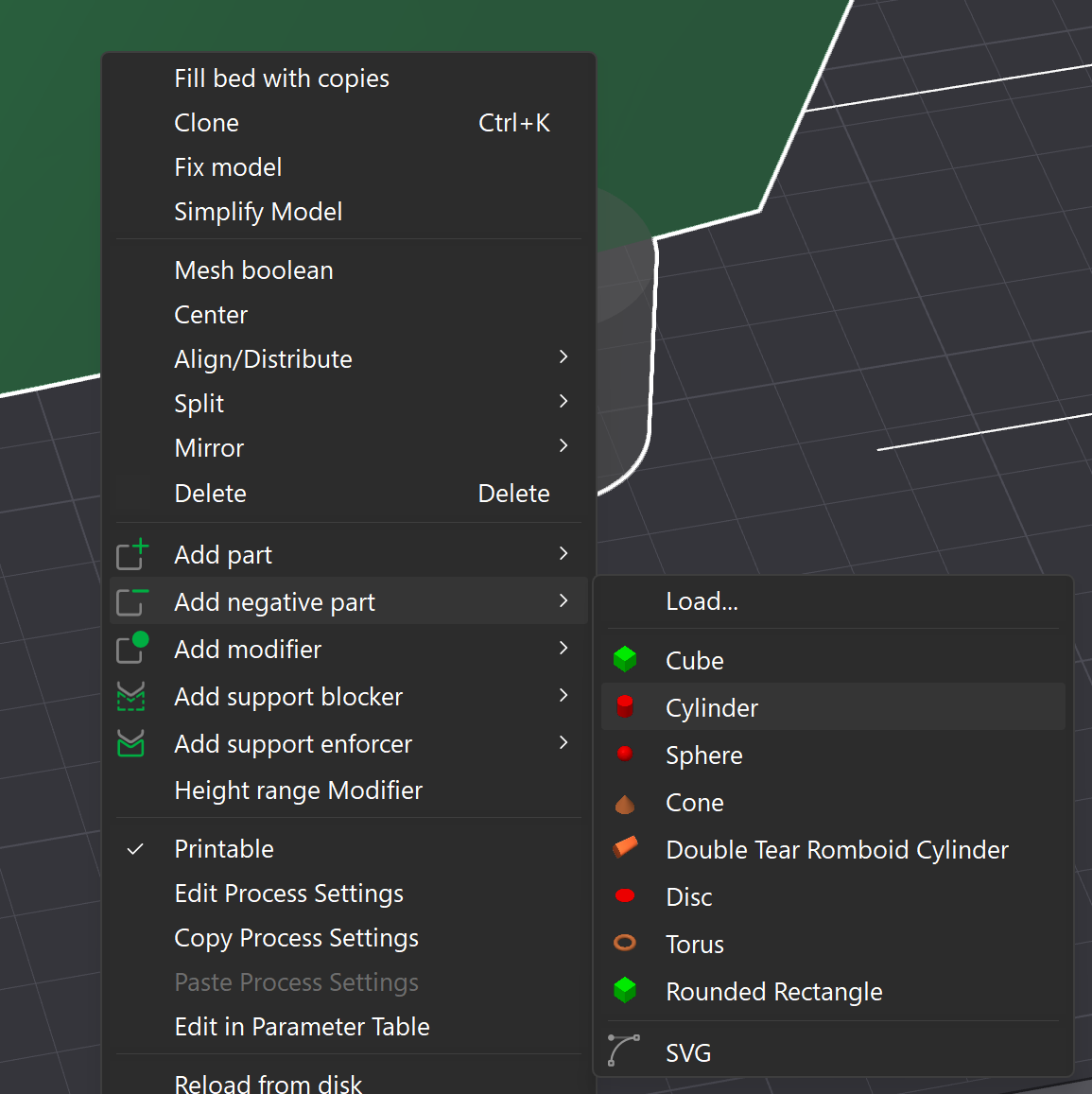
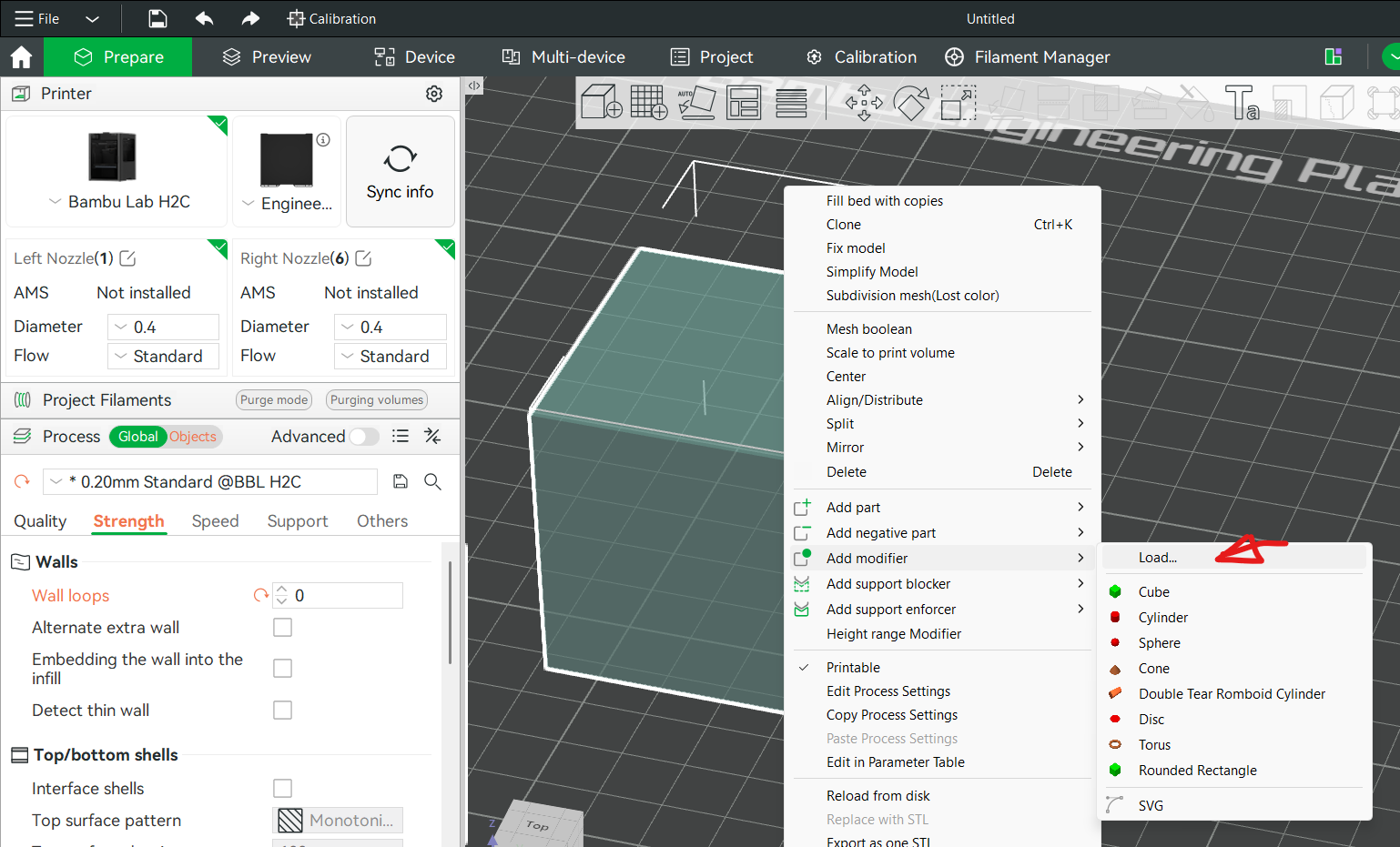
What you can do, is to use a negative part on a 0 wall count basic part, and then (and this is where it gets difficult) add a surface following modifier.
In this example, I just used a flat, holed cube and a flat cube. I would need to use 4 more to cover the entire cube.
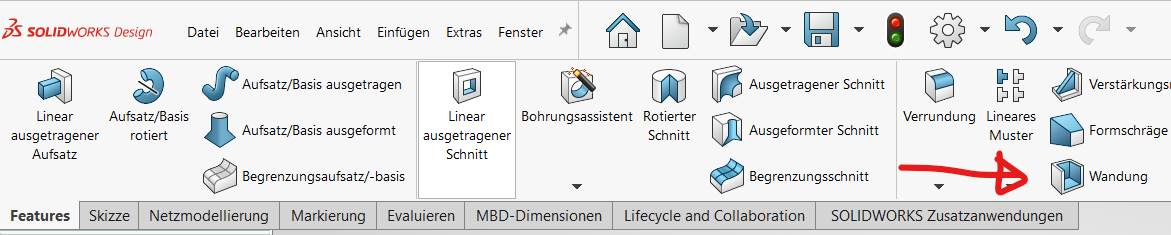
In SolidWorks, I’d try to use the “Shell” command to turn the stl into a hollow body of uniform wall thickness and then attempt to use that as a modifier to get the walls back where I want them. But that is usually easier said than done…
However, since you want an entire surface to be missing its walls, it may be exactly what you need.
ya, you right EnoTheThracian, easier said than done. The current solution is in CAD..simple enough for a basic shapes but really not so easy for complex stuff. It really looks like a feature request to me. There are two applications. 1) You want to build something big like a surfboard or large hydrofoil (my case) where the pore space needs to be interconnected on 2,3,4 or more sides so that a filler can travel between all the cut parts. or 2) You want something like a handlebar grip where the infill of a complex shape is exposed to the outside.
However, what you’re describing can be done using the solution I described. Let me explain it step by step:
You design / set the wing to be hollow - that’s the most important thing.
For the wall you want to leave open, it’s best to design it once as closed (lets call that a “stamp”) and once as open.
Then you’ll get a gigantic block / 3D model in the form of infill.
Then position everything in the center - your actual 3D model and your stamp.
Now all you have to do is perform the following mesh operation on the gigantic block infill: Everything that is part of your stamp should be preserved. Everything that is not part of your stamp should be deleted.
Now you have a block of infill that matches the exact shape of your wing.
Now delete your stamp and use the 3D model with the open wall. Since you centered everything beforehand, you don’t even have to move it.
So all you need is a single function and your 3D model - once with a wall (stamp) and once without. That’s all there is to it.
I don’t know if your CAD program can do that, but Blender definitely can. You only need one operation: the Boolean mesh operation.
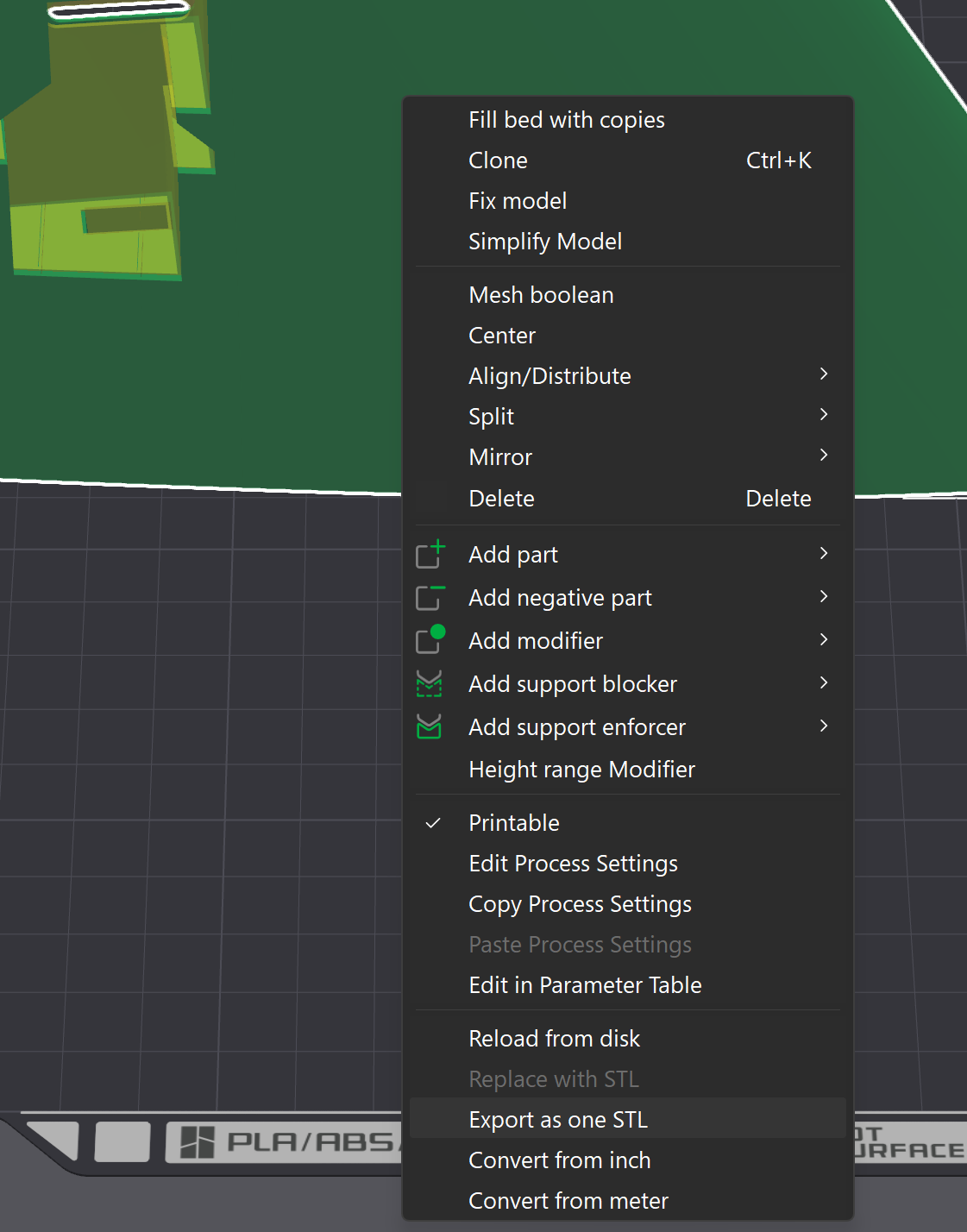
Bambu Studio can do this to some extent, but it always causes problems with complex objects:
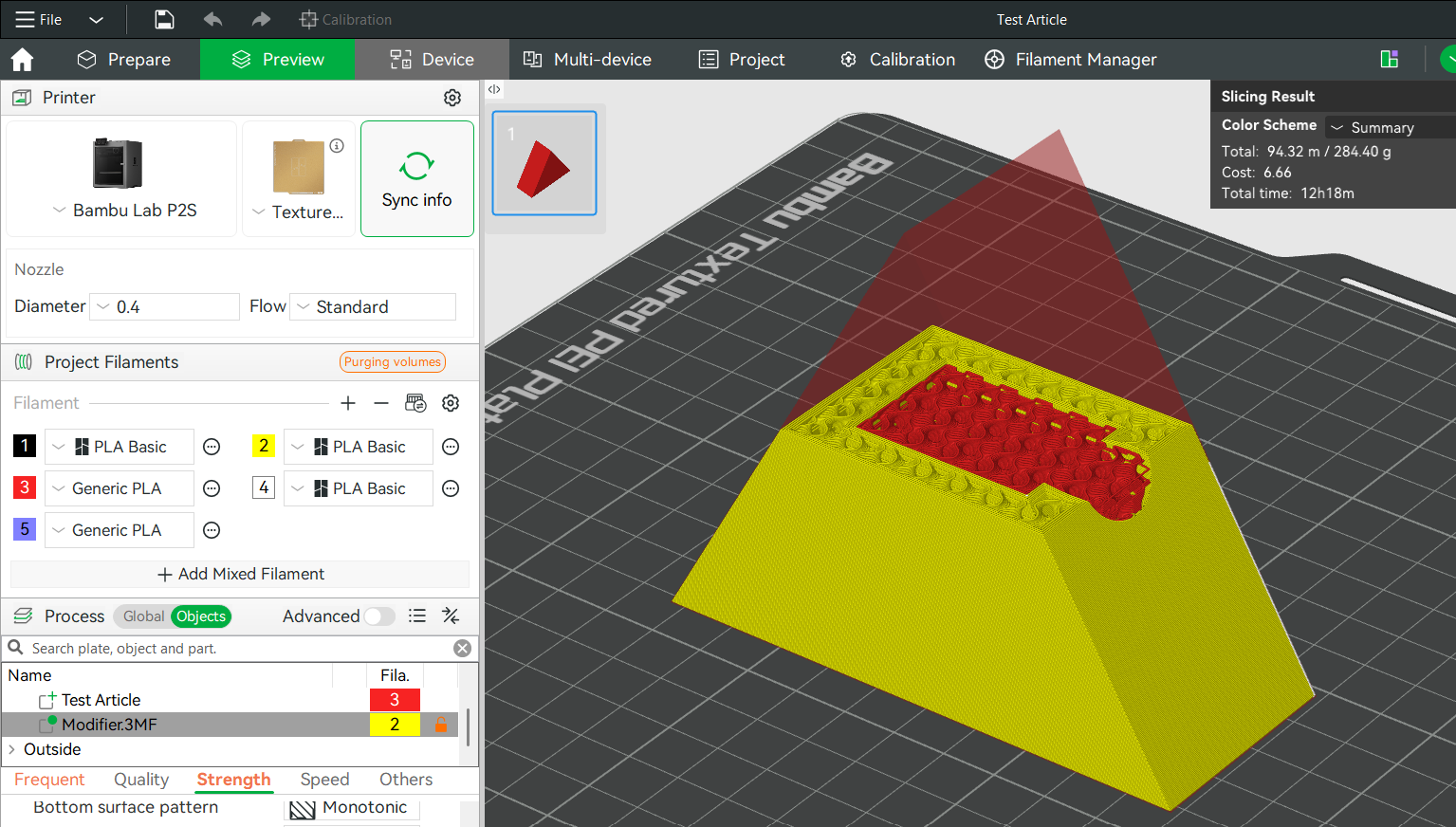
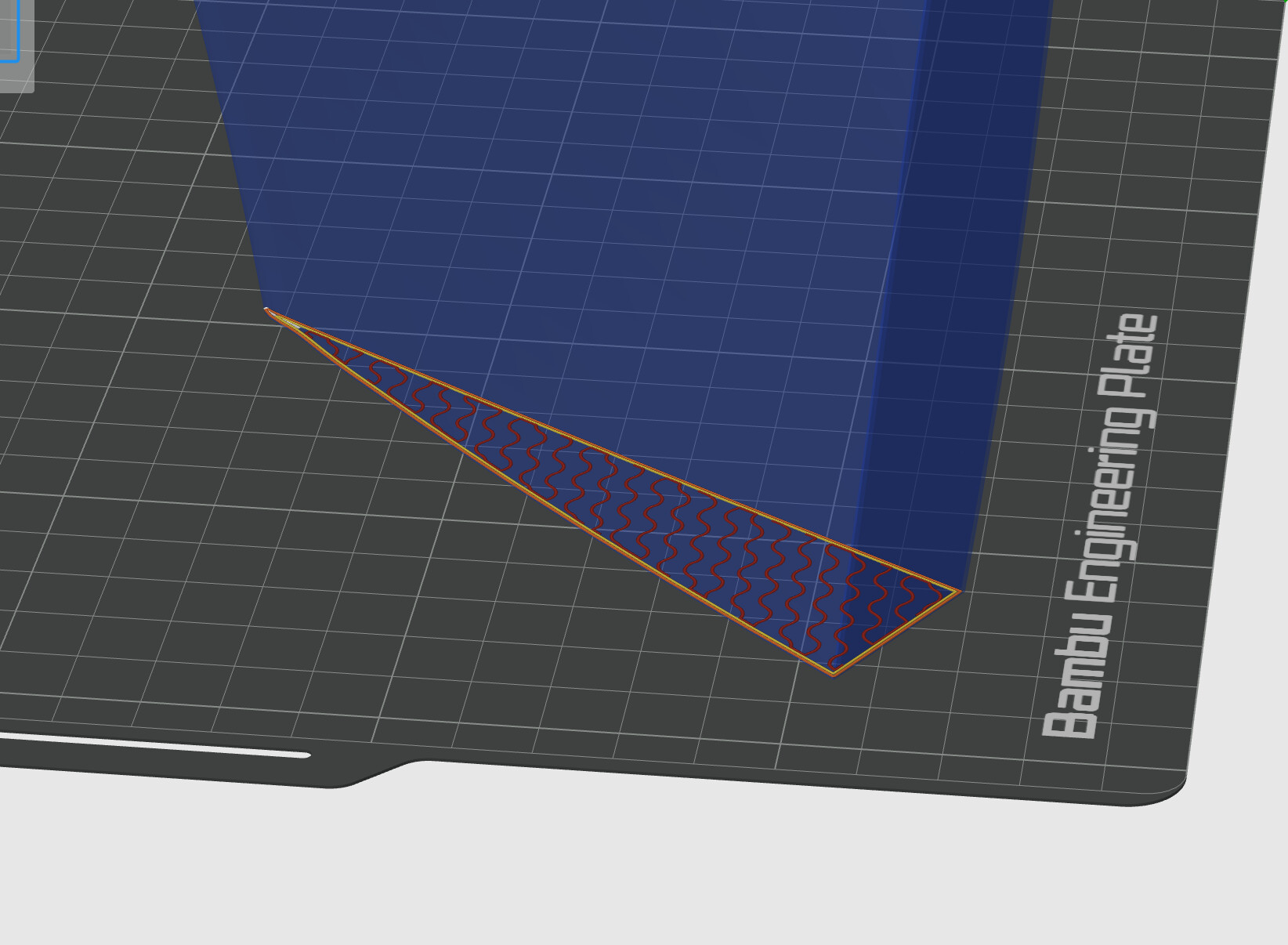
Out of curiosity, I tried it on a simple triangle.
Using the “Shell” command in SolidWorks (it should also be available in OnShape), I hollowed out my test triangle, closed the open side completely except for a smaller hole, then opened the test object in Studio assigning it 0 walls with 0 top and bottom surfaces, added and aligned the Shell Modifier with 3 wall loops and 5 top/bottom layers and achieved the desired result (although my 2mm modifier thickness was a bit much ).
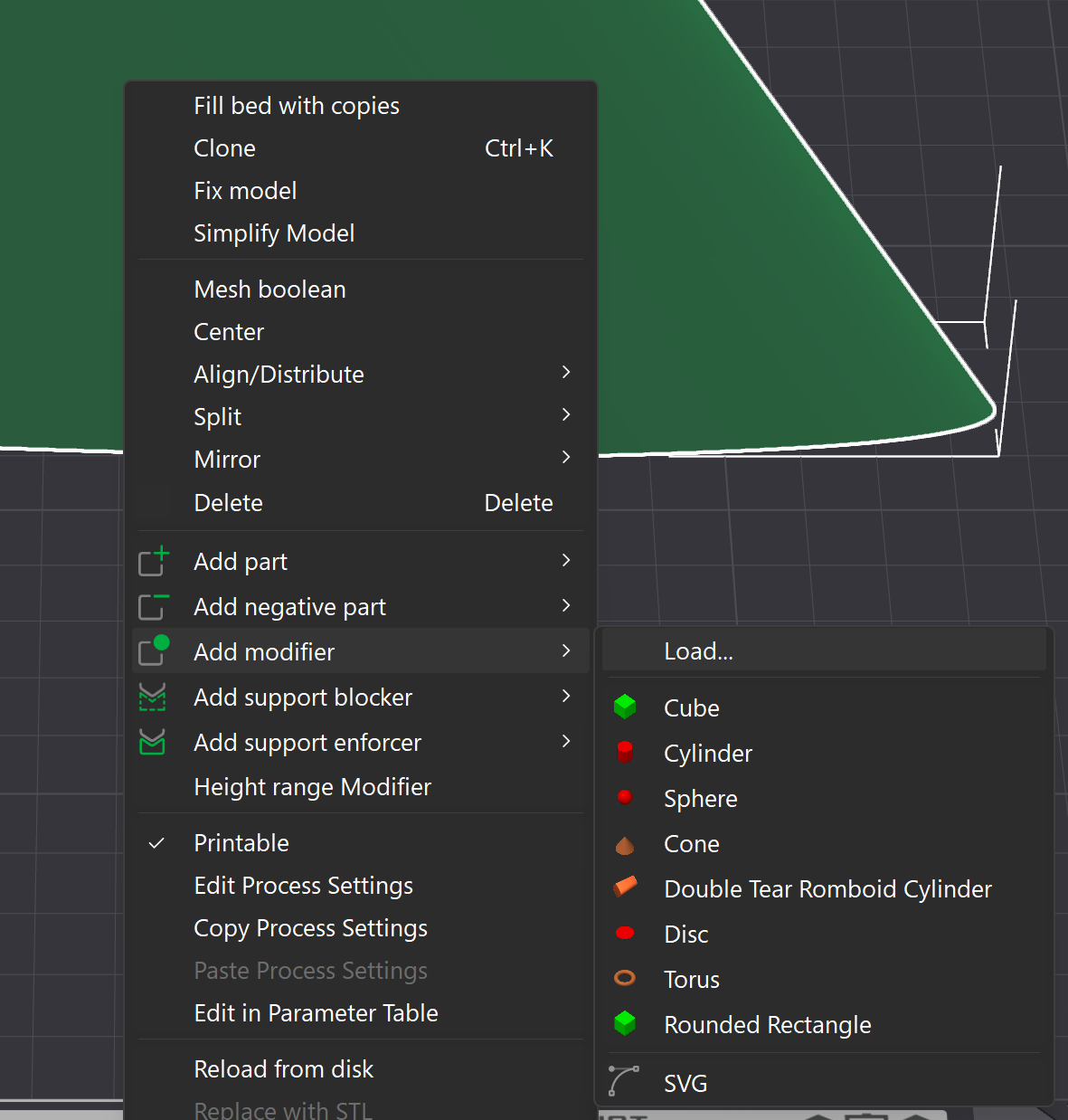
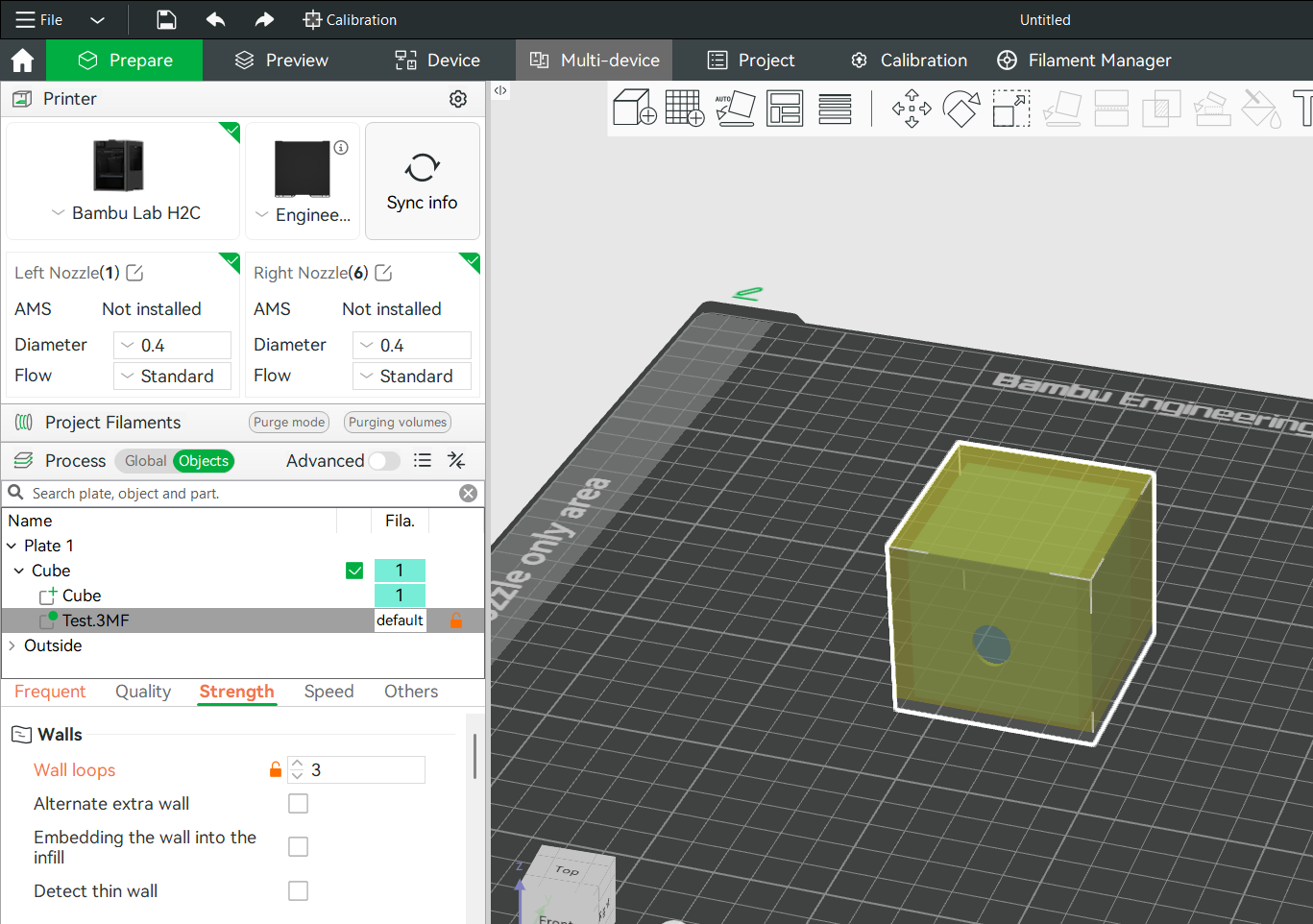
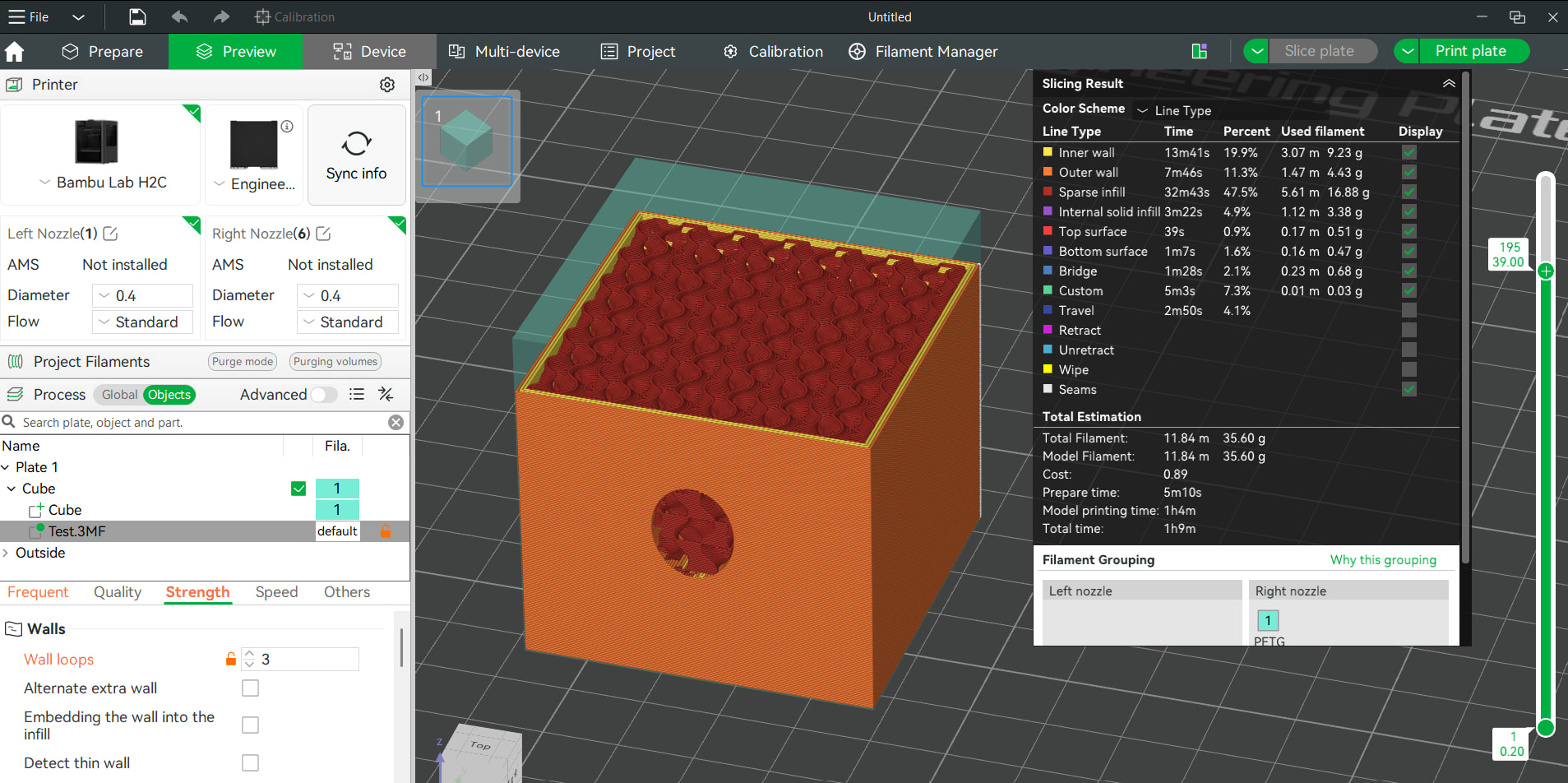
So I tried what EnoTheThracian mentioned - the Slicer has this feature built in and does exactly what the thread starter wants: All it takes is a modifier cube.
I was overcomplicating things; it’s much easier with the modifier cubes. Admittedly, I also needed time to think it over in order to understand exactly what the thread starter wants and how to achieve it. I also needed to test it out for myself.
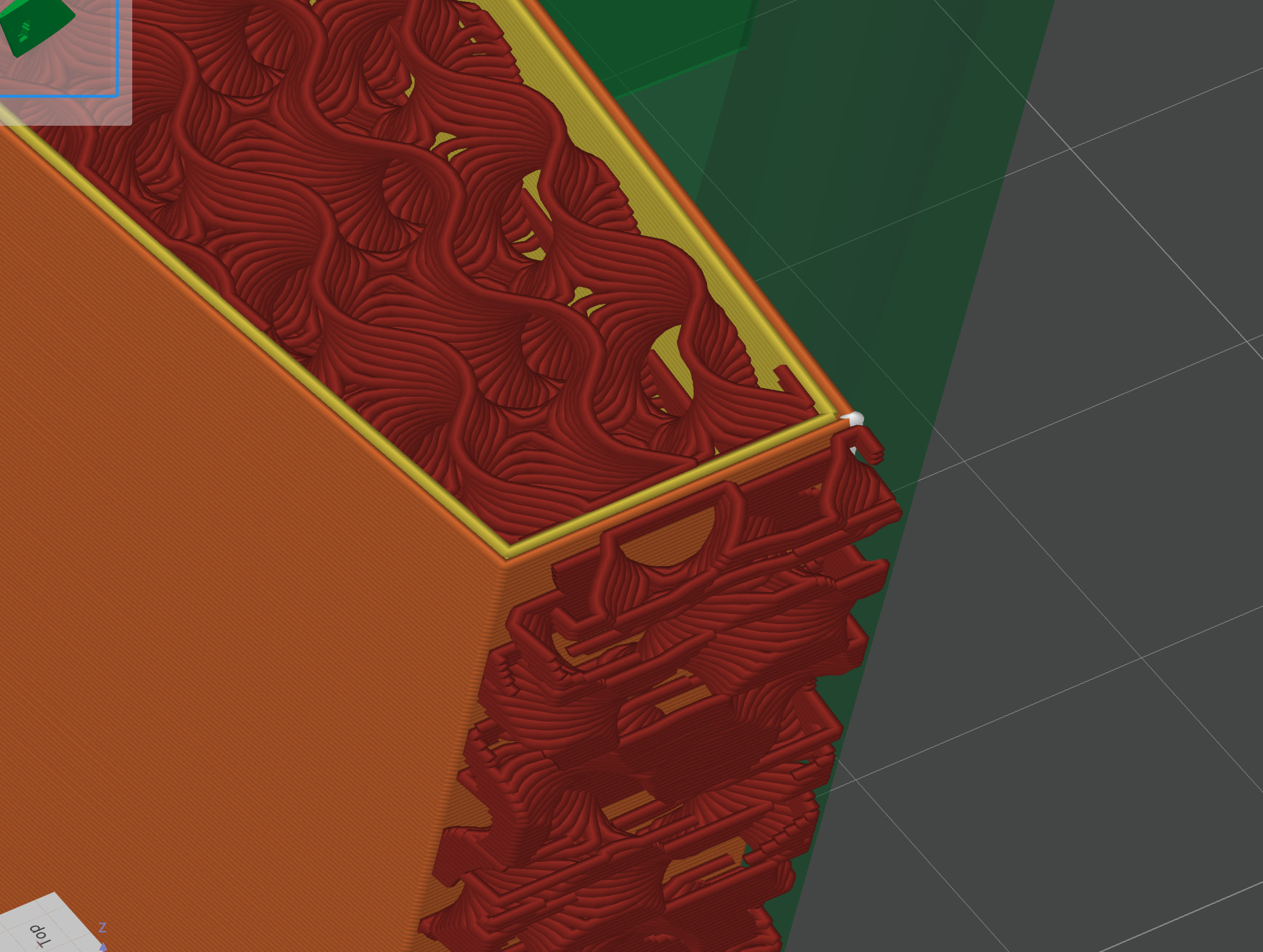
RetroSharky, I agree it “should be simple”. Its not. Look closer at your model you shared. There is a wall (two loops) between the infill of the modifier and the infill of the wing. No expoxy can flow between them. No matter what you do (In Prusa Slicer or Bambu Studio at least) these walls are always created.
Using a modifier creates two new surfaces. One for the modifier, one for the part. With one set to 0 walls, the other surface will still generate walls.
You can see those walls also in the small modifier generated side hole. And in my first try above.
So, at least for now, we are unfortunately stuck with custom made modifiers for this scenario.
Ya EnoTheThracian, that CAD shell method is the only technique that works. As mentioned it’s fine for simple shapes but for my complex wing it’s slow and tedious. It seems like this would be so much easier handled in the slicer. Just click a face you don’t want walls generated.
Below showing the result I want is possible using CAD as you describe. i.e. both top and bottom and vertical side have exposed infill.
If you refine it a little more, you’ll have exactly the solution you need.
It’s not a mistake; what was missing was following through on the idea and thinking one step further.
The next step would be to optimize it further. In my example, it’s not perfect yet; you basically have to create a proper “stamp”. However, since the solution has already been working using CAD, this is obsolete anyway. But it might be useful for future projects. For example, for people who don’t have CAD software.
I’ll play around with an stl modifier later.
Unfortunately, my Blender skills are limited to turning perfectly round sphere into a potato
So I can’t follow the “stamp” approach but am stuck with deterministic approaches.
RetroSharky, you right, your way works but I am wondering how you created the “stamp” in BambuStudio and avoided CAD? Can you elaborate a little more? This would definitely be of interest if CAD fails (or those that aren’t familiar with it)
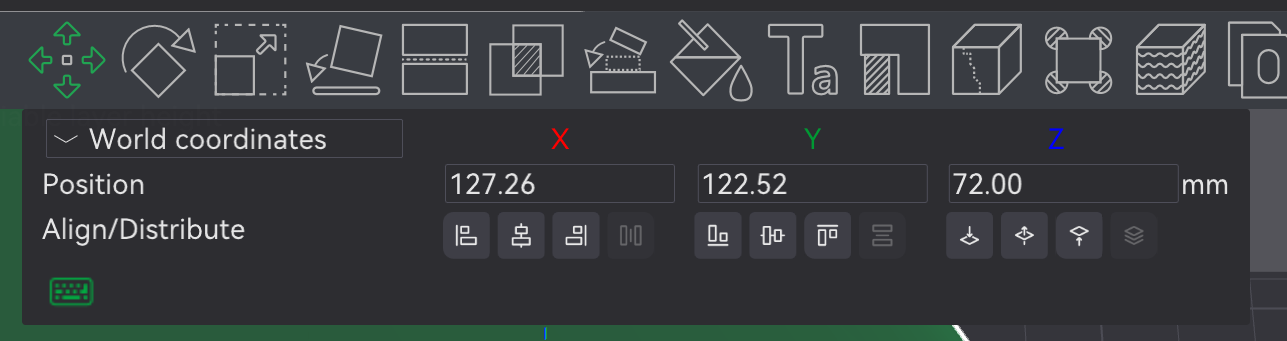
What I also had to do was shrink the modifier just a little bit and move it toward where the open wall should be. To align it, I use the world coordinates: That way, you don’t have to struggle to get it aligned correctly; you just copy the numbers.
 &
& 
 ).
).