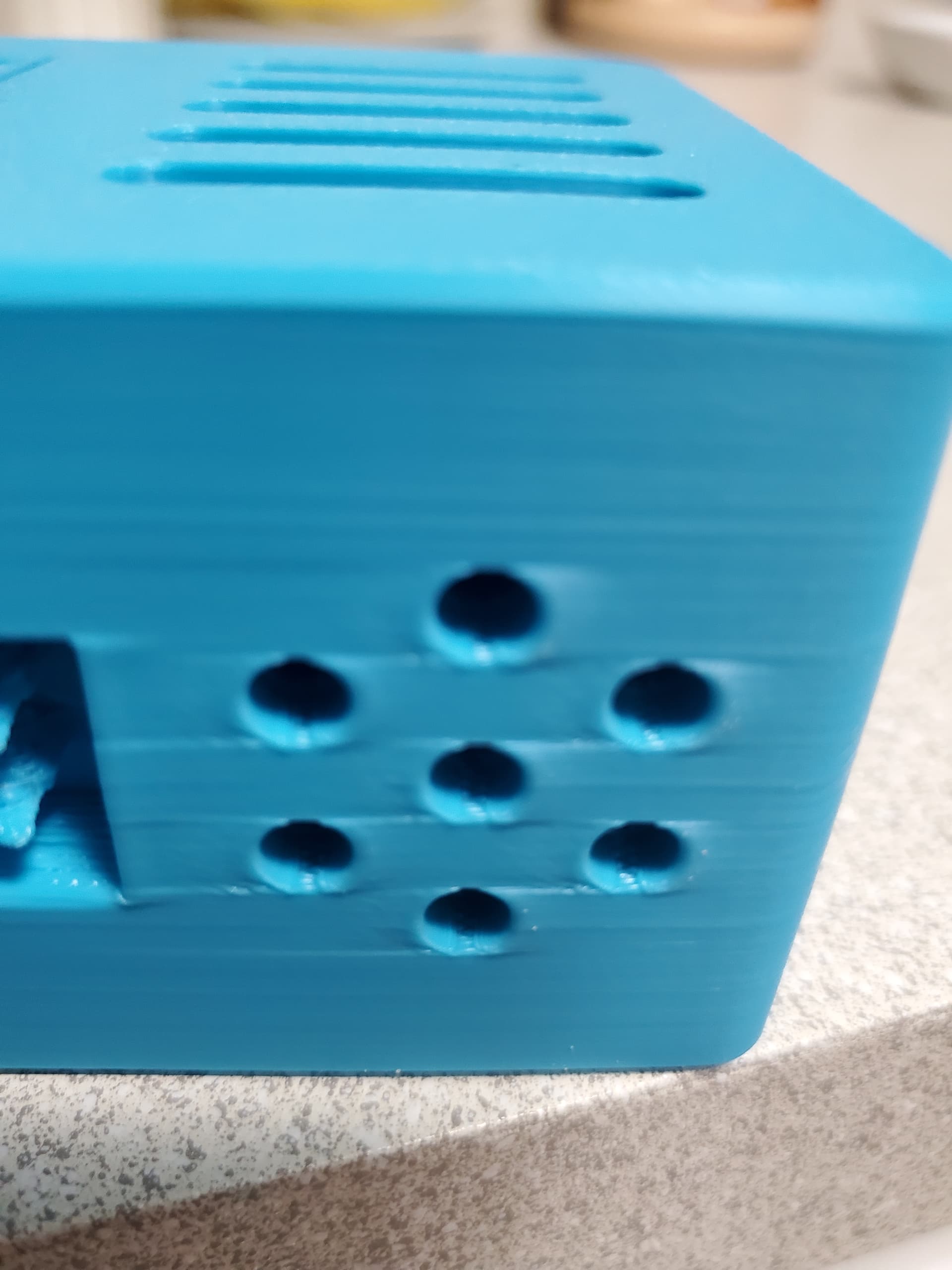
Does anyone know why this happens around holes? I used Elegoo filament here, but see the same issue with Bambu only less severe. I printed at 0.12 Fine @BBL X1C on a P1S. I get similar lines with other models. This is one of the worst print defects I have seen on my P1S.
Thanks for any advice! 
A few reasons , i had it with 0.2, not always been able to remove it but to a level almost invisible or completely gone
priority wise:
- Not well tuned PA(K) and flow - main
- reduce the speed
- tune over hangs - speed and temperature
- add support for the holes - unfortunately Bambu is not that great with overhangs even on short distances and in some cases you can see similar effect , but that is probably last thing or first thing to see if is the PA(K) tunning or the overhangs
EDIT: added bridges
- tune bridges - speed and cooling/ and potentially Flow override
Thanks, I will try these things. I haven’t done the calibration because Bambu Studio made it sound scary. I noticed there’s a calibration option on the printer itself now but can’t seem to find any info about that yet. I guess I better get brave! Thanks for the reply!
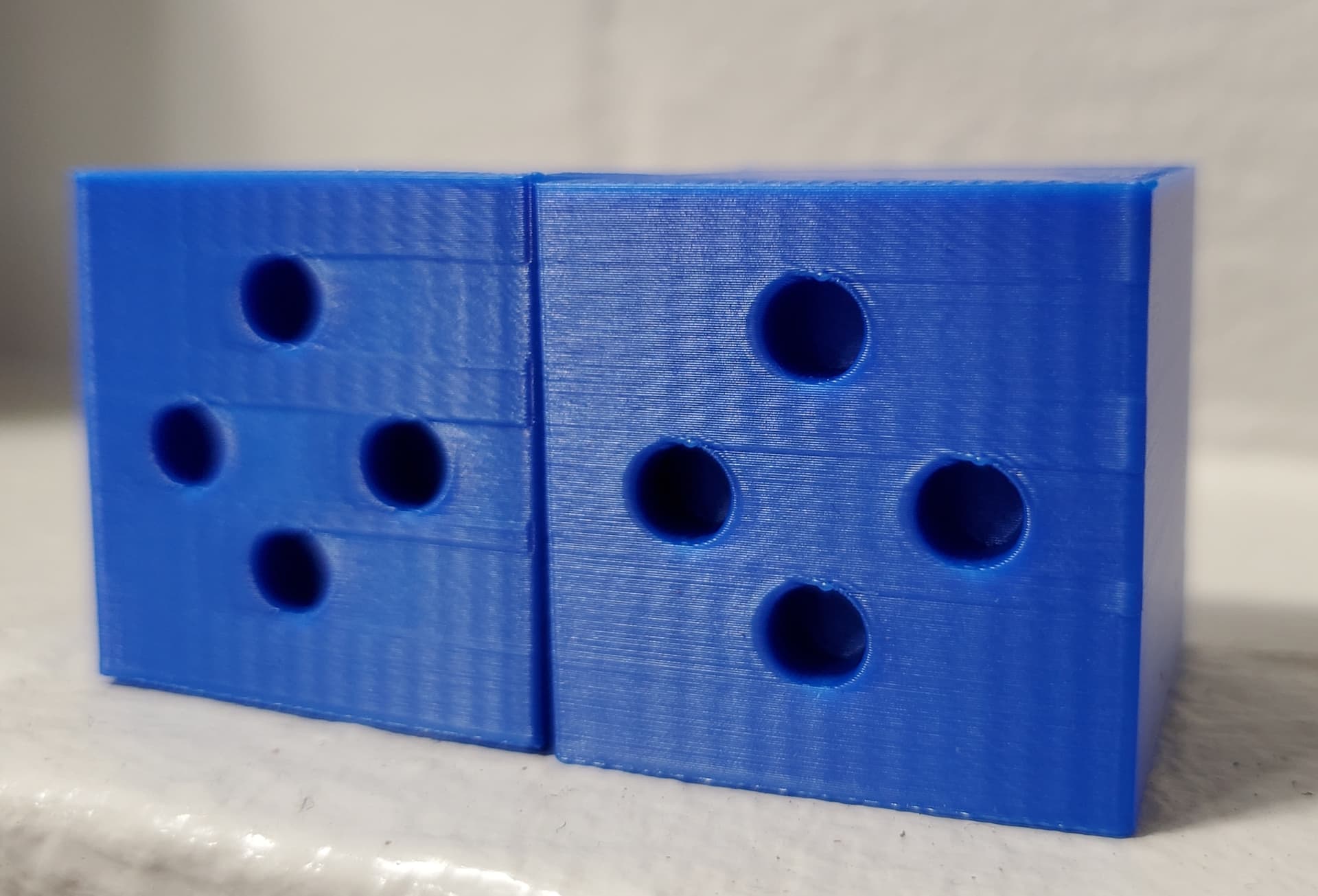
Here are my test results so far. I used 50% speed.
On the left is after doing the auto-calibration on the printer control panel. On the right is after going through flow dynamics and flow control calibration.
There’s a noticeable improvement,but the bands around the holes persist and it still has that appearance like material is bunched up at the right edge.
There wasn’t a significant difference when using supports, which are difficult to remove cleanly from holes.
The only thing I haven’t done yet is mess with the overhang speed and temperature, but will search for suggested parameters to try and report back 
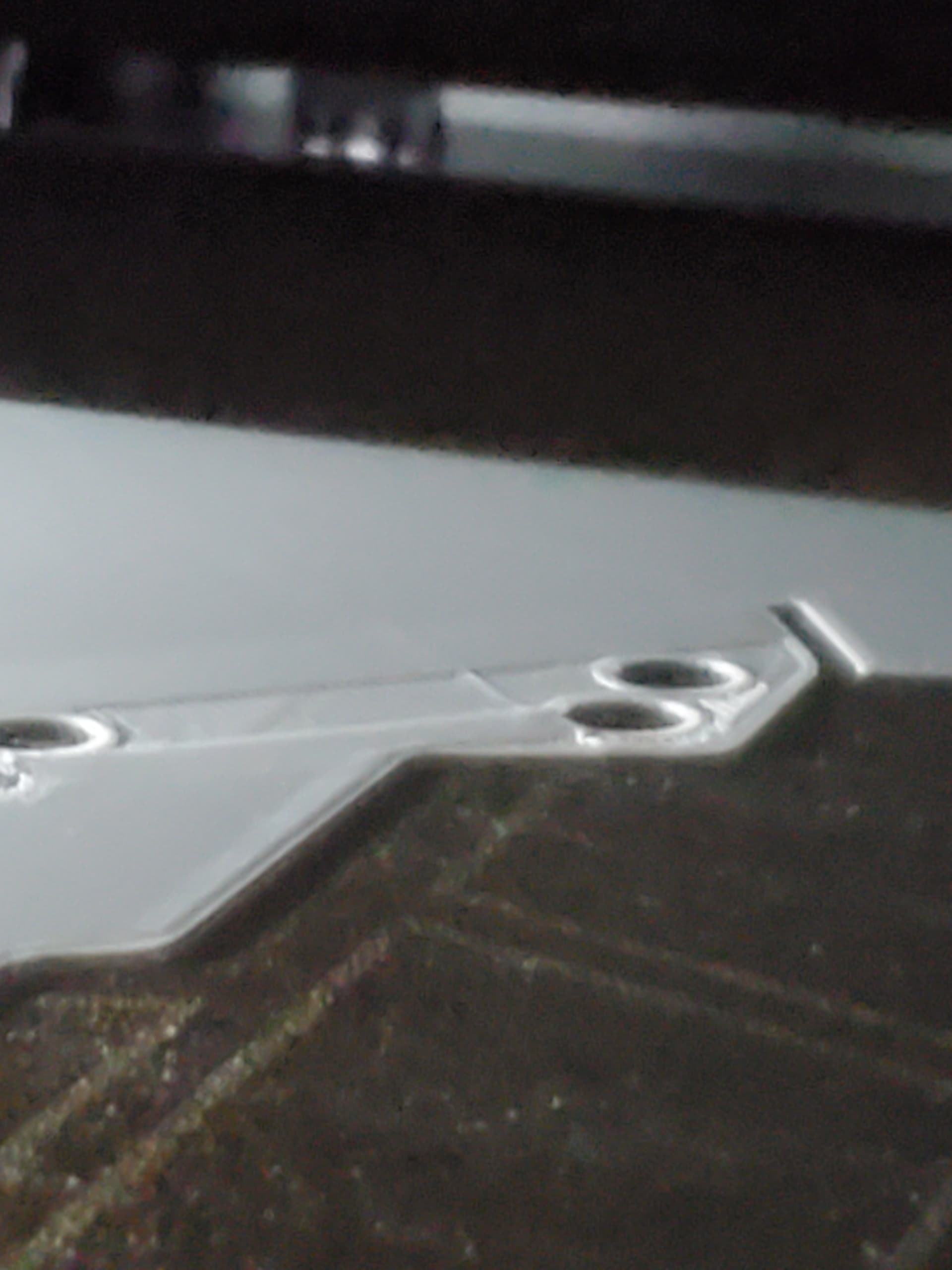
My thought is it has something to do with the sometimes zany order that the slicer has the printer going in. Here you can clearly see a band developing on a horizontal surface where the holes are, because it went back later to do that part. And currently I have no idea how to control or change that. I heard that a different slicer program has an option to have it not do that but pardon that I can’t remember the term for it offhand.
I assume that is PETG rather than PLA? Did you dry it yet?
It’s new PLA and yes I use silica gel liberally
Right. PLA should indeed print better.
But silica gel will keep the air around the filament dry, reducing further water uptake of the PLA. It does not remove water from the material. Since new rolls fresh from the bag can be quite moist (water bath cooling, lack of pre-packaging drying, storage, transportation times,…), it is best to dry them before use. It may not always be neccessary, but when you are experiencing issues you need to eliminate that as a root cause first.
Overhangs is a b…h but do not forget speed and cooling for overhangs for each angle
I remember playing a few days , and too low speed was no good but higher was also no good , i think for ASA i got to 25mm/S as a good compromise , but for PLA still using the defaults with acceptable result and if i want a great result with PLA i do not use X1C
When you say you don’t use X1C, I am confused. All of the presets in Bambu Studio have “X1C” in the name. What is it that makes these “X1 Carbon” presets and how do you not use that?
You can select the pre-selected printers here (red). You then have the printer and nozzle presets available for selection (blue).
I have Prusa MK4 Printer AND X1C . I got the MK4 after the X1C Printer , before that was using Mk3S modified and X1C
On Orca you can use both printers , Bambu also allows
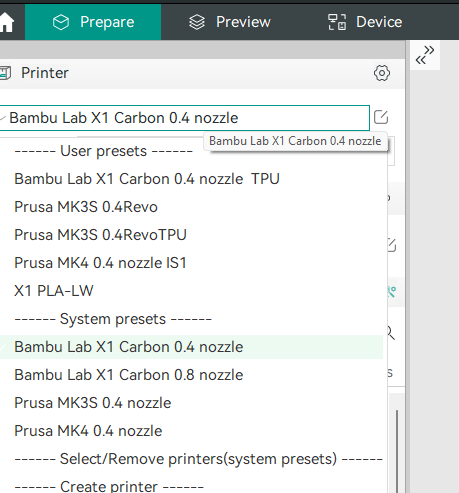
On Prusa some times use Orca slicer some times use Prusa slicer - mainly use Orca slicer when printing the same model on both printers to make sure that are sliced and the end result is as equal as possible
Thanks for the info! I’m taking everything into consideration. I did finally hear back from Bambu about this, and they had a somewhat different take. I’m sharing it here in case someone finds it helpful!
Bambu:
Based on the information you provided, it seems like you’re experiencing issues with bulging walls during the printing process (not layer shifts). If you’re encountering this problem at feature change points where the print has a solid layer, it may be related to the slicer settings or the specific model you’re printing.
Here are some suggestions to address the issue:
- Check your slicer settings: Ensure that the wall thickness and the number of solid layers are set correctly. Adjusting these settings might help improve the print quality.
- Reduce infill/wall overlap: Decreasing the overlap between the infill and walls can sometimes resolve bulging issues. Experiment with reducing this overlap to see if it makes a difference.
- Try alternative wall generation: Please try the Arachne wall generator. It could be worth trying it to see if it helps with the issue. Different wall generation algorithms might produce better results for your specific model.
- Try turning on detect thin walls and see if it helps with the issue
.5. Change the order in which the walls are printed.