Is there a way to view or print a complete list of all the settings being used on a project?
This is surprisingly difficult. Unless there’s a 3rd party utility out there I don’t know about.
Might depend on what you’d like to use the list for.
The most comprehensive list I’ve found, auto-generated, is actually stored in saved g-code files. At the top of each generated file there is a very full list of all the parameters being used.
So from the slicer, export to g-code, unzip the resulting .3mf archive (it’s a standard zip archive format), and look for the “plate-#.gcode” file(s). They’re plain-text.
The actual project configurations are stored in .config files inside 3mf project archives, but they’re split between 3-4 separate files and are in JSON format which is more verbose than the above alternative.
If anyone knows of a more friendly utility for this, or maybe even one that can compare projects, would love to hear about it!
-Max
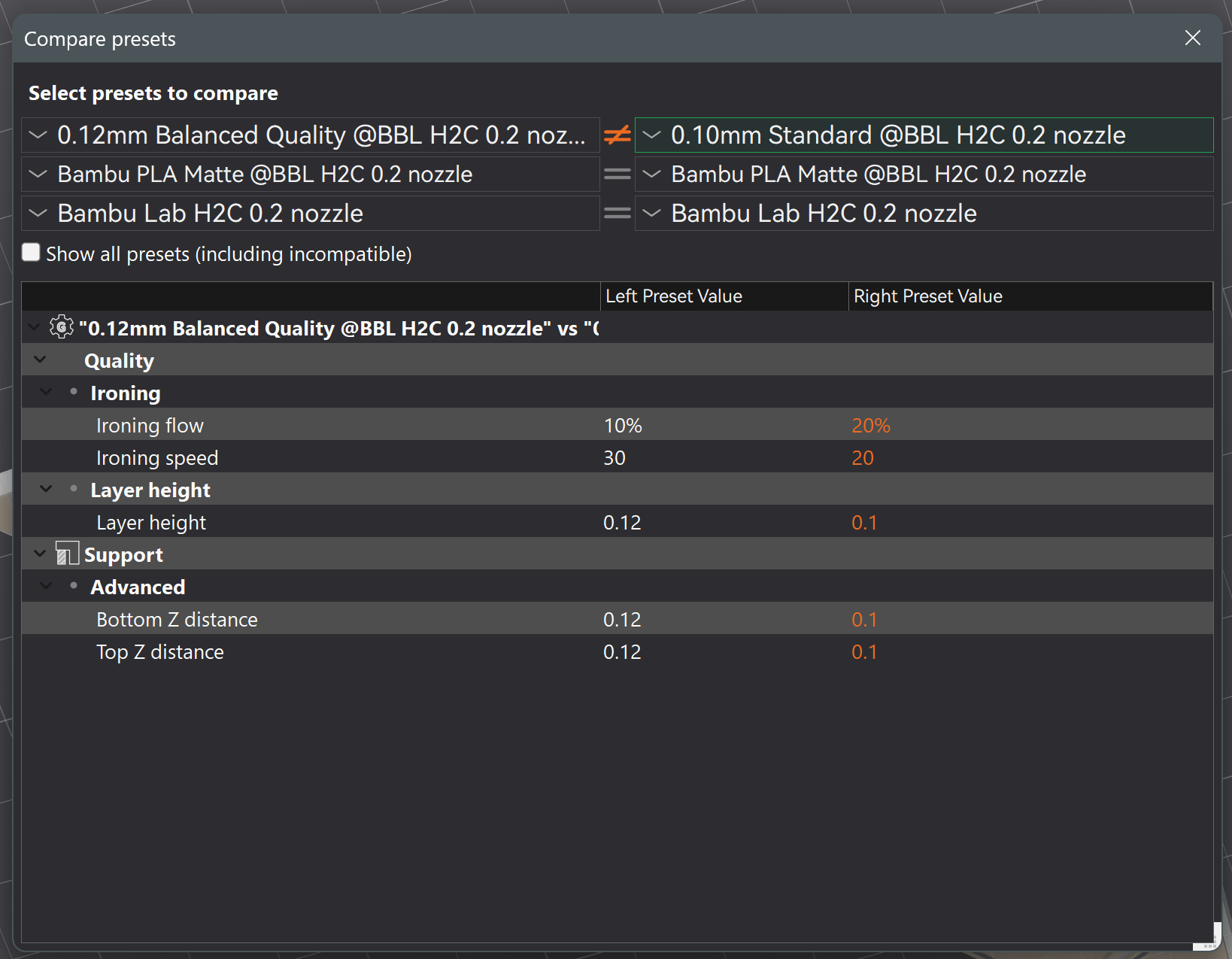
Looks interesting, how do you save a project as a profile?
Not a whole project, just the profile(s) separately – a project technically consists of 3 profiles: printer, filament, and “process” settings which is everything editable directly in the main Studio window. So a completely full project compare would require saving/comparing all 3 profile types in that window. Also AFAIK there’s no way to compare a filament profile which is stored inside a project itself (vs. a custom standalone filament profile).
Nor will it show which filament(s) is/are selected per project, nor any per-object/part settings. Last but not least that compare window/functionality hasn’t been updated in a long time and I’m not sure it really shows everything (eg. project with multiple nozzle speeds for each side of dual printers), and sometimes it shows differences that aren’t different (which kinda makes the whole thing a bit suspect).
But other than that, it can indeed be useful in many cases, and I do trust it for the most part. 
-Max
Where is “compare profiles” located? (Please excuse the questions, I’m still learning my way around Studio!)
Click here to save a preset:

You cannot change and save a System preset with the same name.
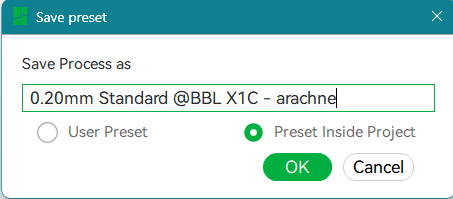
Save your current settings as a User Preset if you want them for future projects.
Save your current settings as a Preset Inside Project if they are unique to this project. You can save multiple presets within a project, which makes it easy to try different combinations and go back to the one that works best.
“Compare presets” works only on saved presets.
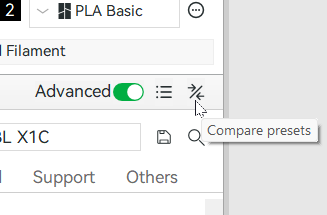
Seeing only the differences from a System preset makes it unnecessary to review all the unchanged settings, saving a lot of time.
Thanks very much for your assistance! I really appreciate it!