Hello,
I used 2 filaments for the skin color: beige and latte brown.
What is the -C curve parameter used for?
Hi,
Sorry for the late response.
The -C mode is for creating curved lithophanes.
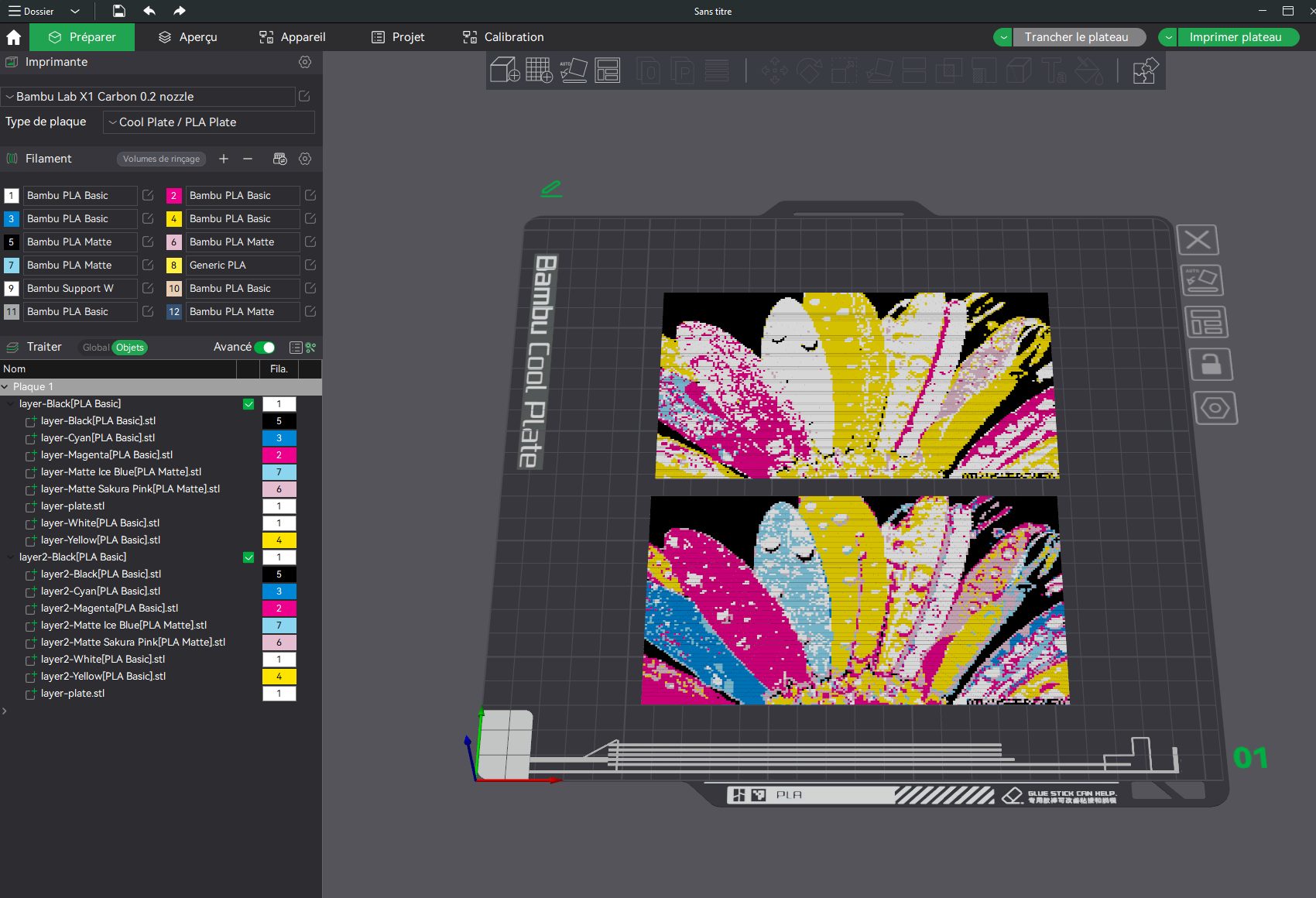
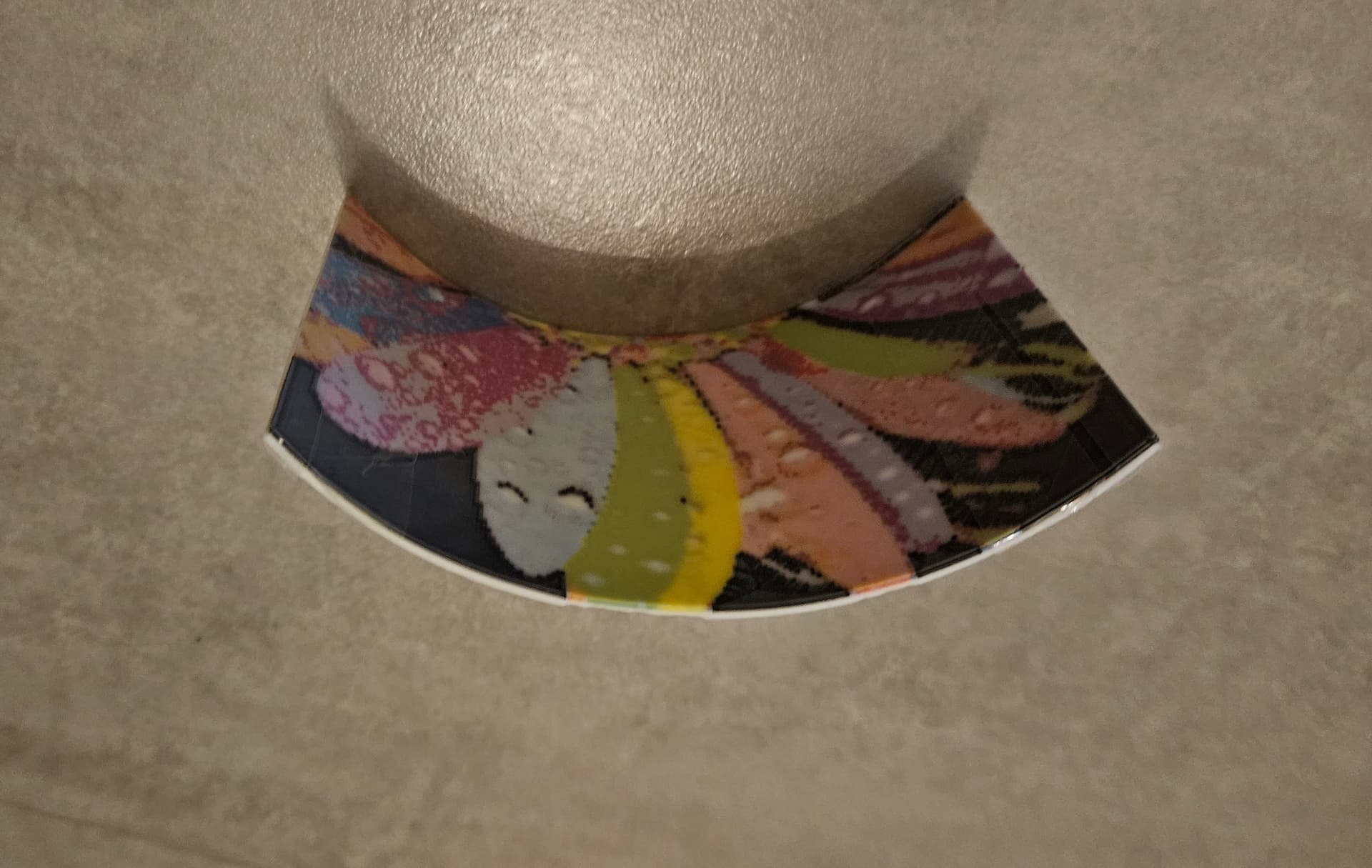
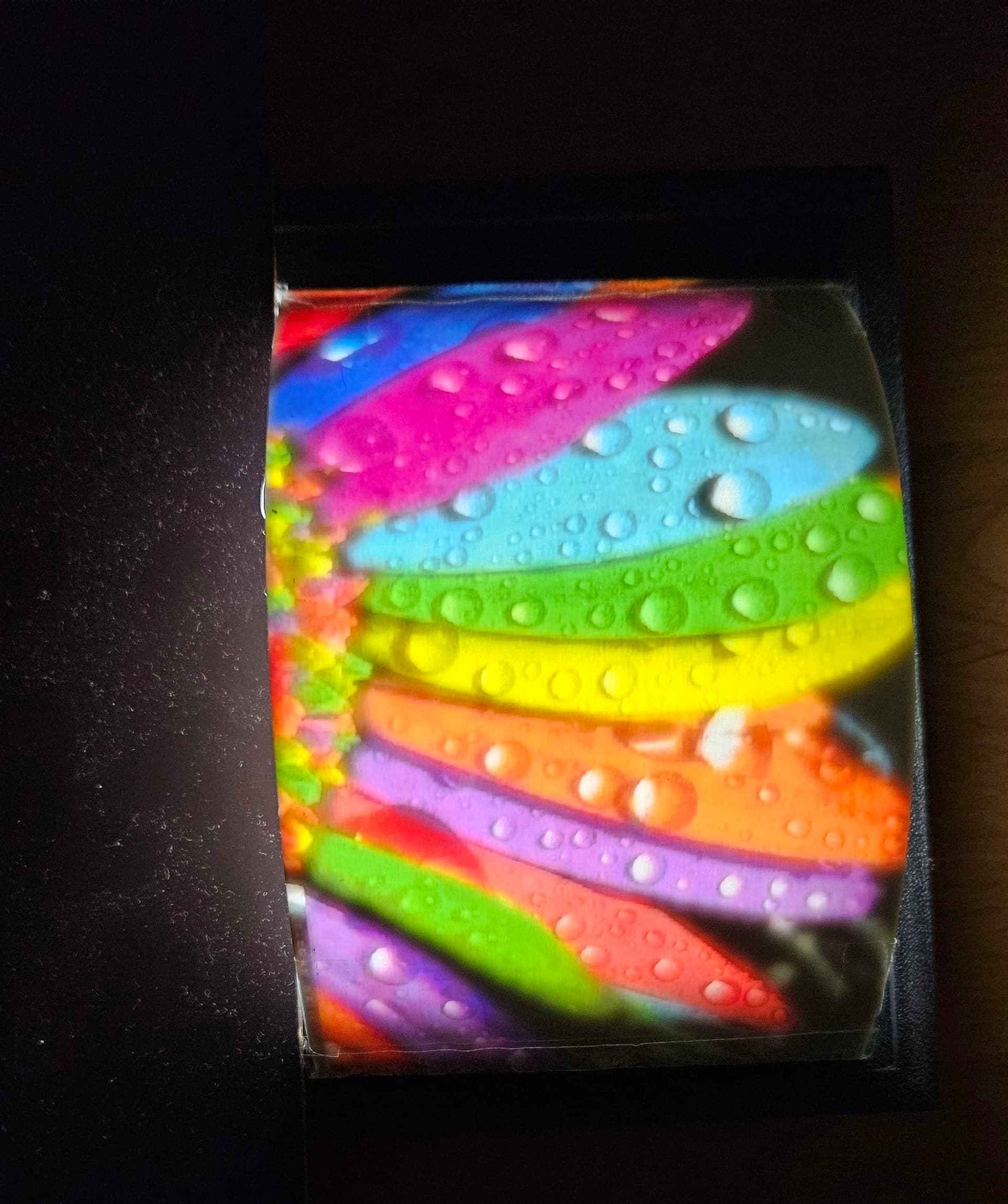
I tried it out to see if it was possible to make curved lithophanes in color.
The textured part is printed upright, and the colored part is printed flat in two passes (to maintain flexibility).
I made a prototype but quickly gave up and didn’t pursue it further.
My conclusion is that it’s better to do it through thermoforming…
Hello together,
first a big thanks to gaugo for this nice kind of software!!!
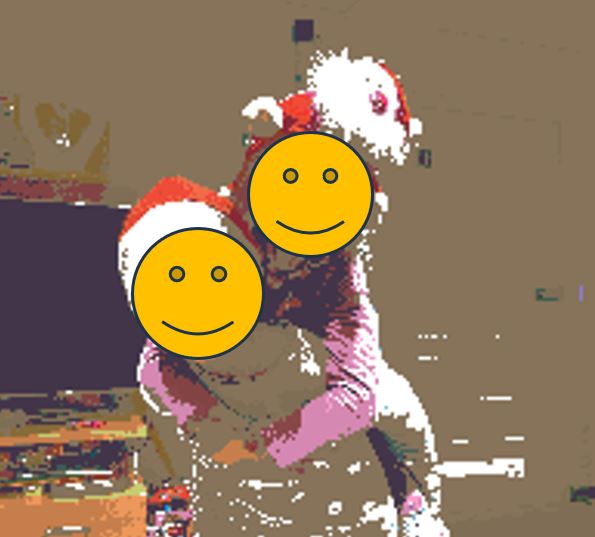
But I have some kind of problems with the darkness of my images. If I generate the lithophane most of them ends in a very dark result. I need a very strong light source that the colors are visible and sometimes all looks like it would be covered with brown mud 
Here some example pictures
Original Image:
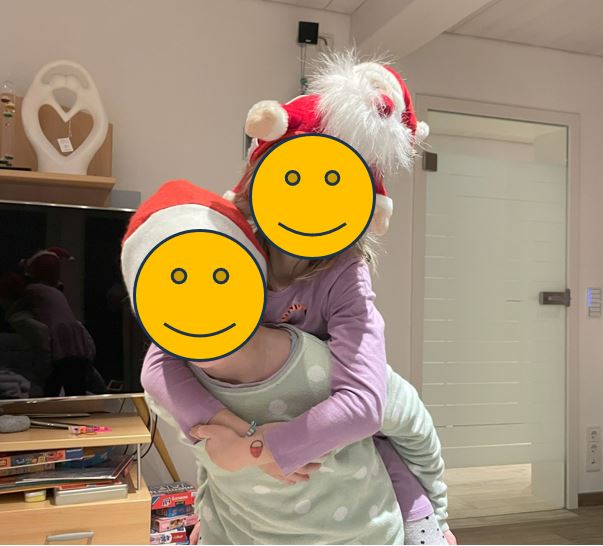
Color Preview:
Result with strong light:
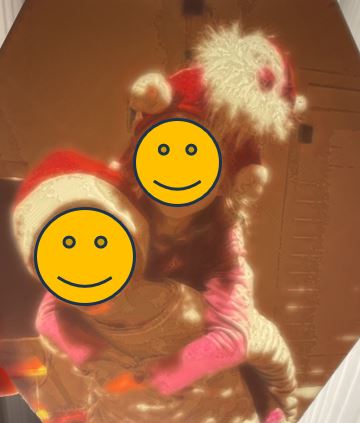
Important to know, I just use the 4 Basic colours CMY+White and a 0,4mm Nozzle.
Do anybody have some hints, what a photo needs that the result have more brightness? Or is there option in PIXEstL to generate more shining results?
And a second question is with the " -M" parameter. With the default all result prints have a maximum thickness of 2.63 mm. If I change the setup to “-M 2.8” the results have a maximum thickness of 3.6 mm. That confuses me. Can someone explain that parameter to me?
Have you tried HueForge software? Might provide you with the needed solution to your problem.
Hi drakko,
yes I tried Hueforge. But, for me, that is a completely different thing and has nothing to do with an lithophane generation like PIXEstL.
I can build there 3d images with a more or less good color setup, but no real CMYK lithophane (or I am to stupid to use it )
I guess both software require some kind of learning curve and testing, to see what works best with your printer (and chosen filament type) and what not. Far from me the thought that if not using Hueforge someone might be stupid, as in such case I’d be classifying myself as such, considering that I’m also struggling to understand and work out which software responds to my needs. Trial and error is how i do it. what works out well, i write down what settings worked for me, filament type and keep it for further use. Nothing wrong with making errors…it’s how most of ppl learn 
An addition to my questen how to reach more bright results? Would it help using more then the 4 colors (perhaps adding baige or silver)?
Have anyone suggestion what ar good additional colors? What are you using for filament combinations? Unfortunatily I have to change them by hande at the moment (only one AMS)
Hello @martin.fischer.sbw,
There are several complications in your case:
- The first and main problem is that it’s very difficult to produce light colors with CMY filaments.
- The second problem is that your image contains “skin” color. This color is very difficult to achieve.
- The third problem is that you have black in the image (the TV). So a mix of dark and light colors.
Regarding CMY filaments, they are great for producing bright colors, with saturated colors, but very limited when it comes to getting pastel and/or pale colors. At this level, lightening the image doesn’t really have an influence.
To make lithophanies of clear images, it’s preferable to use light filaments. At BambuLab, you have Sakura Pink and Ice Blue which work very well. (I also need to test their new “desert tan” which seems promising as well). With these filaments, you could emulate light colors, but not vibrant colors and even less so black.
The ideal is to move to more than 4 colors, so you’re no longer constrained to using only light filaments, and you’re no longer constrained to using only vibrant filaments. If you also add a skin filament (BambuLab’s beige filament is perfect) and a black filament (for deep blacks), you’ll be able to print almost any image.
I personally use the following filaments:
- IceBlue : PLA Matte Filament avec bobine / 1 kg / Bleu glacier mat (11601)
- Sakura Pink : PLA Matte Filament avec bobine / 1 kg / Rose Sakura mat (11201)
- Beige : PLA Basic Filament avec bobine / 1kg / Beige (10201) | Bambu Lab EU
- Cyan : PLA Basic Filament avec bobine / 1kg / Cyan (10603) | Bambu Lab EU
- Magenta : PLA Basic Filament avec bobine / 1kg / Magenta (10202)
- Yellow : PLA Basic Filament avec bobine / 1kg / Jaune (10400) | Bambu Lab EU
- Black : PLA Matte Recharge / 1 kg / Brun latte mat (11800) | Bambu Lab EU
Now, if you have no choice but to stick to 4 colors, here are some tips:
- Choose images either with bright colors or with light colors, but not both at the same time; and adjust the filaments accordingly.
- Try the 7-color mode with 1 AMS that I developed. It’s not perfect but it can help.
- Try reducing the layer size to 0.07mm to “lighten” the CMY filaments a bit (see this thread: Thought you might be interested · Issue #4 · gaugo87/PIXEstL · GitHub or this thread : First Go Round, and some questions. · Issue #6 · gaugo87/PIXEstL · GitHub ).
The parameter -M solely determines the maximum thickness of the texture layer, not of the entire lithophane.
First of all, thanks so much for your time in putting this together. I have a question around configuring the palette though. I’m thinking something must be off with my setup because I’m getting a different look on the print compared to the color-preview.
In the palette configuration, what should go on the top line? I have measured all of my filaments by layer height as recommended, but I’m confused bc there are 5 layers to insert the HSL so where do you get the 0086D6 in your example? When I measured each layer they all had different hex values - as they are slightly different shades at different layer levels. So for example, if I have midnight purple, what is the top line supposed to be? Would that be my highest layer sample square measurement?
"#0086D6":
{
  "name": "Cyan[PLA Basic]",
  "active": true,
  "layers": {
    "5": {
      "H": 202.4,
      "S": 95,
      "L": 48
I’m also using a .4 nozzle so this may be related to that, but is there a way to change the amount of layers or decrease how thick the end result will be? Is that what the -M parameter would be used for? I’m noticing that the final prints need quite a bit of light source to show through - almost like they’re too thick. Any help is greatly appreciated.
I now realized that was a dumb question, it’s the color of the filament from the website. So that makes sense. I’m still struggling to get my palette correct though. When I print out the squares it looks so different from what you would think it should look like. White looks grey for some reason, my values seem to be vastly different from what you got - with the same filaments. Guess I need to keep trying…
Hi Gaugo,
I watched your calibration video and I was wondering what light panel do you use and how from the light panel did you take the photo? Does camera distance from the light panel male a difference? Did you use a smart phone or a real camera?
Thanks
Hello @jwhiteman6123,
I use Nanoleaf panels. It’s not specifically that they are better; it’s more that I already had them and it’s possible to adjust the light temperatures. Additionally, I also bought this: https://www.amazon.fr/dp/B08NVV4ZYF because I needed a large light square.
For taking photos, I use my phone:
- I disable AI
- I switch it to pro mode to have access to ISO and shutter speed
- I adjust these settings to ensure the colors match between real life and the screen (approximately by trial and error)
It’s not perfect, but it’s sufficient for my needs.
Hello! I wanted to try to the 7 colors with 1 AMS method too, but in 2 tries I got the wrong colors. Like in the Pictures belowPrintedCookie
I get pretty good results using Lithophanemaker. com and using the “Printed Solid CYMK” color pallete instead of the suggested default eSUN one as recommended by Bambu
Hello @PrintedCookie,
For some time now, Bambu Studio has added an option to add the possibility to force the sequence order of filaments at a given layer (in addition to the first layer). So it is no longer necessary for PIXEstL to add a white layer for color changes to occur. This white layer had a significant negative impact on the final result because it diluted the color and prevented all the color layers from bonding together.
Could you try one last time with the new version and the new procedure ?
Hello gaugo,
thanks for sharing your great software.
Today I made a first try with the CYMK bundle from Bambulab.
I am pretty happy with the result. Do you have any idea where to get the U
filament-palette-0.07mm.json? I would like to give it try with a 0.7 layer height.
MadMax389 shared his 0.07 Palette file in this GitHub thread: Using A Colorimeter For Palette Generation · Issue #13 · gaugo87/PIXEstL · GitHub
Oh, I missed that thread, thank you. Does anyone have the 7 layer values for Bambulab white?
Hello - This software looks pretty cool! Can anyone can point me in a direction to be able to run it on MacOS? From what I gather I have to download JAVA and then run a file from the Terminal or something like that, I prefer not to run into dead-ends since that would keep me from printing! So any guidance would be appreciated.