Lithophane with PIXEstL

I was able to make PIXEstL run on MacOS as follows:

Download JAVA and the program as referenced in @gaugo’s instructions - GitHub - gaugo87/PIXEstL: A program for creating color lithophanies and pixel images

Move the PIXEstL directory to your desktop or wherever you want it.

Within the directory right click to open sample.bat with a text editor.

It contains one line that starts with “java -jar…”

Open your Terminal and navigate to the PIXEstL directory.

In the terminal, paste the line you copied and hit enter.

That should execute properly, note that the only key difference with Windows is the .bat file contains the executable, which needs to be taken out and run in terminal.

Please let me know if I understand the .07mm JSON setting.

There are 2 separate layer heights we are working with:

  1. One is the PIXEstL layer height where it uses the JSON file’s data to select the appropriate/nearest selection of filaments to approximate a color. The lower the PIXEstl layer height, the more refined the selection it can make, and the lighter the light colors can be.

  2. The second layer height is in the slicer, which I assume should match the PIXEstl layer height.

Is the above correct?

I have a 2mm nozzle and an AMS with the Bambu CYMK bundle. I realize that I’ll not have great skin tones, but trying to maximize what I can with the tools I have.

Hello @user_3128607173

That’s correct.

However, you’ll quickly reach a limit with color clarity. Unfortunately, this limit prevents proper emulation of skin tones.

Beige is a light mix of magenta and yellow. But this mix is so light that even the thinnest layers of magenta and yellow filament already contain too much color. As a result, the software tends to favor using either a single layer of magenta or a single layer of yellow without mixing them.

Another issue with skin tones is the variety of shades and gradients, ranging from beige, pink, white, brown, etc. And since the software can’t reproduce many colors, gradients are often poorly rendered, creating a “staircase” effect.

I honestly think the easiest way to achieve a proper skin tone is by using beige filament directly. A good combination is “Beige, Desert Tan, and Latte Brown.” This works particularly well when the skin is tanned.

For me, the most difficult skin tone to emulate is pale pinkish skin. On the contrary, the more tanned the skin, the better the result.

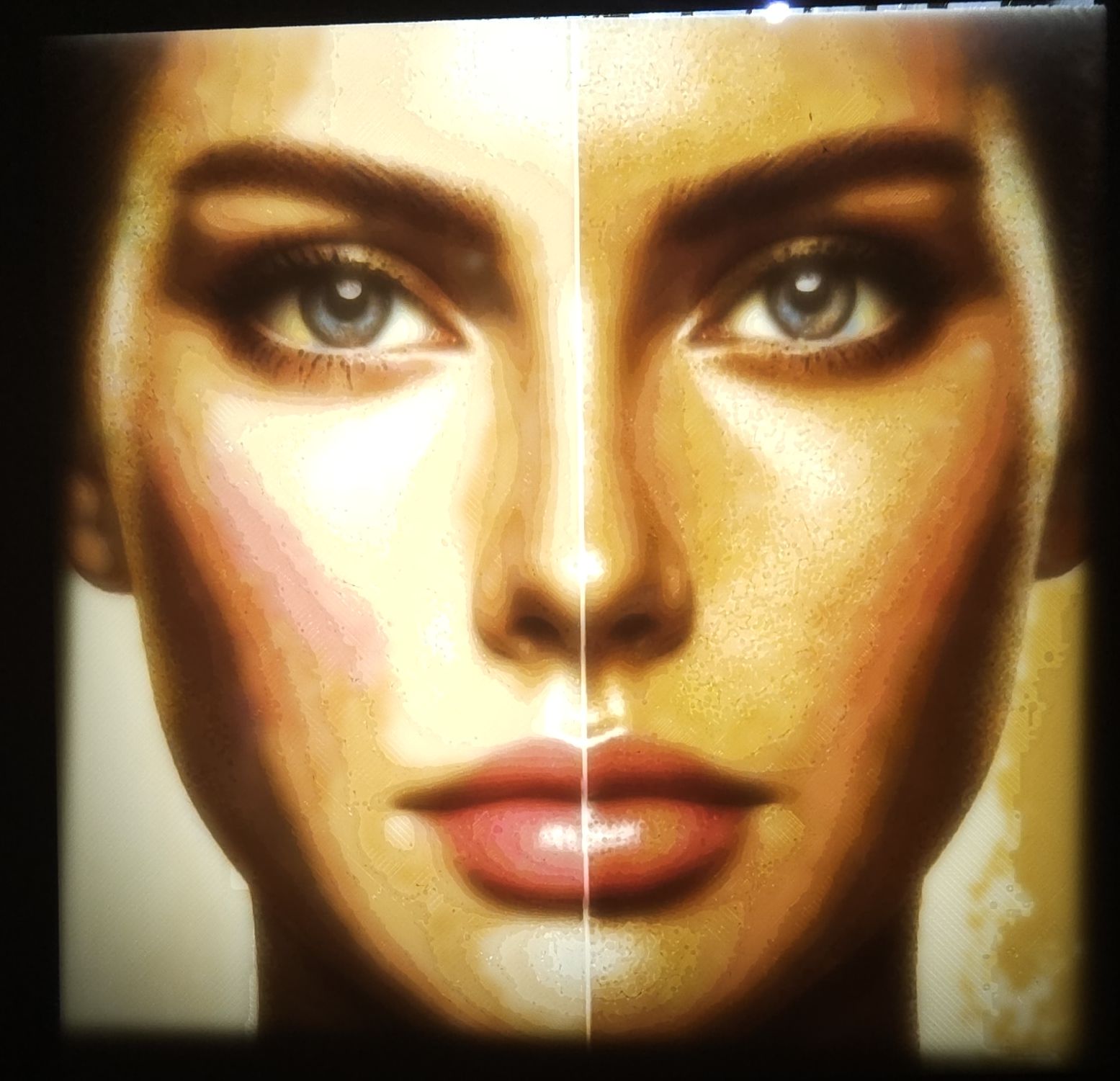
The best example is this litho rendering.

You can see that the right side is much more successful than the left side. The use of pink (in this case, sakura pink) often looks off and produces an unnatural result. I think it’s because there’s a no man’s land in tone between beige and pink. I believe finding a filament with a very light pink would make it work better.

Finally, note that you don’t necessarily need two AMS units to add colors. Both lithos you see were made with just one AMS (4mn nozzle with 0.1mm layers). They were done in 7-color mode with one AMS.

I used this combination for the layers:

Layer[0.0]: Cyan[PLA Basic], Magenta[PLA Basic], Matte Latte Brown[PLA Matte], White[PLA Basic]
Layer[0.7]: Cyan[PLA Basic] --> Beige[PLA Basic], Magenta[PLA Basic] --> Matte Sakura Pink[PLA Matte], Matte Latte Brown[PLA Matte] --> Matte Desert Tan [PLA Matte]

Since I adjusted the algorithm, the result in this mode has become very close to a print using two AMS units.

@gaugo - Thanks for the detailed response. In my mind, it seems that if someone made magenta and yellow filaments that were extremely light, it would possibly work for non-tanned Northern European skin tones. But then they’d be so light that it would take too many layers for darker tones.

If the color between pink and beige is like a “no man’s land”, what would actually happen if PIXEstL tried to produce the color anyway? Maybe it would just be darker than reality, but still pleasing looking?

I’m hesitating on buying more filament specifically for this project but not opposed to it.

Another idea that comes to mind is to create a thin flesh colored scatter plate instead of the white plate and recalculate the rest of the colors subtract the plate color.

@gaugo I have just started with colored lithophane and am currently trying out your program.
I think the color resolution is really good at a layer height of 0.1mm.
For the texture, it would perhaps improve the resolution if you could calculate the layer height to 0.05mm.
Could you think about including a parameter for this?

I’ve done further testing and see the issue with cyan and magenta.
Even with a layer height of 0.05, that’s already too much.
This means you can’t mix lighter colors for blue, green or purple.

Has anyone tried using a grid on areas of similar color?
My test with a checkered pattern for cyan and magenta already produced light green, light blue and also beige.