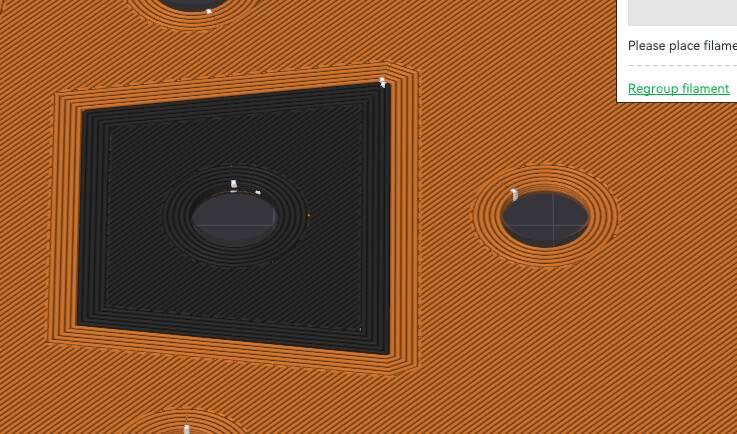
I’ve got a bit of an odd problem that I cannot seem to solve in Bambu studio. I have a thin part (12 layers, 0.2mm) with two colors. Top Surface has many tactile bumps. Part is primarily orange with black stripes and holes. I want to make all the holes black the whole way down (like the hole on the left). I’ve set the part entirely orange. Then I’ve colored the part really quickly with Color Painting → Fill → Edge Detection. There’s a small chamfer and then a straight hole. 3 clicks and I end up with this:
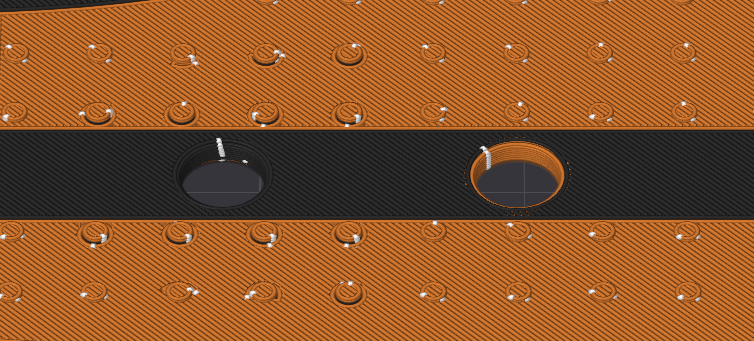
The problem is shown when I move down to the top surface of the part. (layer 10) Every last one of the bumps around the newly painted hole turns black and this shines through really badly . This makes the part really inconsistent in color (there are also areas of the part that don’t have colored holes nearby, which show a nice solid orange color) and slows printing waaay down because of the unnecessary circles. (Single color: 1hr15min, 2-color: 2hrs10min)
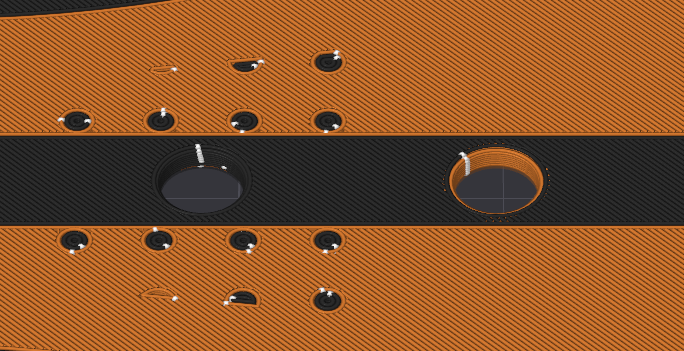
The black ‘bumps’ extend down to layer 5, where I am greeted by a large black parallelogram-type shape. (I know the purpose of this is to provide strength through color layer boundaries, but…) I’m ok if we have this layer here, but not ok with the additional odd layers.
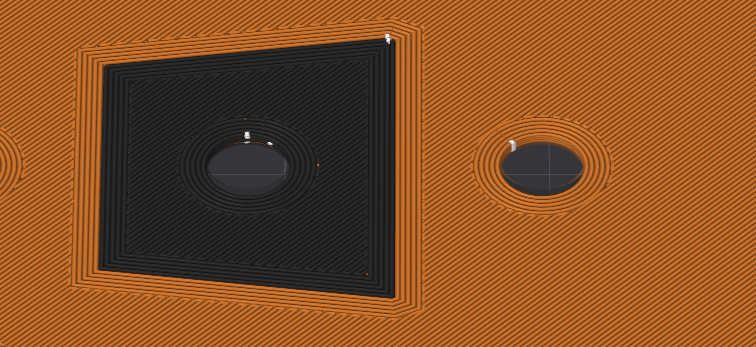
So the question is: Can someone enlighten me on how to fix this? How do I tell it not to extend the black up to the top surface? (or alternatively, how do I shrink the parallelogram?) What am I missing?
( I’ve played with top/bottom paint penetration, ‘Flush into’ options [currently off], and many other settings )