When I go to the Calibration menu in developer mode and choose Pressure Advance, it flashes the test print on the plate, then it disappears. Any idea why I can’t get it to work?
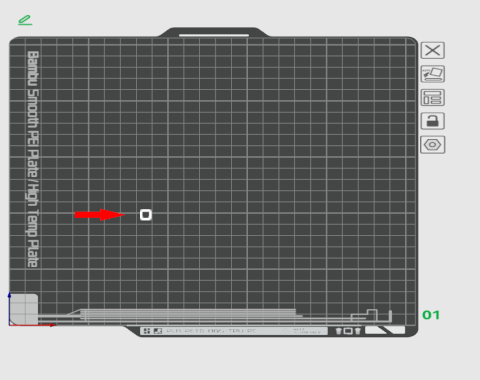
Windows 11, BS 2.4.0.70 and the Test that says “Pressure Advance”.
If I choose PA Tower it works, but if I choose PA Line it just shows type that says PA Test on the plate and if I choose PA Pattern I get absolutely nothing on the plate.
What do you see after slicing?
I am unable to slice since nothing is on the plate. Slicing is greyed out.
I cannot reproduce the problem here, same version of Studio for Windows 11.
Slicing the PA Line test changes the test to the line pattern as expected.
PA Pattern always changes the tiny cube to the expected pattern. I switched printer choice from my X1C to an H2D and all tests sliced as expected.
I thought that perhaps your Studio installation has a missing or damaged file.
Thinking that the folder C:\Program Files\Bambu Studio\resources\calib\pressure_advance contained the models used for the calibrations, I deleted the entire folder and all the PA tests still loaded and sliced as expected.
Sorry, I’m out of ideas.
What do you see if you go to the preview tab?
I see nothing in my preview. Maybe a clean install would help.
Worth a try.
101010101010
I did a fresh re-install, then installed it on another machine with a fresh install of Windows 11. Neither machine will generate anything.
Same thing happening here with BS 2.0.8.60 on windows 10.
More info: I can load the C:\Program Files\Bambu Studio\resources\calib\pressure_advance\pa_pattern.3mf project, then change to my printer, plate and custom filament settings and it will still slice properly with the “.06mm High Quality @BBL A1 0.2 nozzle” process settings, but when I try to change to my custom process settings, the primitive does not appear onscreen, nor will it print. Tower and line still work properly. Any ideas?
Windows 11, BBS Beta 2.8.3.66 and it shows up fine for me. I tried with all three options under the PA section and they all pop onto the plate as they should.
Yep; as mentioned something to do with my process settings…