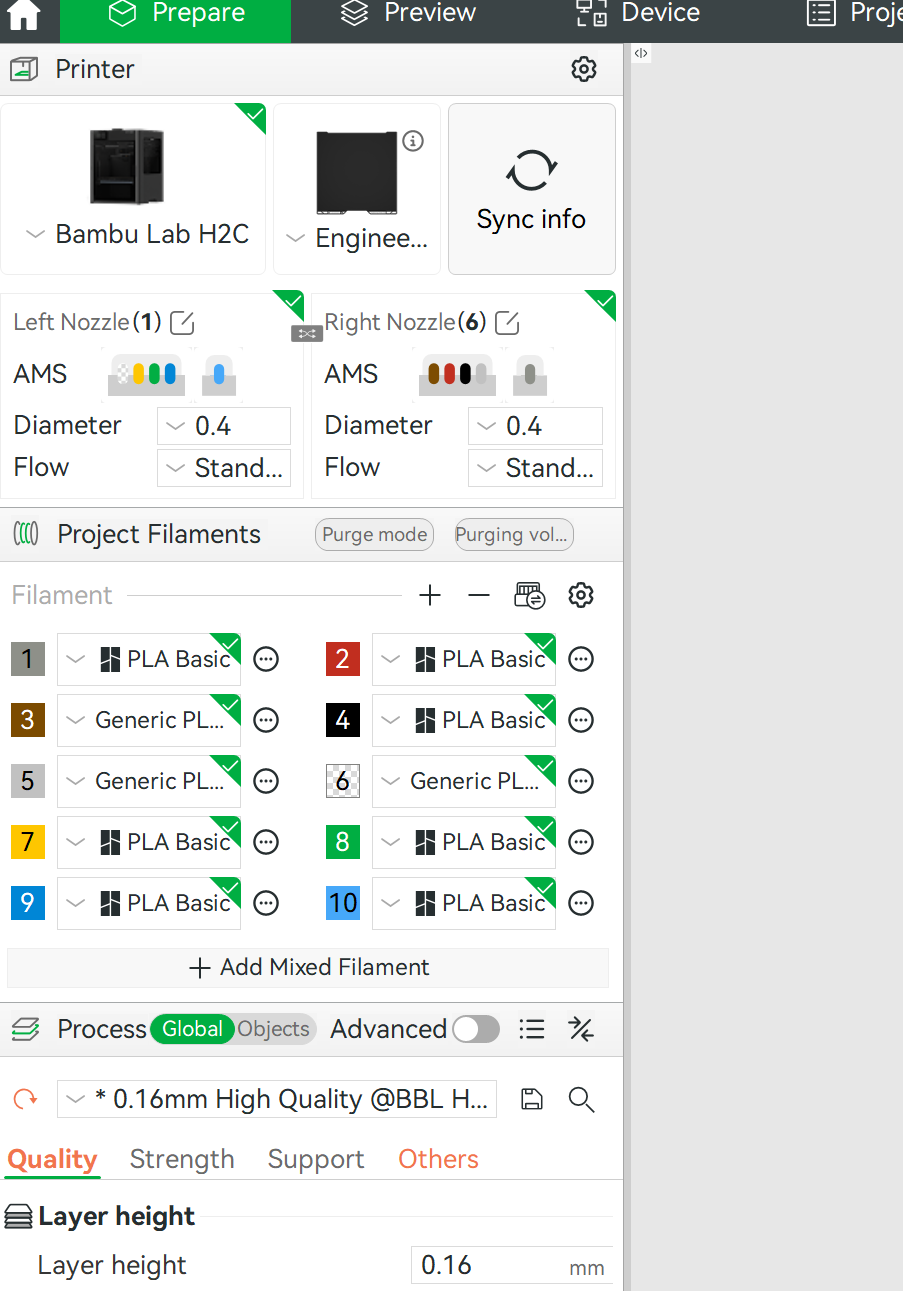
When I download a print model, I have to correct the printer to H2C and my build plate-OK. I sync the filaments with overwrite, but how to I select the filament I want to use? I figure it should be possible at this stage but?
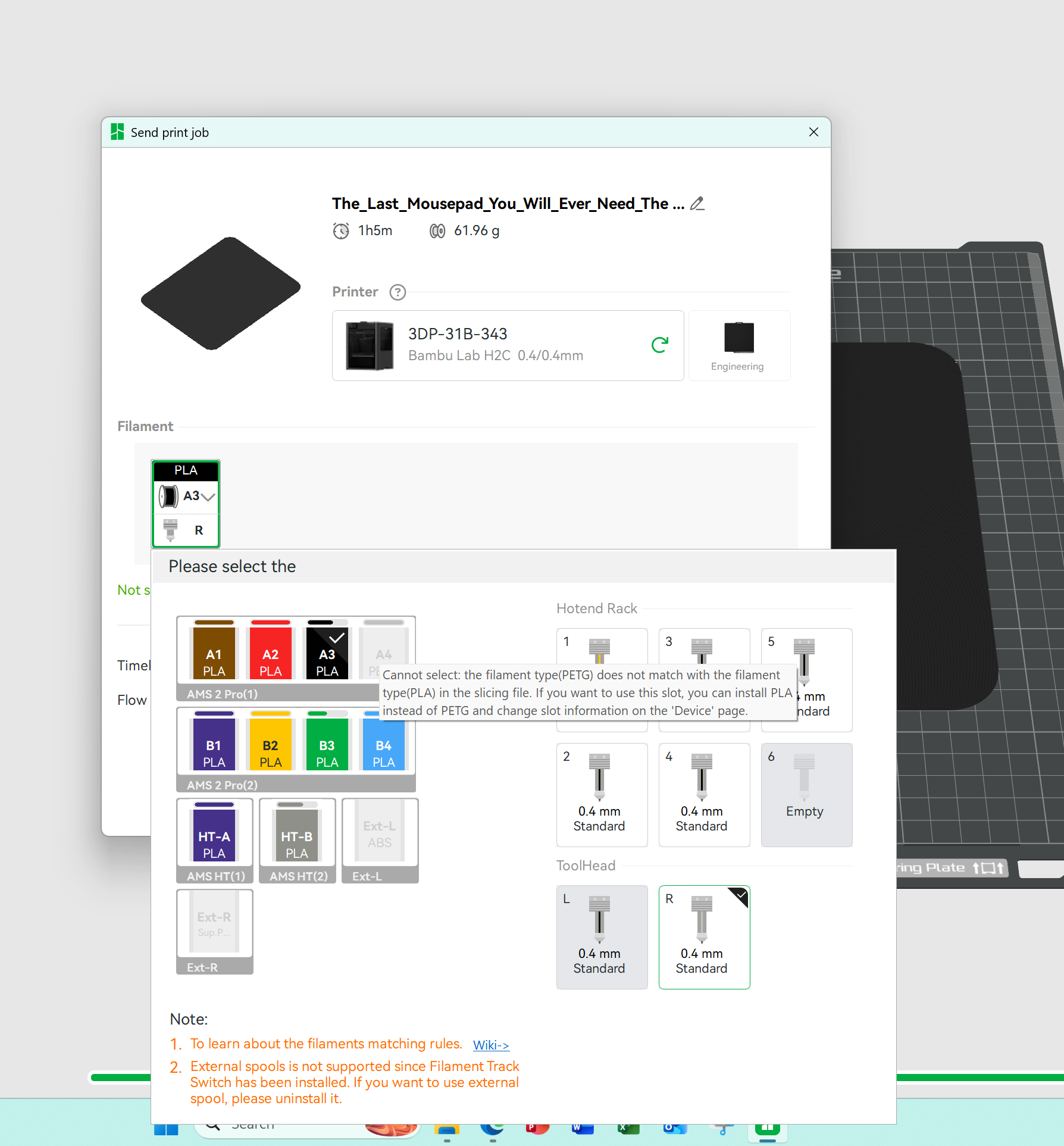
If I slice the model, I know I can change to filament when I choose Print, but if I say wanted to use PETG I get an error message
This indicates to me I should be selecting color and type of filament before slicing. I try reading wiki but I must say the filament selection tab where you can list the filament types is confusing to me about the objective and what you can then do.
Then of course there is the “OLD Chinese language” problem that AMS puts AMS A on the right and AMS B on the left…
I am not entirely sure what you mean by “select the filament I want to use”. I had trouble figuring out how the mappings work.
It turns out that the colors on the main BS screen don’t matter, they are only used to matching objects to filaments. Object with a certain color will be printed with the filament matching that color.
When it comes to matching the filaments to AMS slots, BS tries to match the colors from the main BS screen to the colors of the filaments installed in the AMS’es but even then, you can reassign them as you want (the last screenshot that you posted).
So, yes, the filament type should, obviously, be selected before slicing. The colors however, can be “selected” right before you send the job to the printer.
See the “Global and Objects buttons? If you go into objects you can assign filaments to each separate bit of the model. You can also do it graphically by clicking on the part you want to assign a filament to and then typing the digit in that Filament panel corresponding to the filament you want to use for that part.
You can also “paint” a model with colors but that’s more advanced.
“So, yes, the filament type should, obviously, be selected before slicing. The colors however, can be “selected” right before you send the job to the printer”
That’s the bit I’m failing to understand. I will try again.
I printed a model last night, I had all the correct PLA colors, which I confirmed just before printing, but the colors didn’t follow the models original (which I liked) areas. I don’t really understand why when I sync the filaments (as requested) - every time it changes the colors from the original. With your explanation I will try to restore them, but don’t understand why it changes them in the first place.
Ah. What it’s doing then is letting you choose alternate colors if you don’t actually have the colors the print calls for loaded.
You can set filament type and color in Studio before slicing (generally done by the model designer?) and before sending to the printer (generally done by those printing if desired?). I think in both places Studio tests for compatibility.
Personally I almost never change colors or types when sending a print to the printer. I do all that stuff in Studio before slicing.
Ah. I can’t swear to this but I believe the models carry the AMS position and color information and you see the colors as chosen when the file was saved when you open it. But when you sync with your AMS units, it overwrites the color/type information that was specified originally with the filament spools in your AMS unit(s). IIRC, when I do a sync, the previews all change colors to what’s in my AMS units.
The only way it wouldn’t change colors when you sync is if you had loaded the colors/types of filament the model calls for in the same slots as the model was saved with. Then when you sync, nothing appears to change.
I think I’m following. Colors I understand, but AMS position?? The chances of that being the same is very small. So even if I have the colors the same, I have to check the model to align my colors with the different layers. What fun…
True - the odds of having the same colors in the same slots gets tiny but It does the preliminary match for you. In the previews in Studio it uses the colors as set in the lefthand display. When you send it to print there’s a dialog where I think it tries to match colors but you can override. As long as you have the same filaments it should match perfectly. I think it still does good if colors are close but I don’t have much experience doing that.
And by your comment I blew the explanation a bit. Sorry about that. If you just work with the menus a bit you’ll see how it works.
So, going back to my original screen shot - (I removed the PETG) there is no way to control the used colors from there? Yes, the model imports fine, but then Studio wants me to sync every time and that begins the problem that the OP’s colors get overwritten, but not in the order I would like - so then I have to confirm color by layer.
What is the use of the screen I first posted? The only use I found is to delete colors I don’t want to be considered.
I will do as you suggest and play with the menus - but currently they don’t make a lot of sense to me.
Ah. I missed what you were getting at then. I use that color/filament selection screen in your first image when designing stuff which is mostly all I print. I don’t have so much experience with printing other people’s models where color might be a real issue. In my world I usually just reassign the colors I want in that left hand menu.
I guess part of the problem is “left or right” display.
My AMS’s are connected:
FTS to left AMS (viewed from front) called AMS B on H2C display.
Left AMS to right AMS, A on display.
Right AMS (A) to AMS-HT which is termed A
AMS-HT A to AMS-HT B.
For some reason the H2C display doesn’t read from first connected being left.
I’ve allowed the studio update to Beta to see if it helps. Wouldn’t it be nice to get a change lof of beta versions to understand what has been corrected or added.
Yeah, I’ve got two AMS units hooked to my X1C and their positions are “backwards” too, but funny, they would be correct I I just moved the 2nd AMS to the right of my printer. I’ve never tried to get it properly sorted for the current arrangement though. I can tell which is which easily though because I use one for “standard” filaments and the other for less-used stuff.
In the preparation tab I just “right click” the part and select something like “change filament”, as long as you’ve done the sync filaments and used the overwrite option then the list to choose from is everything you have loaded.
I find this easier than using the objects list and selecting the number keys of the corresponding filament.
Actually - I found moving the AMS will not change the A/B selection. Instead plug the communications able to the Right unit first and then link to the Left AMS and from there to any other AMS you have. Doing that defines the left AMS (when facing) to be A and the other B.
The title of the screen is Project filaments, that would suggest it can be used to select the filaments to be used. If you can’t use it for this function - it should be titled AMS filaments.
Can anyone tell me what this screen can be used for?
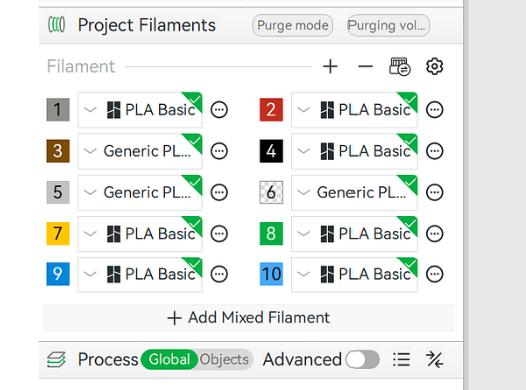
And .. the use of the below. I don’t see it in Wiki?
That UI fragment is showing you a palette of all the filament you can use in the project. If you want to use one that isnt shown, you gotta add it there, then you can keep virtually creating and planning. Printing isnt happening.
Time elapses
When you go to print, you must map those virtual wishes to your physical reality. You CAN have those be the same, if you want - hit the sync button - but it doesnt have to match whats in your AMS. If those were literally representing the same thing, when you configured a project, you’d need to lie to the ams and/or physically rack it before you could select “blue” which would be a little silly.