correct. I actually took that screenshot which you can see after clicking the down arrow (that is why you see ‘Auto’ twice). I have upgraded to newest bambu studio just to make sure something wasn’t up with my version. Its like stuck on Auto, unless there is some setting elsewhere that forces this constraint that you know of?
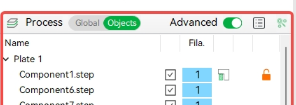

I think it should be global, but I’m grasping at straws at this point… change it to “Objects” and see if it will let you change it that way.
Clicking Objects doesn’t seem to even have the prime tower option, which i guess makes sense. This is so weird. I think i’m going to open a ticket with bambu because… what is going on here?!? lol
Prime tower has had lots of development since H2 release
What version of the software are you running user_3805429206?
Help → About
Check to see if most recent from the site.
Just type a new number in the box.
ok so this actually worked. You can just put a number on top of the auto LOL. bad UI
Thank you!!! that was all i needed to change that.
Do we have any other best practices distilled form these posts now about other settings to change to stop the tip from knocking over the prime tower??
Oh my god, I feel like such a dummy.
I am the dummy sir. Or the bad UI. Either way, so glad this worked LOL
2.3.0.70 is the version of the software i am using
50 hours into a 70 hour print, at level 794, the prime tower fell over. No way to skip, no way to recover.
Yeah, I can play with the settings for next time, but such a needless waste.
I’d like the skip objects feature to be included in the Bambu Studio. My phone is usually nowhere near me when I’m in the shop.
I wonder if some sort of standby magnetic braces that were pre-printed like any other tool would allow the tower to remain upright. various heights with L or U-shaped guides.
I have had the tower problem so I did not have to reprint with possible same results I put the tower back with alian double sided tape making sure the tower is just below the print it has let me finish the print with no problems you have to figure where the tower was you can cut the width of the tape off the tower or play with the spaghetti till it prints high enough
Most of these replies seem to assume you have access to a computer or the desktop app. That’s not always the case for everyone and the bambu handy app should be fully allowed to skip the prime tower like you can a normal object. At the very least you should be able to as long as you have a USB stick installed onto the device (even if it’s mainly for time lapses and such) it should be able to be used to modify the start G-Code on every launch to do something like remove the prime tower, change its parameters, position or even add your own version.
The desktop application is absolutely more powerful and that won’t change anytime soon but there are cases where I’m away from the house in the middle of a print I checked the camera the prime towers coming up and the entire rest of the print is good. I can pause it and wait until I get back home in 7 hours sure but that’s a waste of print time. I could also hope I could glue the tower back down again. I’m one of those few people who don’t really have access to an actual computer to use the desktop application on so the more features that can be passed on to the actual APK app version the better my long-term experience will be with the printer and I’m certain I’m not alone.