Hi!
Recently I’ve been working on a small token for a board game (20 mm in diameter). Here’s the token in Tinkercad:
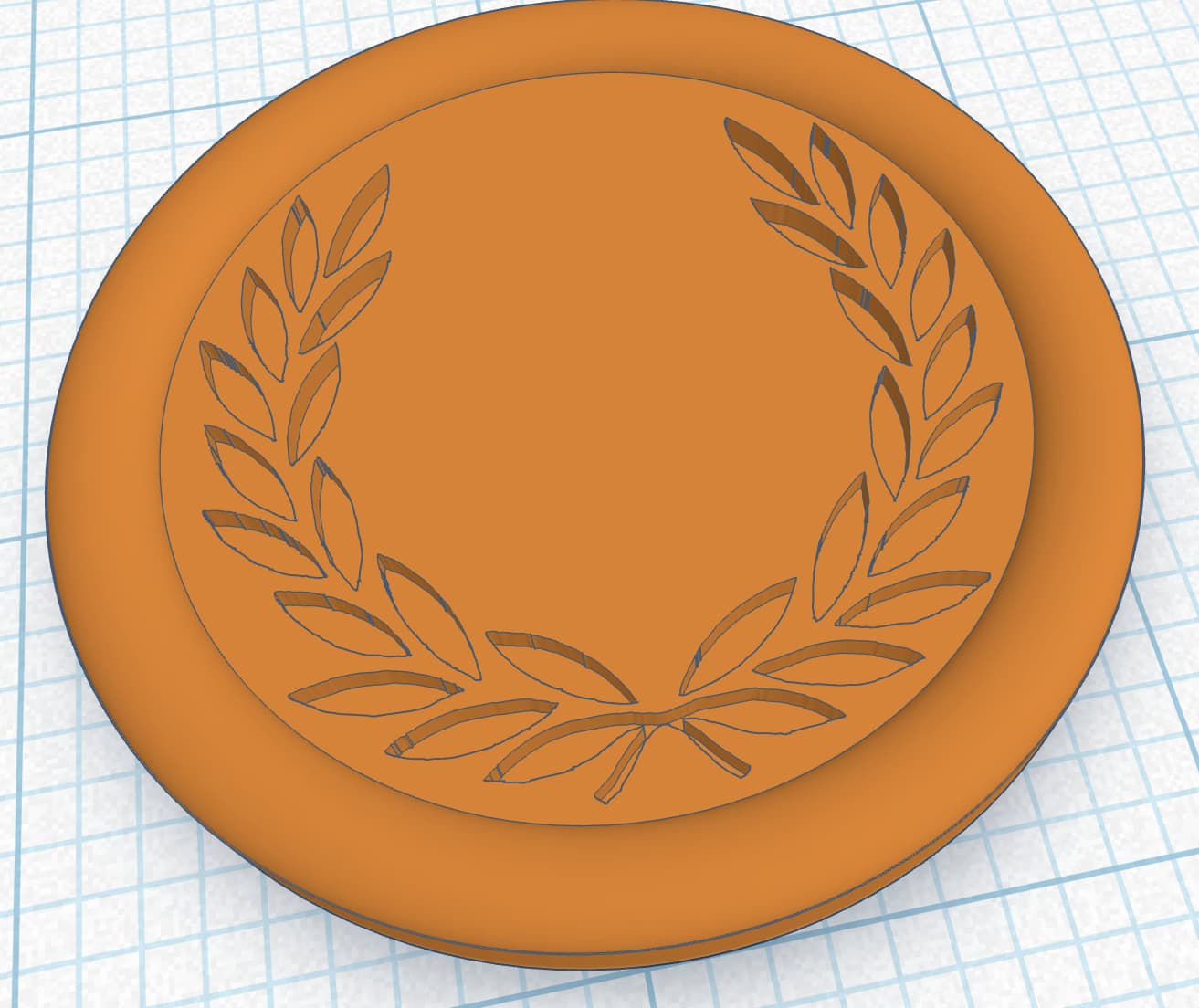
Unfortunately not all features are presented in the slicer. Some lines of the laurel wreath are discontinued:

I’m using a 0.2 nozzle and the following Wall generator settings:
My understanding is that setting ‘Minimum feature size’ to 0% should force the slicer to print all walls regardless of their model thickness, with the thinnest ones boosted to the minimum wall thickness of 85%.
Is there something I’m missing or is it a bug?
0 is often a special value for “disabled”
Try with something like 0.01?
In the end, I think you should use the measure tool, and measure the distance of those very thin features. If they are less than ~0.3mm you will struggle to do this reliably or at all with a 0.4 nozzle, and will need to consider changing your geometry or changing the nozzle to 0.2
1 Like
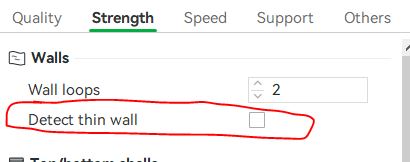
Enable “Detect thin wall”
I’ve changed the ‘Minimum feature size’ parameter to 1% with no effect. I am using the 0.2 nozzle. At this point it’s not about consistency of print (I’m still at design phase) but rather unintuitive behavior of the slicer.
For some reason the ‘Detect thin wall’ box is grayed-out so I’m unable to try it out.

Edit: I’ve enabled the ‘Detect thin wall’ option by changing wall generator to Classic, checkig the ‘Detect thin wall’ box and setting wall generator back to Arachne. Made no difference. I think the ‘Detect thin wall’ option is irrelevant with Arachne (and that’s why it’s grayed-out).
1 Like
It is likely you are dealing with competing priorities.
As much of your design details (positive and negative ones) are close to each other (especially on the tight curves), some might be being sacrificed.
If your model had raised text above the other layers, your expectations might be realised as only those curves are in play.
Given your design is all just under the top layer, the slicer may simply be prioritising what you perceive as unnecessary background (top layer) vs the detail (sub layer).
The documentation on the subject isn’t overly clear and lacks many examples to show the feature in action, but worth a read.
Tap the “wall generator” link caption, which should be clickable, it is on mine.
2 Likes
If those preview lines are the best a 0.2mm nozzle can do, you are in a little bit of a pickle.
You can try modifying resolution and slicer gap closing radius, to try to make the slicer not throw out these thin walls as noise. I do think that you should consider measuring the widths of these features and altering the geometry to fatten them up a bit. You’re at the threshhold of FDM resolution, tipping into SLS/etc machine territory
Unfortunately, Bamby Wiki does not privide enough info to explain slicer’s behaviour, or at I wasn’t able to find it.
I’m not expecting the .2 nozzle to print SLS level of details
My main issue (hence creating this thread) is the unexpected behavior of the slicer. With the presented presets, I was expecting it to widen features which are too small to print, instead of skipping them.
I guess I’ll have to play with the shape itself rather than depend on the slicer to do the trick.
Before you change anything, just for info…
Upscale your model by say 2mm & re-slice. Then keep changing it until it does what you want. From there you should be able to figure out your changes.
Did ya ever measure it?
Another thing to mention for the future but that doesn’t help this specific scenario is that you could use the slicers XY Contour/hole compensation to fatten up thin features, but the major slicers all dont support both (1) multicolor and (2)contour adjustment solving
You’re correct, it becomes irrelevant when you use Arachne.
In my experience anything below 75% wall width doesn’t really matter. Also I typically have seen good results with the angle set to 59 degrees (that’s the limit I believe).