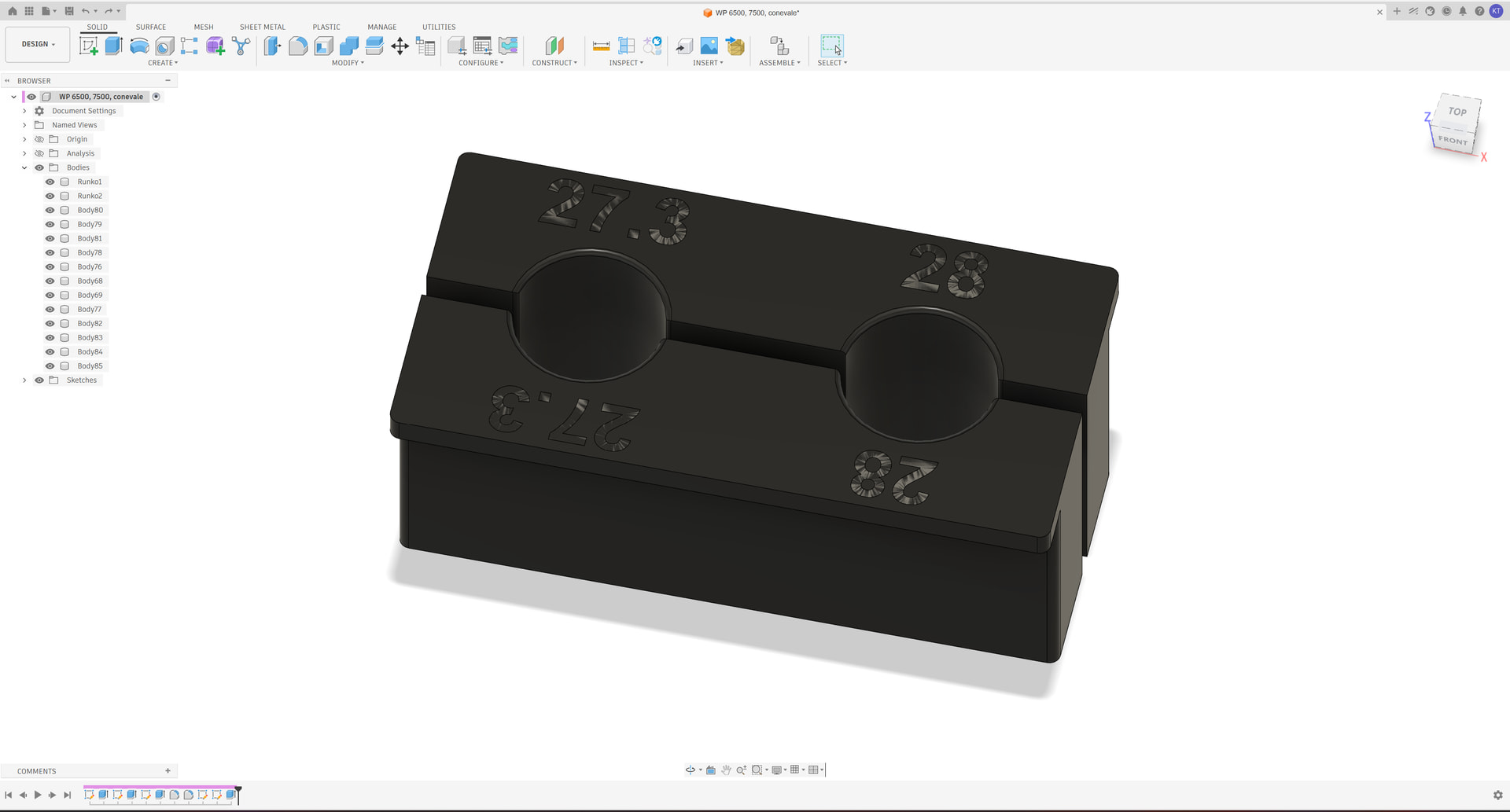
have a base body with a recessed pocket and separate text/logo bodies meant to sit in that pocket as a second color (multi-part object). The text bodies show up fine in the Prepare/3D view, but they completely disappear — not distorted, just not there at all — once I go to the Preview (sliced) view or actually slice the plate.
Has anyone run into text/logo parts vanishing entirely during slicing in a multi-part multi-color object, even though the geometry looks correct in Prepare? What’s the usual cause and fix?
No Text.3mf (4.1 MB)
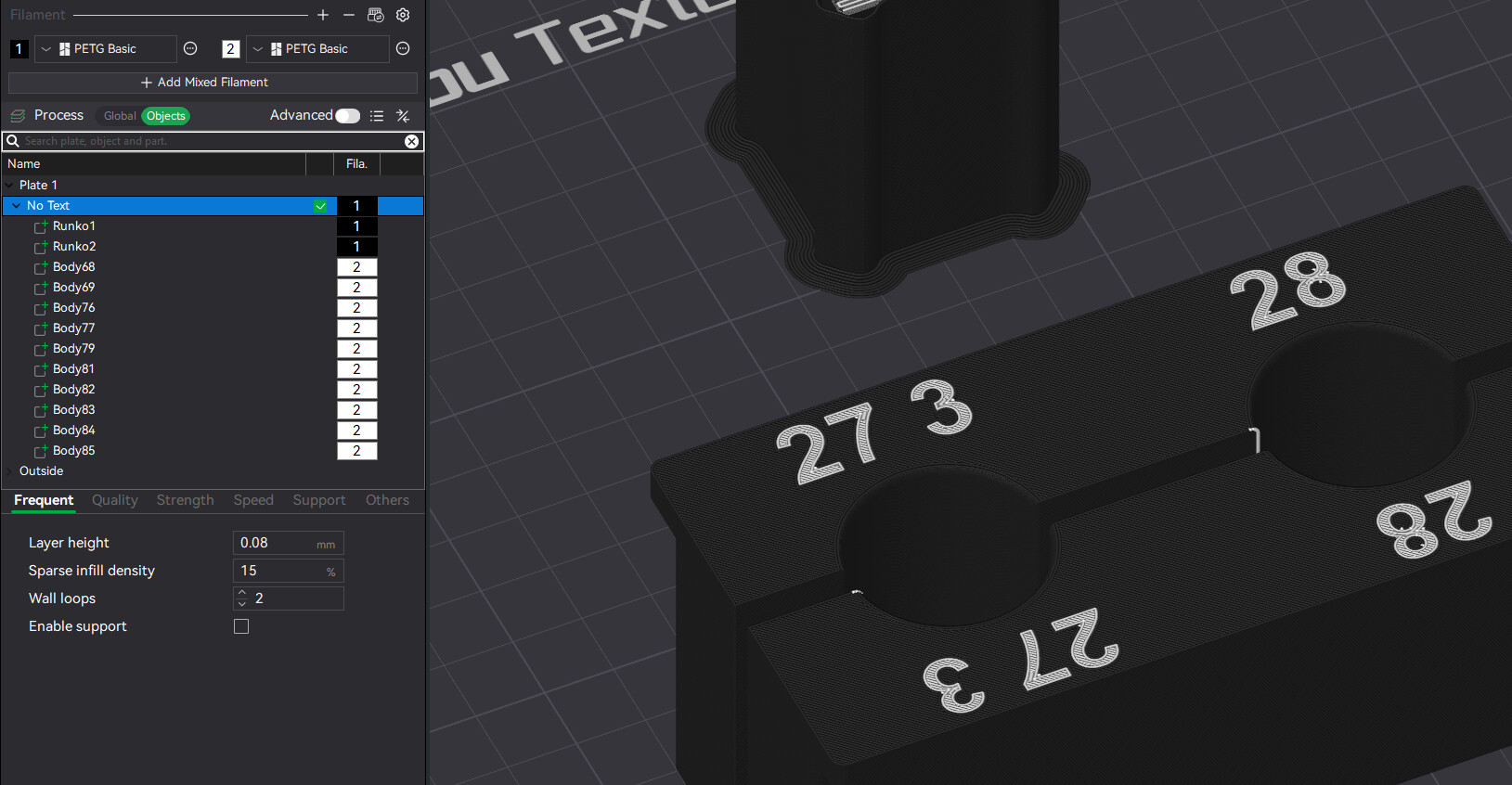
Hi Kalle, I’m not sure how your project file is actually set up, but based on how the default import worked, and assuming you kept is as one object with multiple parts:
You’ll need to drag the main body parts, “Runko1” & “Runko2” up to the top of the parts list so they’re first before all the text parts. The order of the parts does matter in terms of which filament/settings take precedence within the same volume of space.
There is also a new setting in Others → Advanced → Order-independent overlap carving which apparently mitigates the ordering “issue” but I haven’t played with that yet (not sure why that would be better than just ordering the parts in the first place).
I think it will also be simpler if you remove any painting that was applied during import (if there’s a paint bucket icon next to “No Text” object). Then assign filament colors directly to the parts, like in my screenshot. The painting can also be skipped during import by cancelling out of the color mapping dialog.
The only odd thing about the file you posted was the periods in “27.3” imported at a different scale than the rest of the parts, making them very large (Body78 & Body80). Which is why they’re missing in my screenshot (I deleted them). The slicer also prompted me if I wanted to re-scale from inches, which I agreed to. You might be better off using mm units for exports, which the slicer tends to assume.
HTH,
-Max
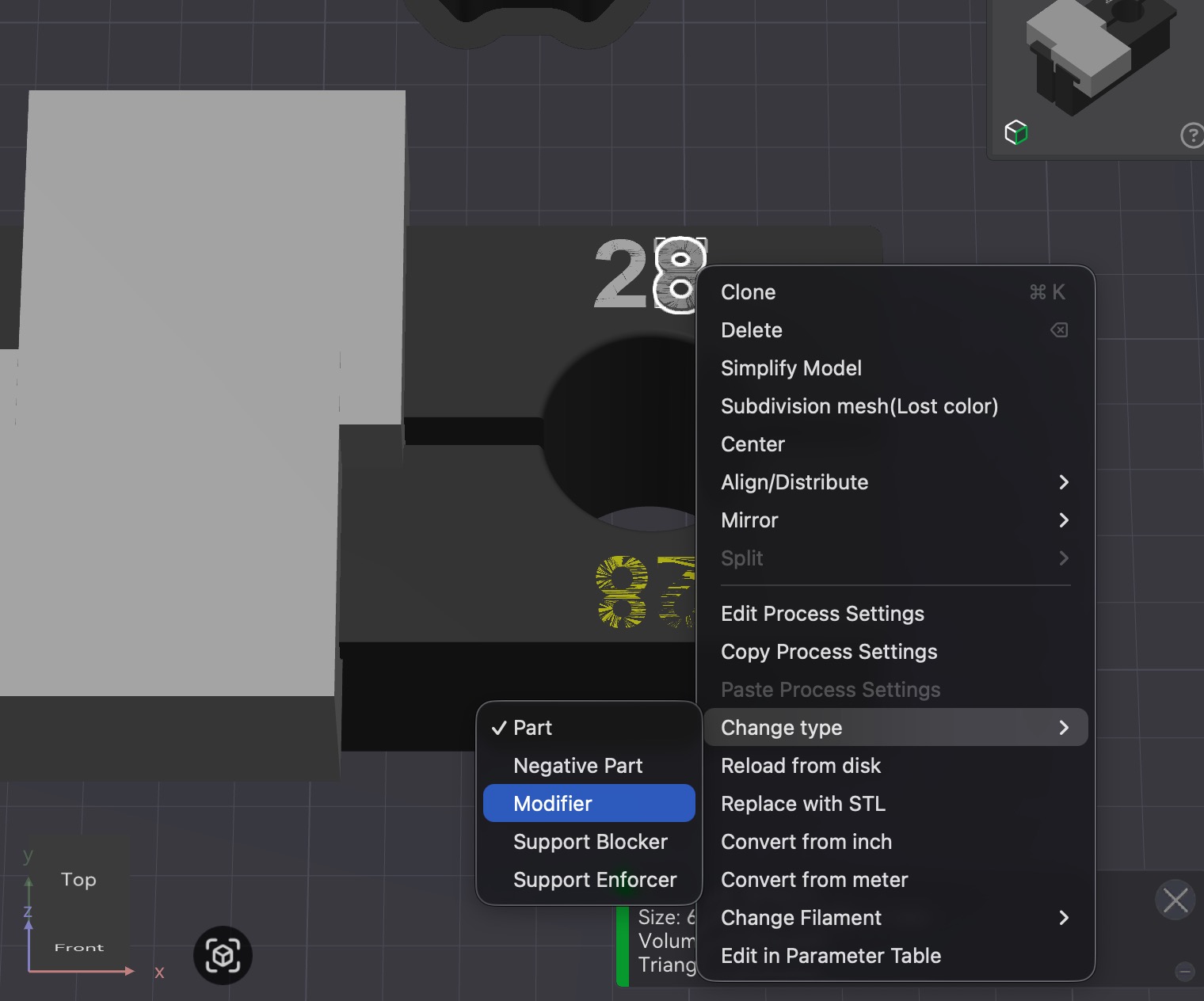
For text flush with surface I prefer to change the text to “modifier” instead of “part” to avoid any issues including alignment. If you change the text to “modifier” it will solve your issue.
Reordering Runko1 and Runko2 to the top of the parts list fixed it. Thank you.
The point/decimal-dot comes in huge in the slicer if I scale it. Without scaling it’s the right size, so the problem is definitely between Fusion and the slicer?
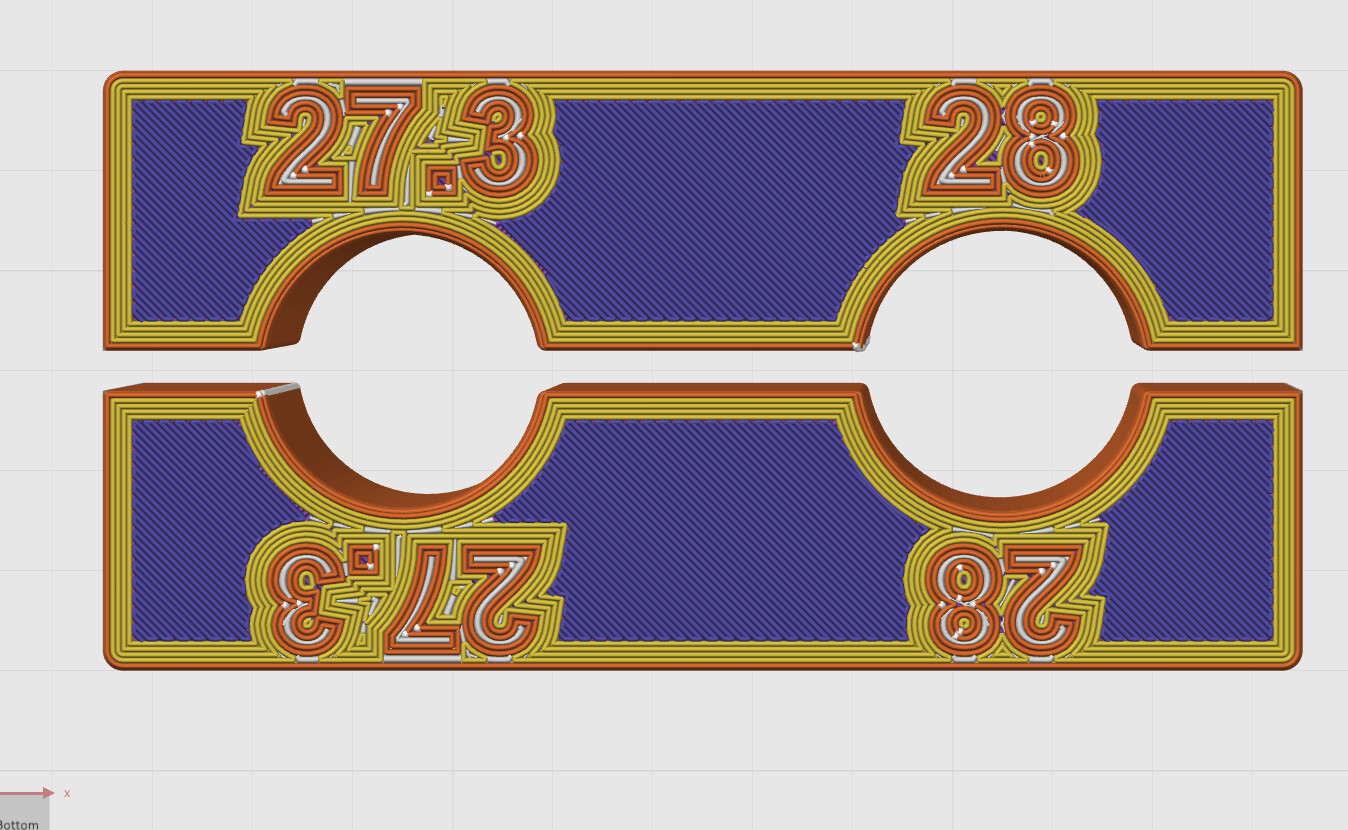
Now if I flip the parts so the text faces the bed, and set the part’s wall count to 5 walls, these walls show up stupidly around the text. There’s probably a setting somewhere so that walls don’t show around the text on the bottom of the part?
Welcome, glad that worked. I didn’t try telling it “no” to scaling, so if that works, cool. I always export from Fusion in mm (in “Save as Mesh” dialog) and never see that scaling prompt.
There’s Global → Quality → Advanced → Only one wall on first layer. This will affect the main outer wall also, but maybe that’s OK.
I’m not sure of your desired outcome, but possibly setting a lower wall count for just the text parts may also work better.
-Max