Is there any type or write-up on how to place an .svg file on the surface of a model and printing it.
I came across a model that I imported as a .3mf file and when it loaded in Studio it had the 3d model but it also had an image file.
That opens up an avenue I was unaware existed.
My primary question being how one places the image correctly on the surface.
An image is flat with X and Y but no Z dimension.
If you give up in slicer, you can use MS 3D Builder to do it super quick.
Load your plain model
Edit → Emboss → Pattern → Load SVG
Export as 3mf/stl
I’m not sure if this post will answer your question but some time back a member was struggling with getting an SVG file to wrap correctly around a curved surface. I posted a tutorial that can be found in this link below. The subject was “how to curve an object”. In the example I used an SVG file to perform the task. There are 3MF files included in the thread.
The first stumbling block I found a couple of hours ago, which I know how to fix is that the .svg suffix is currently configured as a MS Edge browser file similar to how an.htm file will launch a browser.
That won’t work 
I grabbed a simple svg file from Wikimedia and was able to import it into a project but it rendered in Studio as a 3d object that in no way resembled the svg file.
I had done something similar but was importing 3D objects and just stacking them as needed and those worked fine. I would do that in Fusion and export it over as a .3mf and it worked just fine although somewhat labor intensive tweaking objects to get alignment and orientation correct.
Let me offer some tricks to working with SVG files in Windows. Although SVG files are considered a neutral file format, what that translates to is that it’s a standard format so that we know what standard we are deviating from. 
Adobe Illustrator is the best professional grade tool, or at least the one that has been around the longest(3 decades) but the next best tool is the open source Inkscape.
While there are others that can read SVG files, Inkscape will allow you to edit them. In fact, it’s much like Open Source GIMP is to Adobe Photoshop, Inkscape is to Adobe Illustrator, the generally accepted open source substitute that comes closest to the power of the paid product.
The most important thing that editing gives you in the 3D slicer context is to use the flatten and save-as functions so that you reduce the features being used to simply B&W vectors. SVG allows for other features such as color which the slicer simply does not support without a lot of pain.
___________________________________________
The other thing that is helpful to understand that in Windows File Explorer, “Right-click” and “open-with” is your friend. If you are simply clicking on a file, you’ll get Microsoft default and anyone who’s been around Windows long enough knows that the first thing you want to do with a new computer is purge Edge as the default for everything. So next time you right-click on a file name in Windows File Explorer, note the properties and a open-with options.
Open-with will give you a choice of apps on your machine that have registered with the OS as being able to open that file extension. Sometimes you’ll have to manually locate the file.

The real cherry is the properties menu. There you’ll be able to permanently open a file in anything else. I’ll use this example and change the default handler for SVG file to orca Slicer and watch the icons on my system all change to Orca(not a good idea for SVG files but just an example.


And this is when the magic happens. Once I change that default program, all the icons in Windows Explorer will change to the icon of that format and in this case, that is Inkscape.

You can always change it back if you don’t like it.
Thanks for your SVG in slicer tutorial, I didn’t know this feature existed. I usually simply imported one in fusion, extruded it, intersected it with my model to finally pull it a bit out to achieve the same effect.
As you mentioned, being able to edit an SVG is a game changer however, I would suggest looking into afffinity2 for this. It’s a photoshop competitor with a non-subscription approach. I abandoned my early license deal (12e/month) in favor of it. Indeed, it only cost 150e for life and its image editor is equal/better than the base photoshop. You can even buy it separately for only 70e if you wish. Basically for the price of +/- a year of photoshop I obtained an equivalent and a svg edition tool as bonus. Until then, I used only Inkscape, like you also mentioned, but it always felt lacking features. Now I only use Inkscape for vectorization and then do the rest in affinity designer. I was always annoyed at the subscription aspect of photoshop as I find it a predatory practice, as soon as I learned about a viable (and as powerfull) alternative I was sold and even decided to pay extra (by buying the whole package instead of only 2 modules) to support this practice. I haven’t looked back once since a year already, I highly recommend at least looking into it.
I am best of friends with the Open With command and generally click on that command by default coupled with VS Code and the “Just Once”
Turns out after throwing SVG and Bambu Studio at YouTube, that Bambu Studio can semi-natively use Studio to work on SVG’s.
This is a work in progress as I dig in to the process.
In the event you did or do not know of this, like me, here is a screen shot.
It appears to default to extruding the flat SVG to 10mm in the Z axis.

I didn’t really understood how you obtained a flat image file in the slicer (what you said in your original post), but by following the tutorial by Olias, I already figured out what you just mentioned with an SVG as object.
If this solves your issue, this is a nice synthesis image and you might want to set the topic as resolved then.
This: I am amazed on how MS 3d Builder can just brute force what you want it to do. I was having the same issue with a solo cup I am making for a alanta braves fan. they want the logo on the cup.
Welcome to the community.
3D Builder has some amazing features, but unfortunately Microsoft shut down the project and removed it from Windows. If you didn’t install it from the Microsoft Store before July 2024, it’s no longer available there.
For now, you can still do an offline install, but it’s unclear how long Microsoft will keep the files accessible. Over the last five years, they’ve been aggressively trimming Windows - ostensibly to simplify a massive code base they once bragged about (back around 1993 Gates called Windows a “1 million man-year, 1 million lines of code” project). Instead of leaving older tools online indefinitely as they used to, Microsoft has been purging libraries, and 3D Builder is now on that endangered list.
By the way, did you know that when you use right-click/Repair in a slicer, it invokes the same Windows service that 3D Builder relies on? Makes you wonder if Microsoft will eventually pull that too.
Here’s a link with instructions on how to install it offline along with a link to a ZIP file. Past articles like this on the web with a link often generate a 404 page so grab it while you can!!! - Microsoft sometimes breaks the link.
I see the technical problem here… that logo has the curse of the 3D printer Gods.  Your friend really wants it to be a NY Mets logo


I tried a few builds of 3D builder, none of them can work with SVGs
You can use svg in 3d builders emboss tool. Button next to all the icons/text that allows you to import.
I tried to import SVG files into Bambu Studio, but they appear as a large flat rectangle. What am I doing wrong?
Your svg likely isnt in the right format, and is describing itself as a background fill as the background, instead of leaving a transparency.
Try for yourself with these examples that show this behavior:
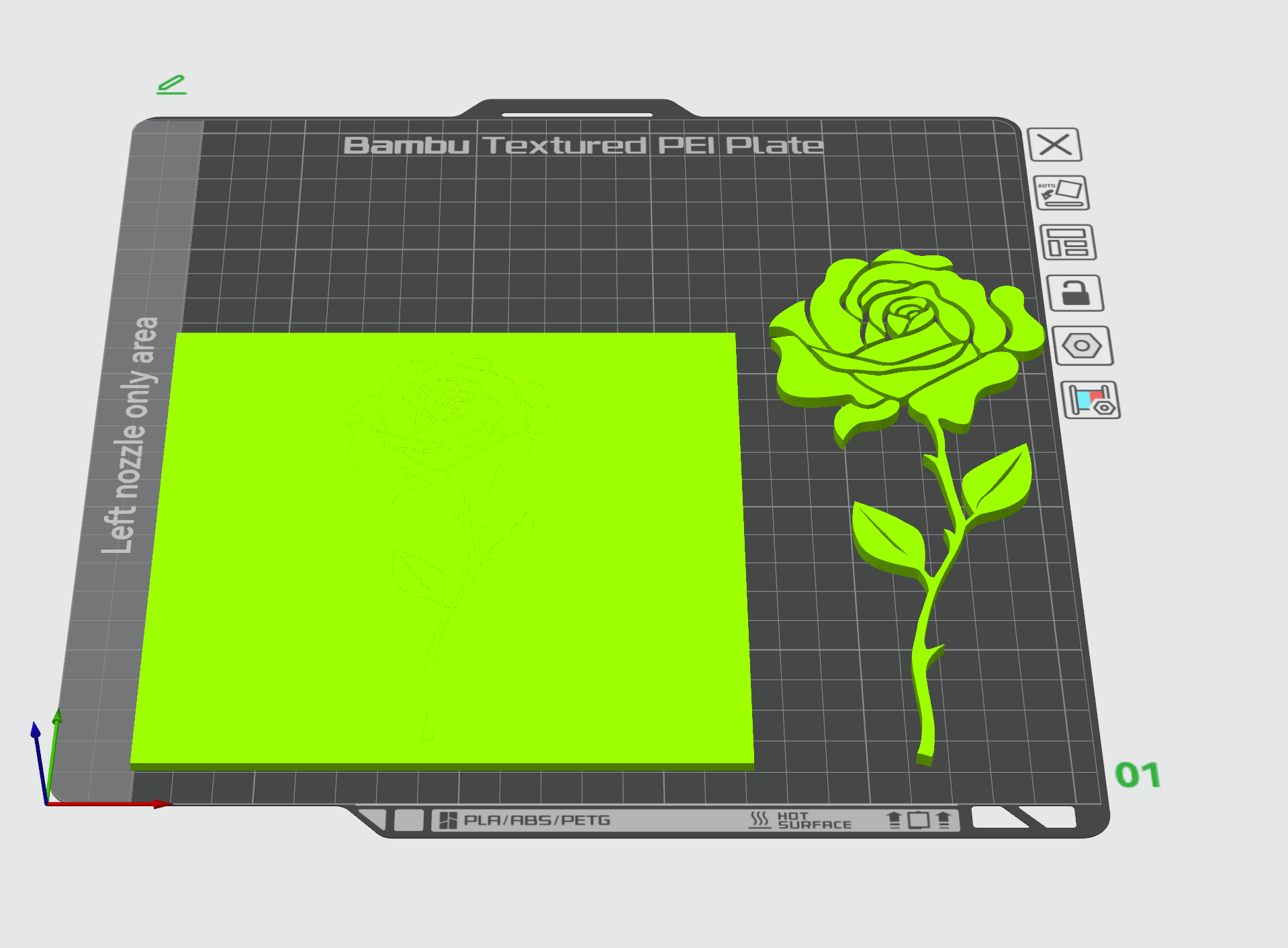
Sources: Download SVG Sample Files - Free Vector Graphics | ConvertICO
left is svg-sample-with-bg.svg
right is svg-sample-transparent.svg
Bambu Lab Wiki Convert an SVG to a 3D Model in Bambu Studio
YouTube video 3D Printing SVGs in Bambu Studio