Hey guys.
I attempted to connect to my P1S using filezilla.
I used the access code and IP found on the printer’s LCD screen, with the username as bblp.
Am I using the right IP address?
Thanks
Hey guys.
I attempted to connect to my P1S using filezilla.
I used the access code and IP found on the printer’s LCD screen, with the username as bblp.
Am I using the right IP address?
Thanks
The ip address listed starts with 10… which I’ve recently learned means it’s a private network. Was that changed in the 01.04.02.00 update?
No, nothing changed. The ip address the printer gets depends on you local network and is managed by your router.
And private network does not mean, that it can’t be accessed. Private IP address means it’s used in your local network and is not reachable from outside of your network.
Thank you for telling me.
I am working off a home network, and have an xfinity router. I’ve google around and learned I have to log into my comcast xfinity profile to access the DHCP records, which I assume will reveal the IP address of my bambu printer.
Does that sound right? I usually just test it and tell you, but I have to wait to do this.
I attempted to use the IP on the LCD but it didn’t work. Mine started with 10.0.0… everyone seems to have one that starts with 192. Does that mean anything?
Tried the following filezilla remote server configurations:
• FTP, -ip address-, bbpl, -access code-,
• FTP, -ip address-, port 990, bbpl, -access code-,
• SFTP, -ip address-, bbpl, -access code-,
• SFTP, -ip address-, port 990, bbpl, -access code-
I’ll get a green message that says I’m connected but then I’ll be logged out due to 20 seconds of inactivity after “no welcome message has been received.”
10.x.x.x or 192.x.x.x. is depending on the DHCP scope of your router.
Try WinSCP
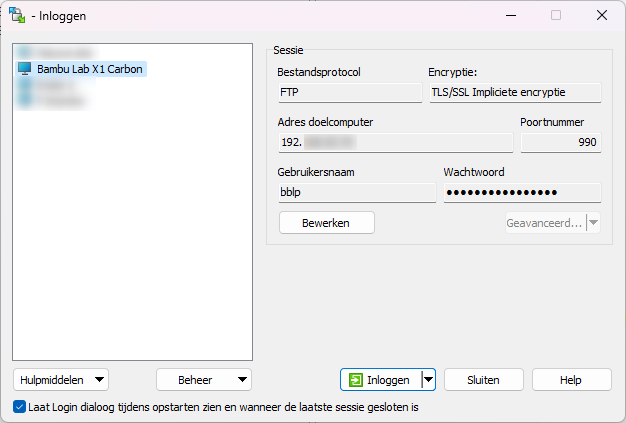
Hey! This worked! And immediately! Thank you very much!
For anyone new reading this: I used WinSCP after attempting filezilla. I specified the port as 990.
Thank you @Avgils for walking me through!
So Big Thank you, Sir! This is a very useful tip. I no longer have to extract the SD card to extract my timelapse videos. Additionally, it has become easier to delete unnecessary printing records.
thanks for sharing. I tried this on my A1mini and I have to say it logged in fine. the only problem is that I don’t see any folder, it seems empty.I understand that the A1 is different but the process seems to partially work. I find it inconvenient to download timelapses from PC and the lack of other functions.
FileZilla just works as well, but you have to specify FTPS and not SFTP (note the ftps:// in the Quickconnect example in the OP, and the Encryption setting in the Site Manager example). I will clarify this in the OP for others.
FTPS is an extension of FTP, adding TLS encryption.
SFTP is an extension of SSH, adding FTP-like file transfer.
Got my P1S today 
Has anyone managed to connect using CuteFTP?
It tells me… “Socket connected. Waiting for welcom message”.
But it eventually times out, and then the AMS does a very short unload/reload of slot 1
It also temporarily breaks the connection with Bambu Studio at some point.
I can connect just fine with WinSCP, but I use CuteFTP for a bunch of other stuff, and would rather not use another app just for this one task.
Thanks.
FileZilla worked for me, WinSCP did not. Interestingly, FileZilla Quickconnect works best.
I can confirm that Filezilla works like a charm with my A1 (not Mini) and I can now easily delete files that I dont need anymore. 
Thank you, this configuration is working!
Too bad the very low transmission speed for file transfer. Mainly it is only used for deleting and not for loading, since it does not go beyond 250 Kb. But why is it not implemented in Bambu Studio? 
I think that it doesnt work these days directly in Bambu Studio is because the Software for the A1 has to be released and it is not 100% ready for all features. Maybe they were not happy with the speeds and did not activate this feature. Or they really think this is only a feature for X1 Users. But sending files through the Slicer directly is also not the fastest. Maybe they release this feature some day, we will see 
I can confirm this worked great on my MacBook Air using FileZilla for my A1 mini.
Here are the instructions pulled together in one place:
Bonus:
You can also access the sample models that come with the printer in this same folder structure, look for the the folder: “model”.
You can also see the last things you printed, etc. Nerdy fun stuff. 
Also works to connect to X1E in LAN mode to send gcode to the sd card and delete video recordings
