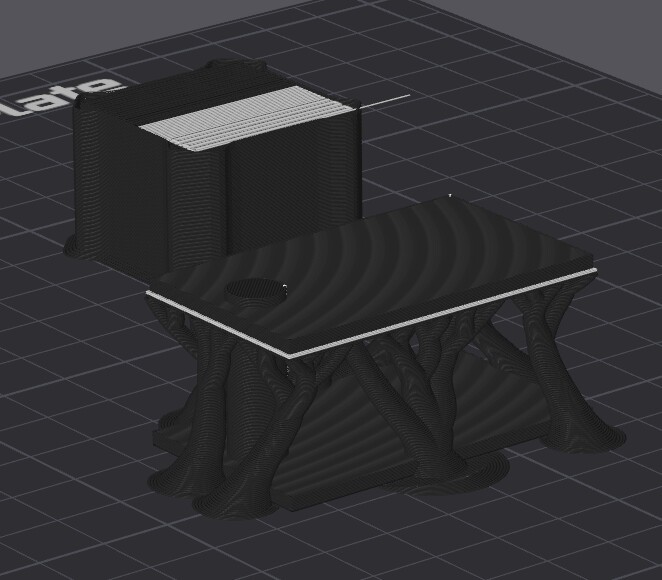
X2D: what a piece of junk! Two nozzles to avoid purging… and a prime tower weighing almost as much as the actual print!
Hi everyone,
I invested in a dual-nozzle printer specifically to avoid wasting filament on purges whenever I switch materials. I certainly didn’t buy it to end up with that waste in the form of a huge prime tower!
I’m testing a small ASA part with:
ASA in the left nozzle for the model and the support bodies.
Breakaway material in the right nozzle, used only for the support interfaces.
The nozzle changes only happen around the interface layers. For the rest of the print, the left nozzle prints ASA without any material changes.
Here are Bambu Studio’s estimates:
Without supports: approximately 5 g of ASA and 35 minutes.
With supports and breakaway interfaces: approximately 13 g of ASA, including 2.97 g for supports and 4.43 g for the prime tower.
The tower consumes almost as much main filament as the actual part! I’ll attach a screenshot showing the material consumption and total printing time for the supported version. I also compared the different nozzle assignment modes: they made no difference to this result.
Why use so much ASA to build this tower when the ASA stays loaded in its own nozzle? There is no mixture of materials to flush out: each nozzle keeps its own filament.
I previously owned an IDEX printer. The active head would retract and park, then the other head would resume printing at the correct position. It worked without a purge tower. That was precisely the advantage of having two heads!
Why doesn’t the X2D work this way, especially since it also has an anti-ooze plate? I can understand that a nozzle might need some priming after sitting idle, but couldn’t a small extrusion into the waste chute handle that?
For this particular print, I even wonder whether a single-nozzle printer with an AMS would waste less filament on the few material changes required. I haven’t verified that comparison yet, but 4.43 g of prime tower for a 5 g part is seriously disappointing when reducing purge waste was the reason I bought this machine.
Is there a setting that provides the behaviour I expected: retract, switch nozzles and resume printing without building this tower? Or is this really how Bambu intends the machine to operate?
Other slicers allow you to control the behavior of the prime tower more discretely, but I did not find orcaslicer to work very well on the X2D. I last evaluated it in summer tho so it may be better now.
It won’t remove it but it will shrink it / remove a bunch of the black volume. It still really needs to purge SOMETHING upon switch, and its often best to have that working surface on-level to the print. It’s not too nefarious, I promise. Some scenarios let you purge to infill [which removes the need for tower entirely] but that obviously isnt applicable for your multimaterial use case.
Ah another arrogant thread where the owner didn’t research the subject.
Well… guess what. X2D is not an IDEX type of printer. It has a single head. The tower is needed to prime the nozze (build the correct pressure in it) and wipe anything from the oozed nozzle.
It’s not really an X2D problem. Prusa XL, H2 printers … Snapmaker U1 - they all behave the same way. They have a priming tower.
And yes, if you have a 5g print - the prime tower may be the size of the print and there is no need to whine around 5g of lost filament.
I believe the current beta version of Bambu Slicer allows you to only print the prime tower when there is a filament change. Here are the details (taken from a Sunlu forum) .
Bambu Studio hides some of its most powerful slicing features behind a single preferences toggle. When you enable Developer Mode, searching for “experimental” in your settings presets unlocks three features that solve huge printing headaches—from filament waste to surface banding.
HOW TO UNLOCK THEM
1. Open Preferences (Ctrl + P / Cmd + P or click the dropdown next to File).
2. Go to the Other tab.
3. Check the box for Developer Mode.
4. In your Process/Print settings panel, search for “experimental” in the preset search bar.
PRIME TOWER: NO SPARSE LAYERS
- The Problem: Standard multi-color prime towers build solid layers from the print bed all the way to the top color change—even on empty layers where no filament swap occurs. This burns through massive amounts of filament and adds hours to print times.
- The Fix: Enabling No Sparse Layers restricts the prime tower to only build material on layers where an actual color swap takes place.
- The Result: Instead of a tall solid pillar, your prime tower becomes hollowed out between purge steps, saving 30% to 50%+ of prime tower material waste.