I am trying to print yoopai airtight bucket color chart module v1.3 from Makerworld and whatever I color, the top layer stays red with no options that I can find to change text color or remove the red top layer. I printed a couple of these a few days ago with no problem. Is it possible that there has been a software change in Bambu Studio affected this. Even though I’m new to this I’m embarrassed to say I have spent hours trying to figure this out.
Are you able to upload the .3mf file you are using?
So the important part to remember is that the colour of slicing doesn’t matter as long as the same type of material is loaded in the AMS. You match the colour that is sliced with whatever colour you have loaded in the AMS when you transfer the print to the printer.
Here is an example (Disregard the ABS filament as that is what is loaded in my printer)
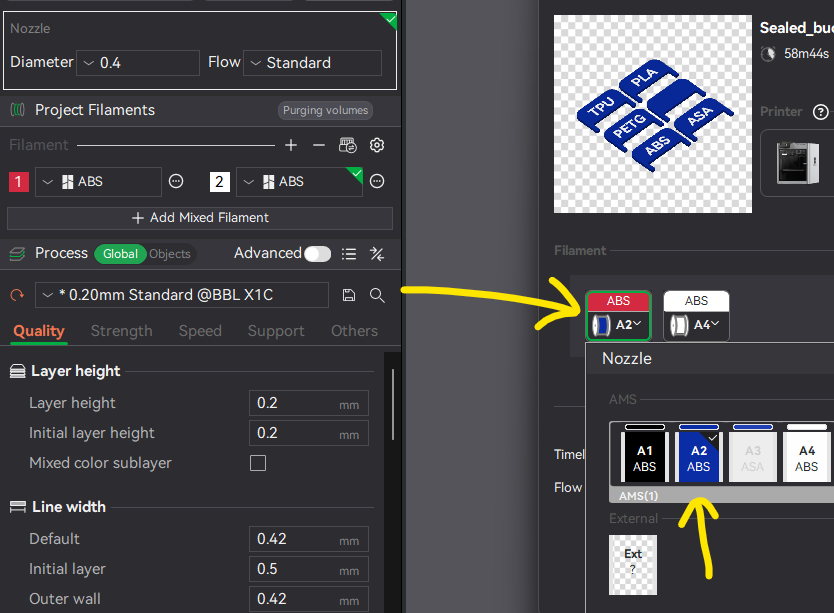
Click the dropdown in the “Send the Printer” window and you can select what colour is loaded in the printer AMS as long as it is the same filament. If it is different type then the slot will be grayed out like the ASA in the picture.
Another option is to actually change the filament colour in Studio before slicing so the the “Send to printer” window correctly matches the filament colour on its own.

Thanks Jon, but maybe I wasn’t clear, I can change the color but what appears to be a top layer I can’t find a place to change or do away with it. For example, I tried to make a yellow with white printing using PETG and when I tell it to change to yellow I still see a red layer on top. One suggestion I saw was to go into objects and find the information on the plate. I find no information on objects related to the lettering or this top layer that I am seeing. Sorry for my ignorance.
Thank you for the clarification. I can see the issue now.
The problem is that the part and the text are not separate objects. They are imported pre-painted parts which often confuses Bambu Studio. This issue is posted about frequently on the forum so don’t feel bad about not understanding it.
Changing the colour at “send” time will still work as this is after slicing.
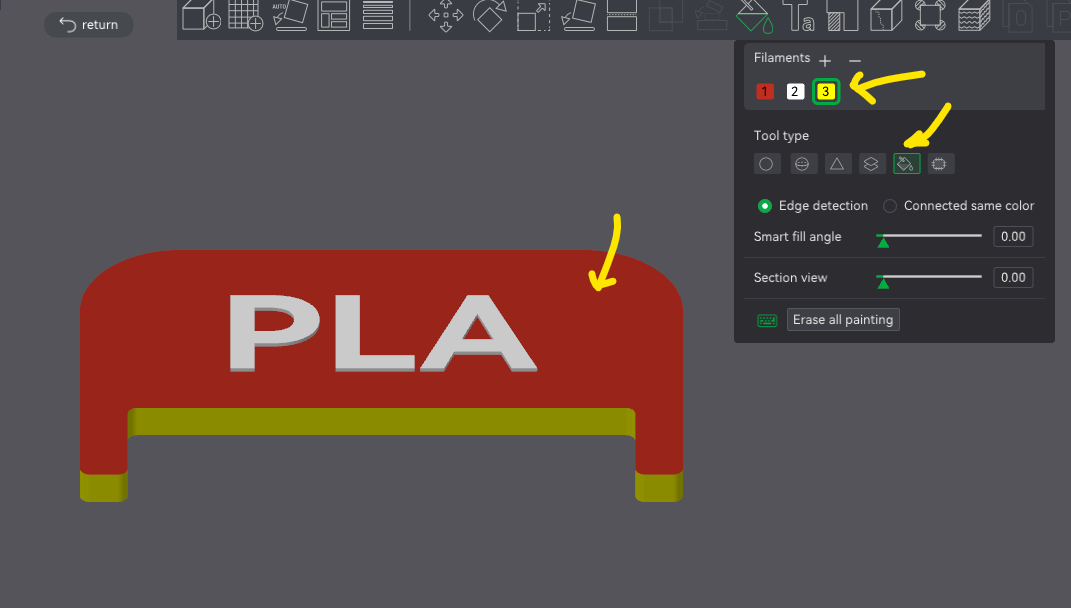
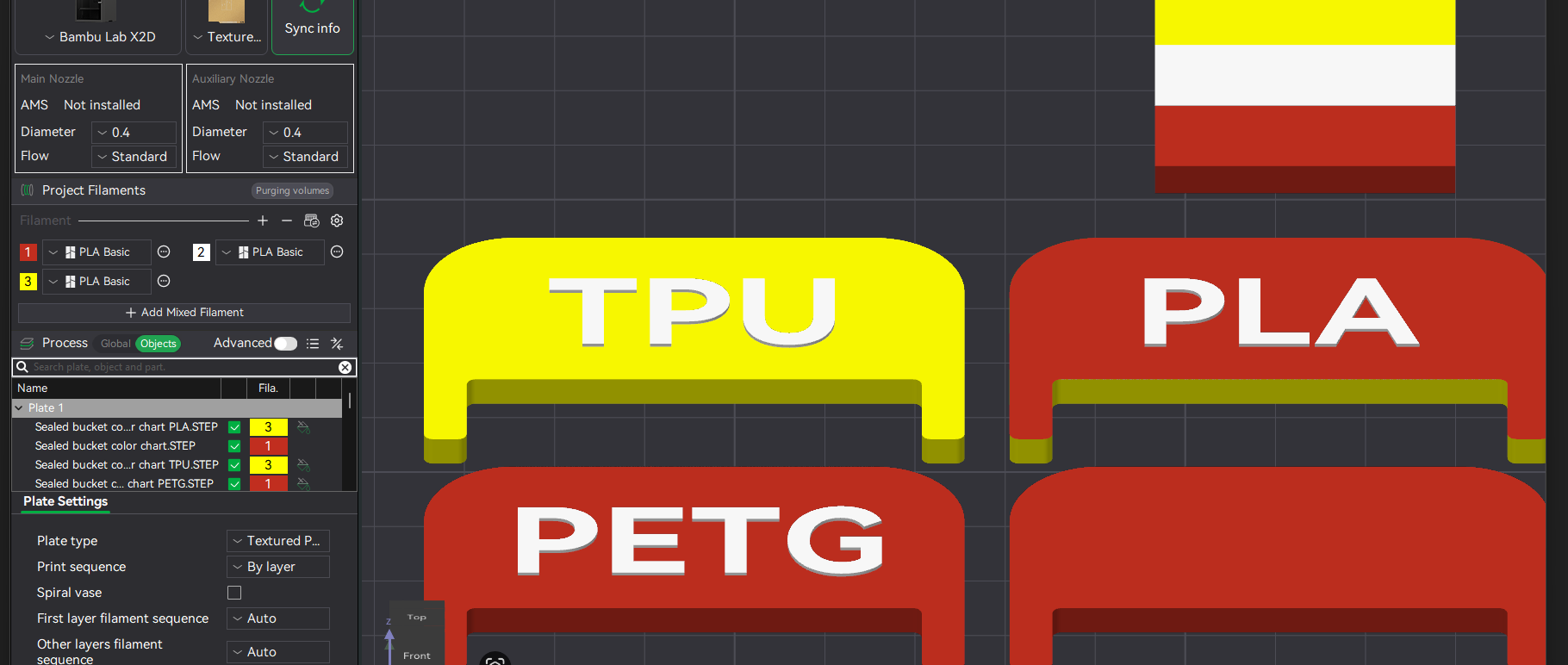
If you want to change the colour in studio then you will need to override the top surface painting.
Select the part and click the painting icon.
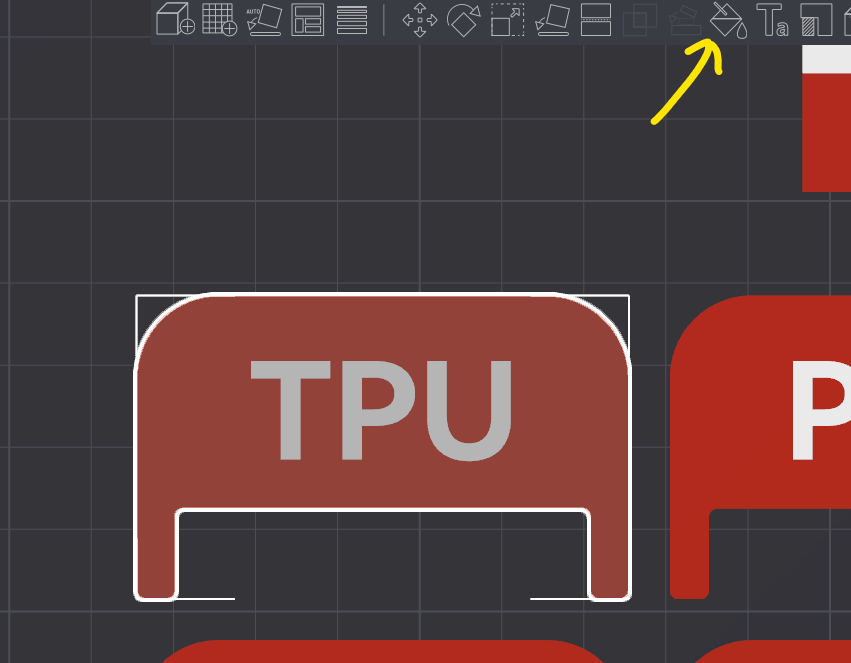
Then repaint the top section below the text sections using the “Fill” tool.
Jon,
Thanks again, I’m currently printing something but I will give it a try tomorrow.
Steve