Not sure if it’s a bug, or something to do with the new intake system, but I can’t find a way to turn off the right side aux fan.
I always immediately turn it off on all printers as it causes so many issues, and adjusting the Bambu Studio settings isn’t doing the trick.
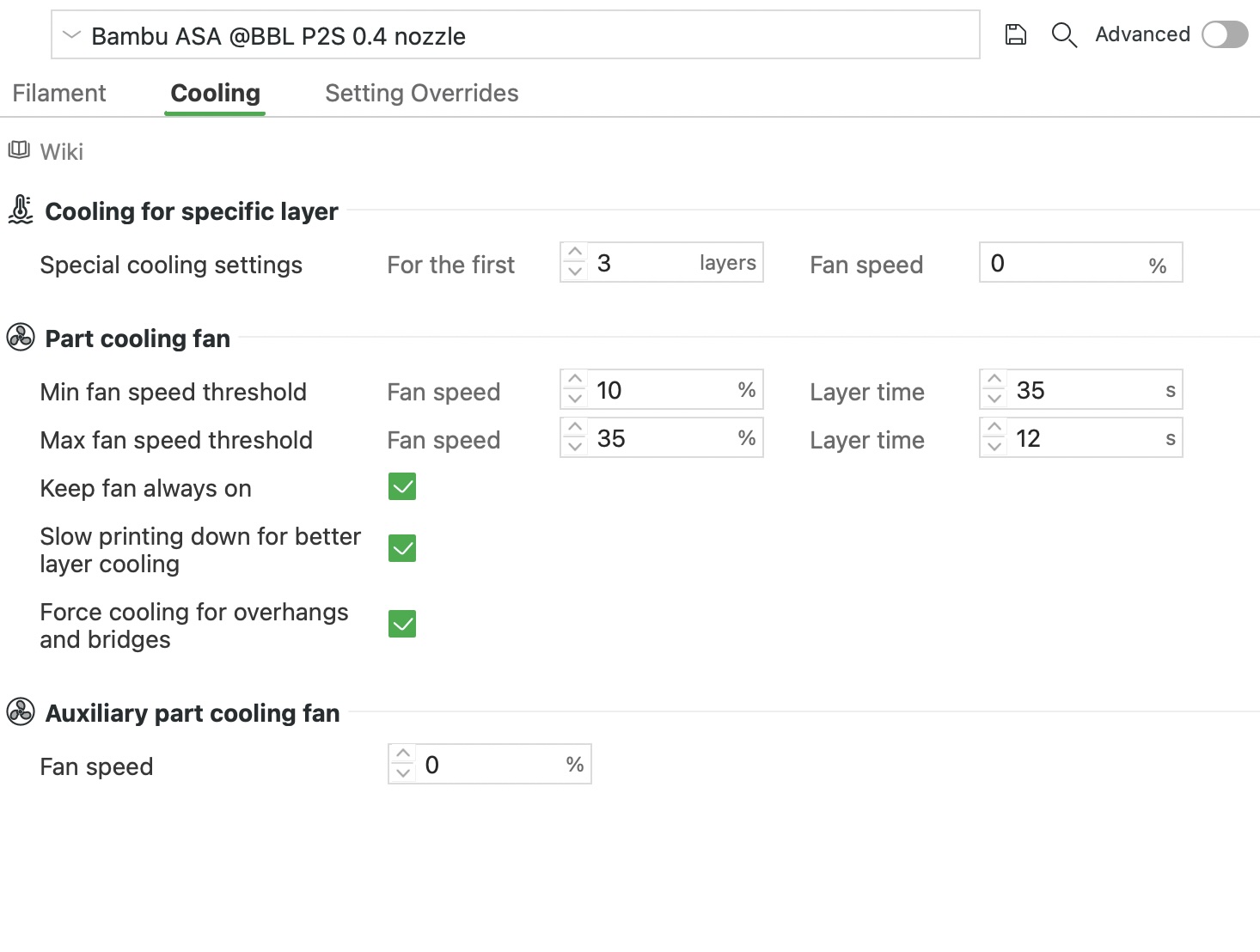
On my H2Ds, I simply set the aux fan speed to 0 within each filament profile and they don’t operate anymore. The P2S seems to be ignoring the setting completely.
I wonder if the new intake system which blows air into the chamber about half way down the right side is causing the aux fan (which shares the same intake) to also push air directly onto the print bed.
No matter what I try, the right side of my bed always has failures, and it’s due to the aux fan blowing excessive air onto it.
Do you mean when the print starts, switch it off from the cooling menu on the printer/Bambu Studio? When I do this it turns it off fine but a few mins later it’s back on again.
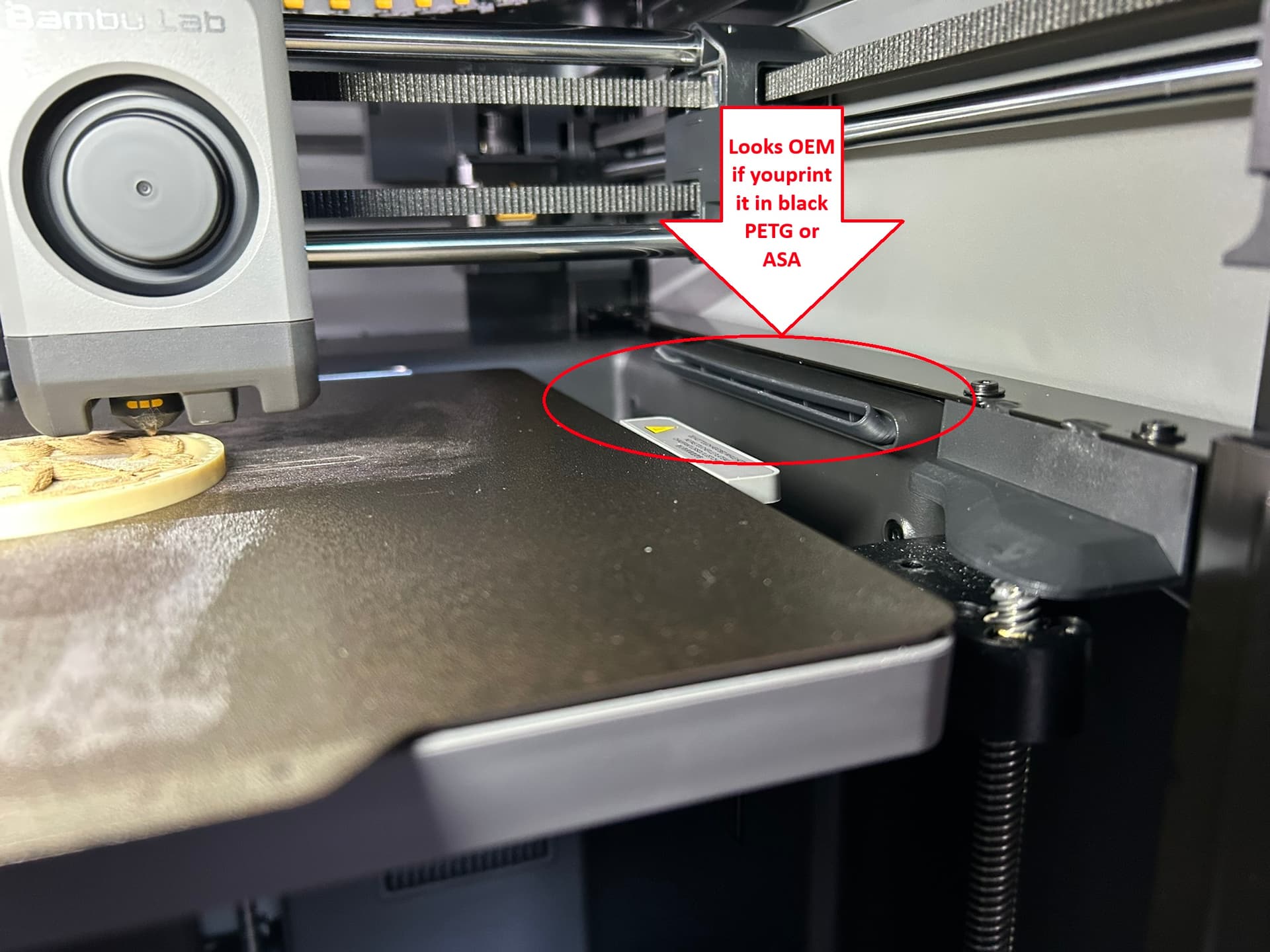
I put these on all my aux fans… it just deflects the air up so you don’t have to remember anything. If the fan mouth on the P2S is the same size it should work:
That is not what he was meaning , the p2s had at the middle section off the aux fan an opening which controlls the cooling or heating section which blows air at middle height to the bed.
The top vertical slot seems to be creating the biggest issue and refuses to turn off. The vent is slightly different than the previous series printers but I found a deflector specifically for the P2S I will try.
Update for anyone else interested: setting the aux fan to 0 in Bambu Studio isn’t actually zero. It seems to mean “auto”. If you set it to 10, it will stay at 10 for the whole print. At 10 you can barely feel any air being pushed out, so it’s a decent solution.
I still having big problem with overhang printing on my p2s. No diffrence if its PETG or PLA, I have dryied all my filaments to about 6%. Looks like its layer adhesion? I printed parts that should be printed without support.
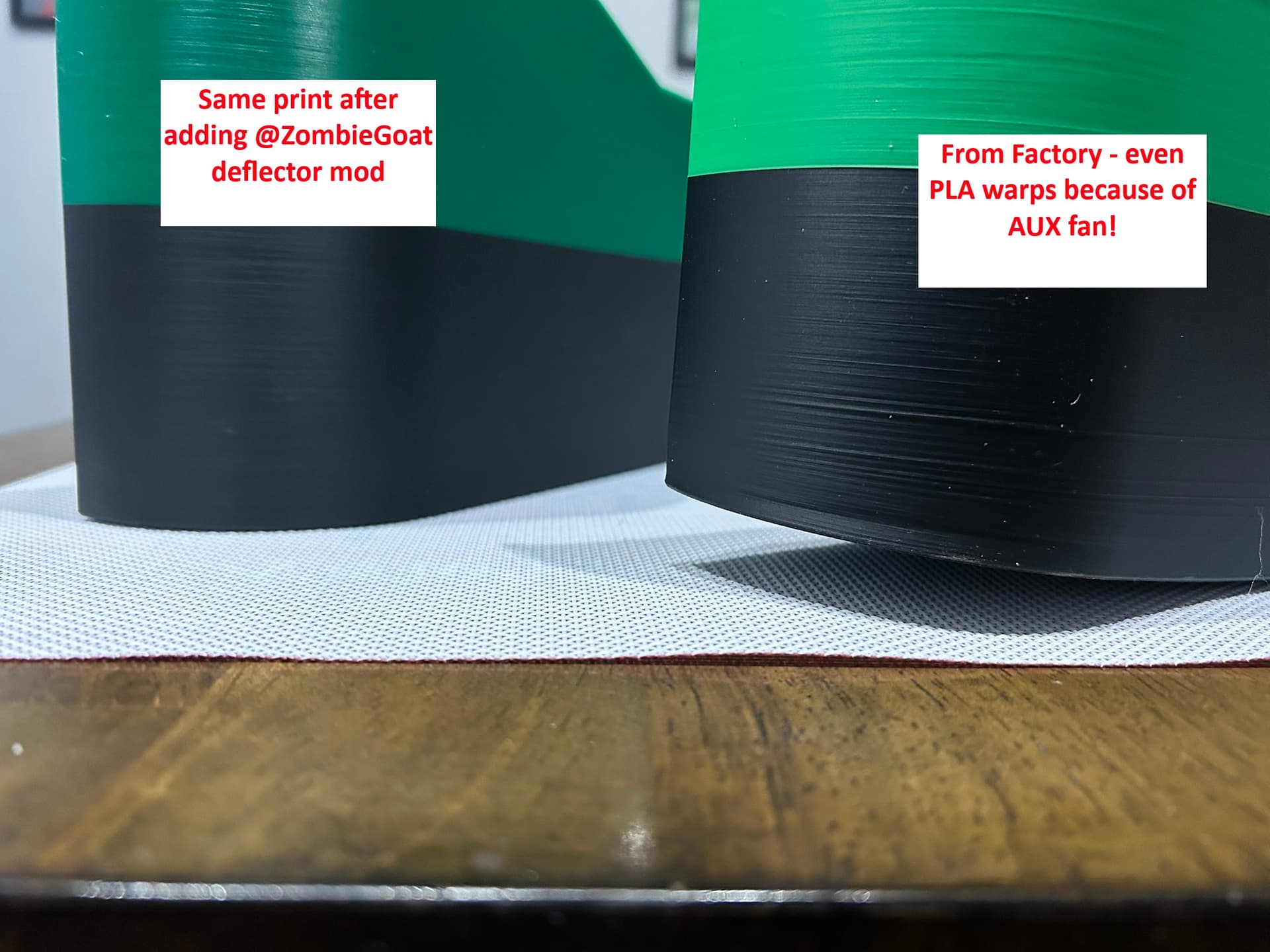
I wanted to add that I am experiencing the same issues with overhangs with Bambu Studio 2.4.0.70 and built-in/custom filament presets. There seems to be no way to turn the AUX fan off via settings. When printing with PETG it doesn’t even allow to go into cooling mode anymore, and all the AUX fan does for PETG/PLA is warp the filament which results in failing bridges and poor bed adhesion in spots that get hit by the AUX port directly.
I urge Bambu Lab to look at their P2S GCode generation and fix this ASAP as it makes printing with PETG very difficult and disabling the AUX fan should be user settable from the slicer and not be overridden by the printer and/or GCode…
I also experienced an AUX fan problem on my P2S. I printed an ASA project (with standard Bambu Lab ASA) and according to the filament specification the AUX Fan should be 0%. But During printing the AUX Fan was running full power and I had to manually set it to 0% on the Device-Status page while printing.
@AussieGrit When you talk about “setting the fan to 0, it means auto”, which setting screen do you refer to? Is it the filament setting (as shown below) or do you refer to the Device/Status screen where you manually set the fan on/off and set the speed?
The “auxiliary part cooling fan” is what I was referring to. It’s either a bug, or 0 is intended to be some kind of automatic setting.
Since I posted this I have printed a vent deflector that pushes the air to the top of the printer while I have this setting set to 50. I found this has completely eliminated my issues, and keeps the chamber temp well under 40c as it’s allowing fresh air to enter the chamber.
This of course isn’t a solution for when you want to control the chamber temps for certain materials, but for PLA this work around has seen not a single failure in 3 weeks.
I’m getting the impression that the P2S isn’t fully honoring the AUX fan speed setting, even if it is set to something above 0. Doing a PLA print right now, I set the AUX fan speed to 10%. At the start of the print, I checked the fan speed in the device window and it said 10% as expected. Now, about 20 minute into the print, the AUX fan is suddenly running at 40%. Maybe there’s some kind of temperature control in the firmware that can override your custom settings if the chamber temperature gets too high? I’m having the door closed btw. Chamber temperature was at 33 °C.
Same problem here, 0 is not really 0 and it’s pretty annoying. C’mon Bambu Lab!
BTW the absence of exhaust filtering is a pain in the butt even for PLA, it smells so much and get in my lungs, please fix this!
I had the same problem. I set my bed temperature for the textured PEI plate to 65 degrees and I designed an air deflector for the aux fan. It works perfectly now, but the filter issue is something that also needs to be addressed. Here’s my model if your interested. It has a 45 degree and a 90 degree deflector.
@AussieGrit Please review the post by @ZombieGoat . He designed an air deflector that points the AUX fan air up 45 degrees so it does not blow right on the build plate. Using this deflector, you do not have to turn AUX fan off and on. Instead, everything just prints great! This quick mod solved my problem!